Skip to content
Guides

IPTV Setup Guides

Step-by-step IPTV setup guides for Firestick, Smart TVs, Apple TV, Android boxes, phones and computers. Choose your device and start watching.

Setup guides

Choose your device

Pick the device you watch on to see its installation guide, then open the full step-by-step article.

Choose your player

The player is the app you watch with. Your IPTV Canada subscription works in any player that supports Xtream Codes or an M3U link. Pick one to see its setup steps.
Stuck on a step?

Our technical support is available 24 hours a day, 7 days a week.

Ask on WhatsApp

GSE Smart IPTV and Smart IPTV logos by Eazyshop123098, CC BY-SA 4.0. Device and app names and logos are trademarks of their respective owners.

The general process

How IPTV installation works

Your device is not in the list above? The setup follows the same four steps on almost every device.

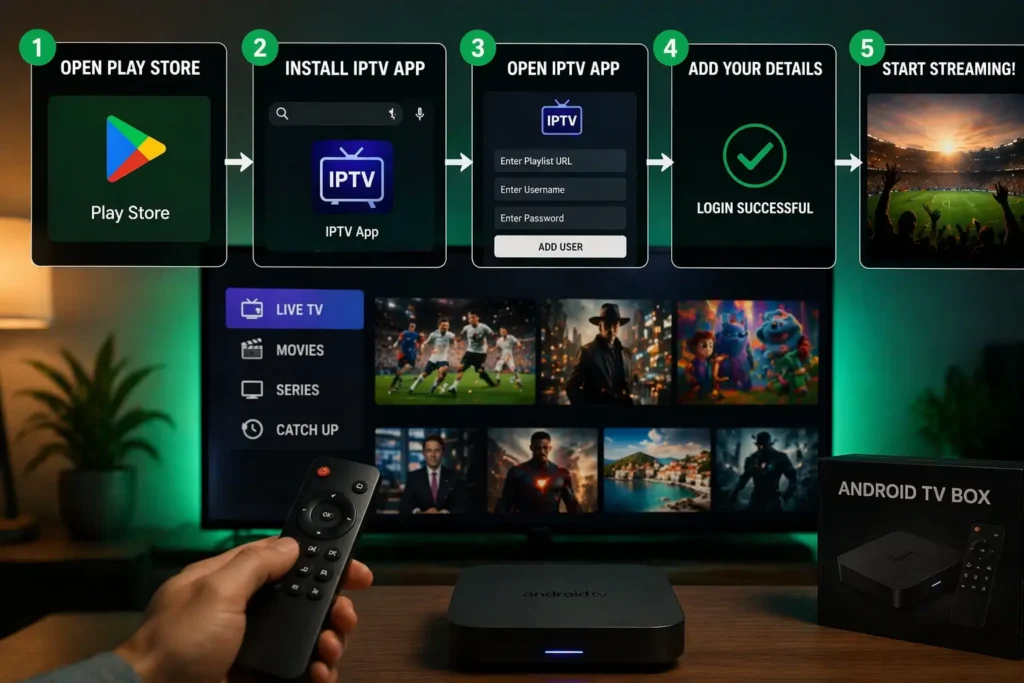
  1. Get your login details

    After you subscribe or request a trial, your login details arrive by email: a username, a password and a server address, or a playlist link.

  2. Install an IPTV player

    Install a player app on your device, from its app store or, on some devices, by sideloading it. The player is the app you will watch in.

  3. Enter your details

    Open the player and add your service with the details from the email. Copy them exactly: letters are case-sensitive and spaces matter.

  4. Load and start watching

    Let the player load the channels, movies and TV guide. The first load can take a moment; after that, pick a channel and watch.

Three ways to connect a player

Your player will ask for one of these. The details for each are in your welcome email.

  • Xtream CodesEasiest

    Username, password and server URL.

  • M3U playlist link

    One link with your whole channel list.

  • MAC address / portal

    For boxes such as MAG: MAC address and portal URL.

Device not listed?

Find your device by family

Most devices run one of these systems. Find yours, see how the setup usually goes, and follow the closest guide.

  • Android & Google TV devices

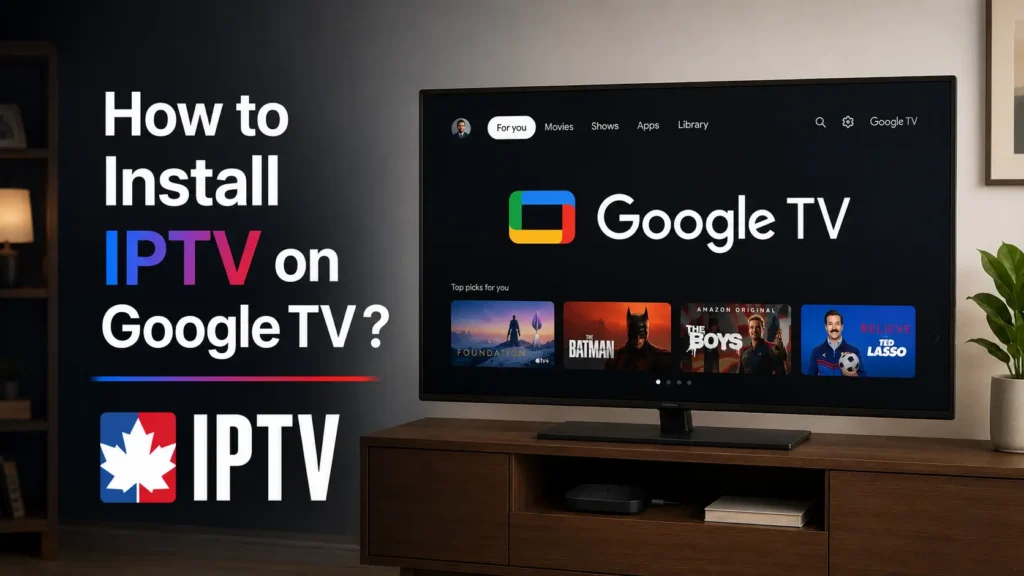
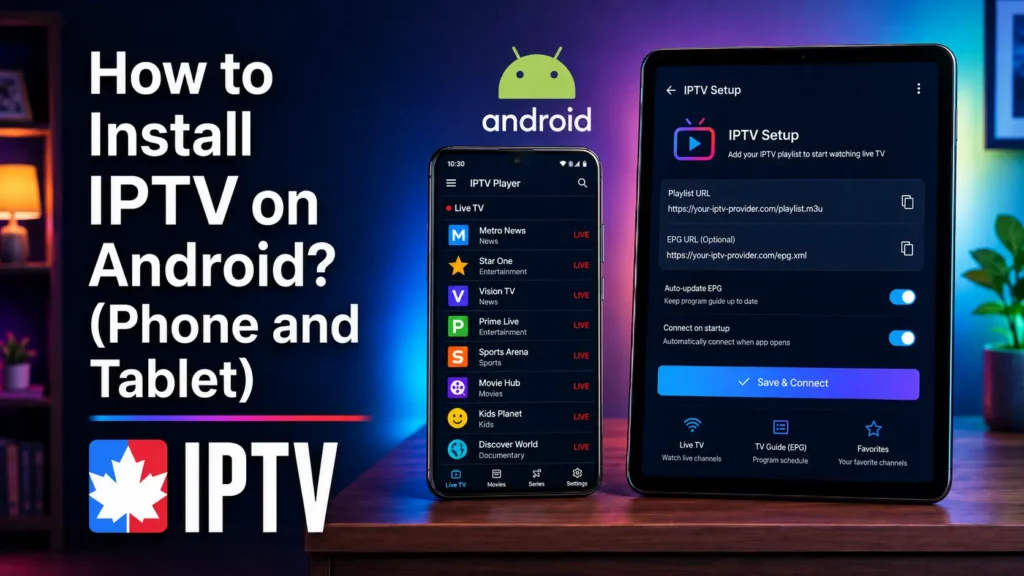
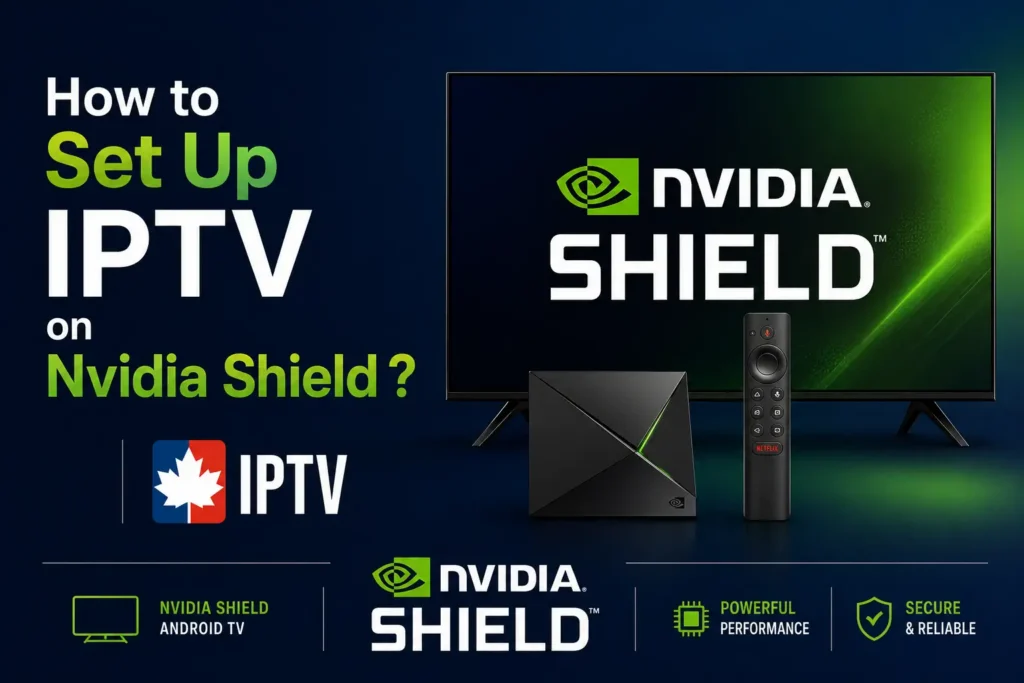
    Android TV boxes, Google TV, Nvidia Shield, Chromecast with Google TV, Android phones and tablets, projectors running Android TV.

    How it works: Install a player from the Google Play Store, or sideload it with the Downloader app, then sign in with Xtream Codes or an M3U link.

  • Amazon Fire OS

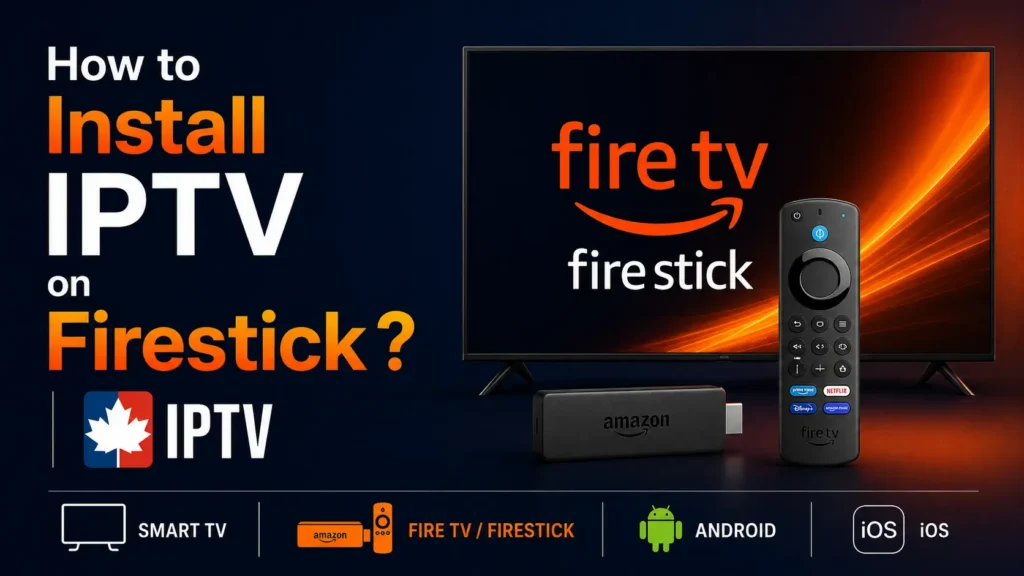
    Fire TV Stick (all generations), Fire TV Cube and smart TVs with Fire TV built in.

    How it works: Allow apps from unknown sources in the developer options, install Downloader from the Appstore, then use it to install your player.

    Closest guides

  • Smart TV systems

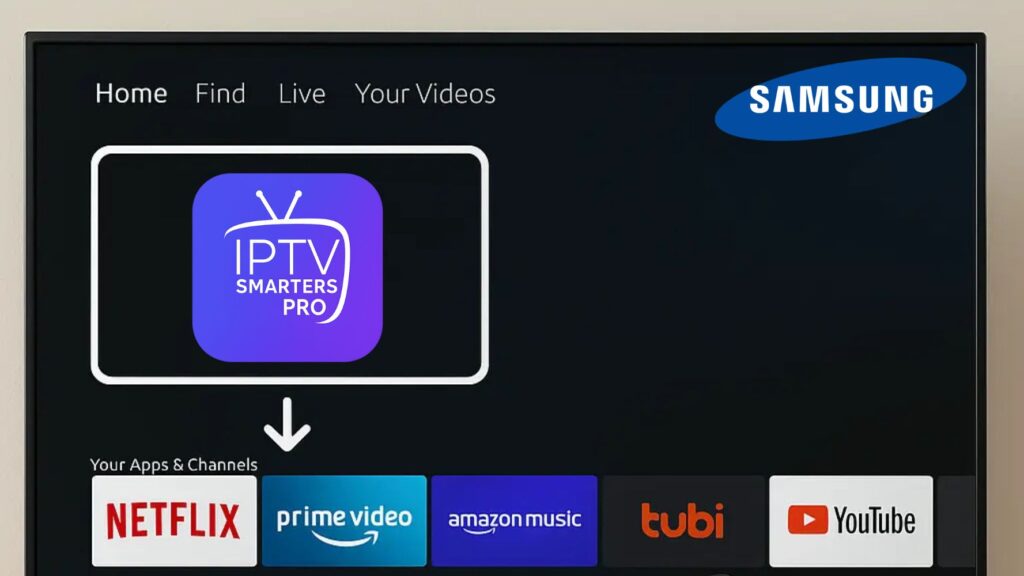
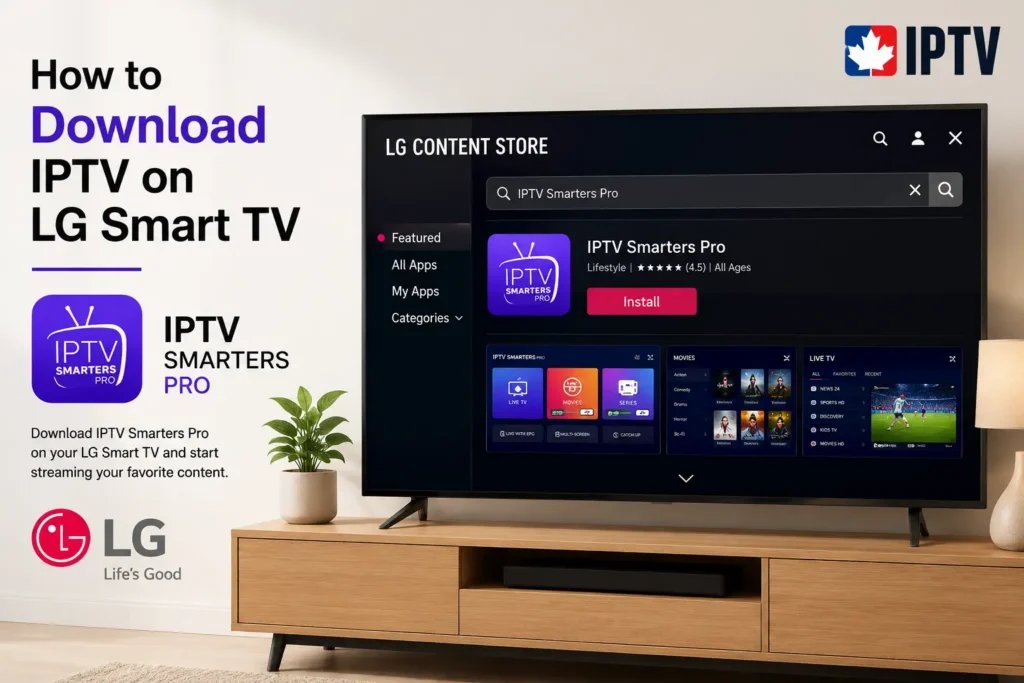
    Samsung (Tizen), LG (webOS), Roku TV, Hisense, TCL and other TVs with their own app store.

    How it works: Install a player from the TV's app store. Some players show a MAC address on screen that you activate on the player's website.

    Closest guides

  • Apple devices

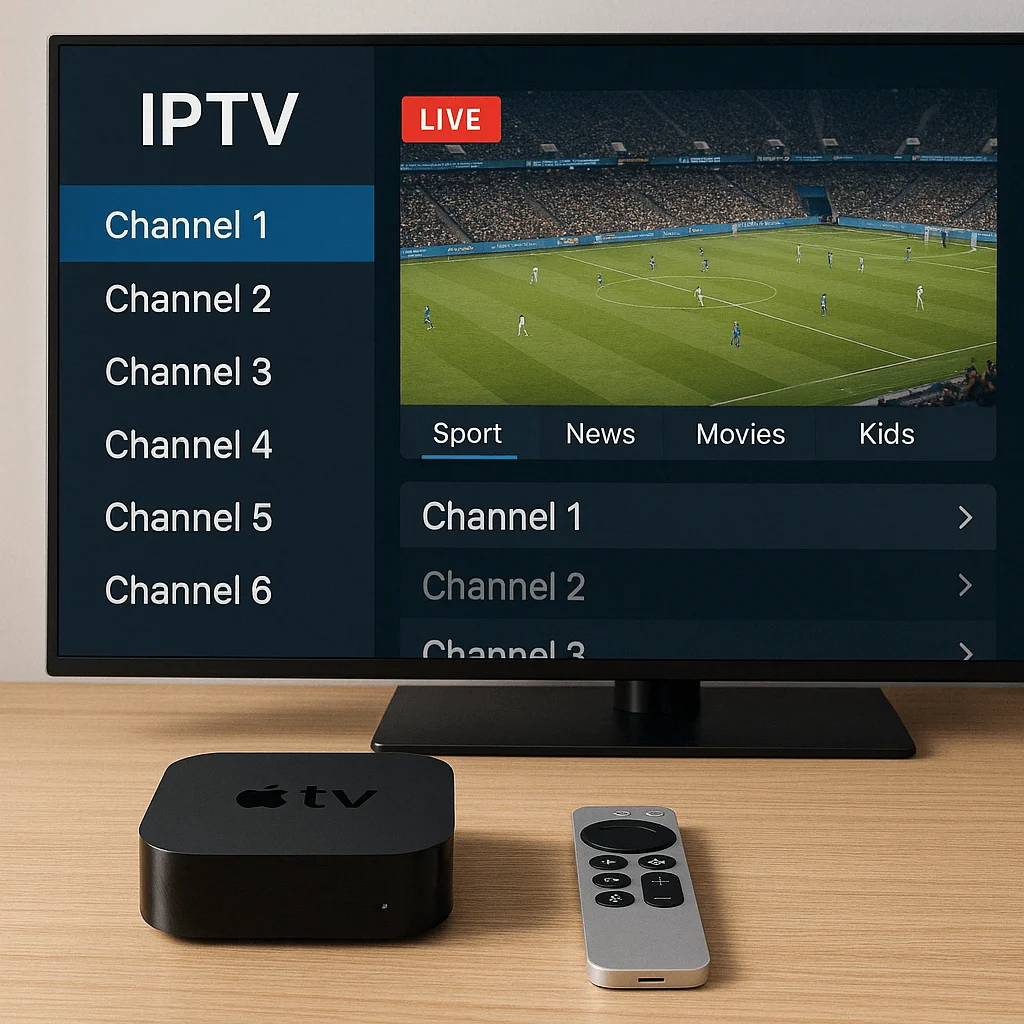
    iPhone, iPad, Apple TV and Mac computers.

    How it works: Download an IPTV player from the App Store, then add your service with Xtream Codes or an M3U link.

    Closest guides

  • Computers

    Windows PCs and laptops, Linux and other computers.

    How it works: Use a desktop IPTV player, VLC or Kodi, and load your M3U link or Xtream Codes details.

    Closest guides

  • Set-top boxes with a portal

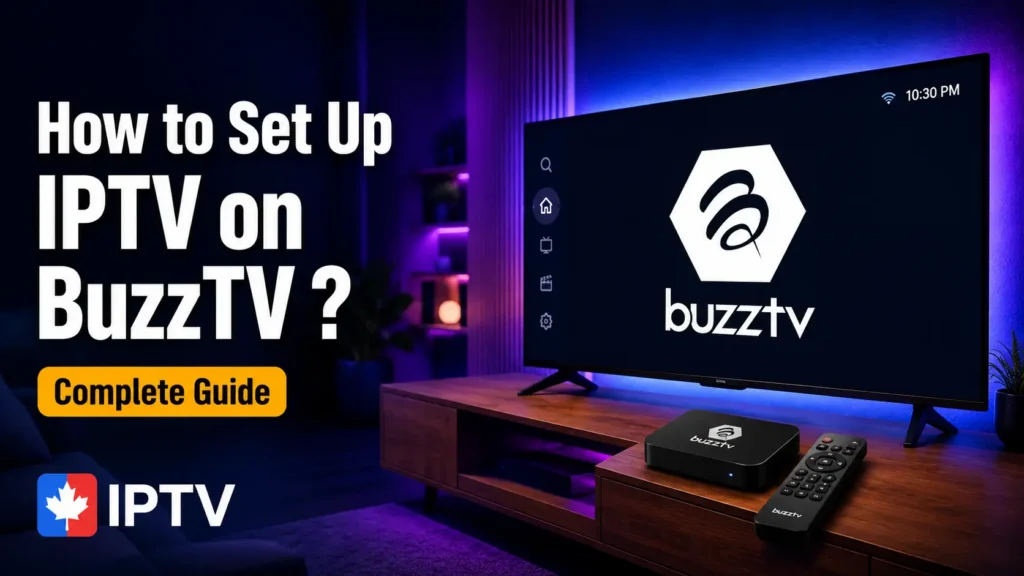
    MAG, Formuler, Dreamlink, BuzzTV, TVIP and Smart STB boxes.

    How it works: Your box's MAC address is linked to your account; you then enter a portal URL in the box settings or its built-in app.

    Closest guides

Still not sure which guide to follow?Send us your device model and our technical support will guide you, 24 hours a day, 7 days a week.

Ask on WhatsApp
Free trial

Set up in minutes, watch for 12 hours

Pick your device above, follow the steps once and your free trial is running. If anything blocks, our team answers 24/7.

  • No credit card
  • Login by email in minutes
  • Setup guides for every device