
How to Install IPTV With MyIPTV Player?
MyIPTV Player is a free media player with EPG support that turns a Windows PC or an Xbox console into an IPTV receiver...
On this page (11)
MyIPTV Player is a free media player with EPG support that turns a Windows PC or an Xbox console into an IPTV receiver. It runs on Windows 10 and later, Windows Phone, and Xbox, and loads M3U playlists either from local storage or from a remote URL.
What makes it appealing is what it doesn’t ask of you. There’s no subscription to the app itself, no licence key to buy, no MAC address to register with your provider and no trial period counting down. Compared with portal-based setups on MAG-style boxes, where the device has to be authorised server-side before anything works, this is about as direct as IPTV configuration gets. If your provider has given you an M3U link, you’re a few minutes from watching.
That simplicity comes with trade-offs worth knowing about. The interface is functional rather than polished, the player is built around M3U playlists only (no Xtream Codes API, no Stalker portal), and the programme guide depends entirely on the quality of the EPG feed your provider supplies. For a PC or an Xbox already sitting under the television, though, it does the job without adding hardware or cost.
One thing to be clear about from the start: myIPTV Player includes no channels of its own. It’s a player, not a service. Everything you’ll see on screen comes from an active IPTV subscription that supplies the M3U link.
Before you start
Two things to have ready, and one decision to make.
- Your M3U link, supplied by your IPTV provider. This is the single piece of information the whole setup depends on.
- Your EPG URL, if your provider gives one. Optional, but it’s what turns a bare channel list into a browsable guide.
- Where you’ll set it up, the process is identical on PC and Xbox, but entering a long URL with a controller is slow. If you’re setting up an Xbox, consider using the Xbox app on a phone as a keyboard, or check whether your provider can send you a shortened link.
A wired connection is worth having on whichever device you use. IPTV is far more sensitive to brief network drops than on-demand streaming, because there’s no large buffer to fall back on.
Step 1 — Install the app
The player is distributed through Microsoft’s own store, so there’s no sideloading, no APK and no third-party download site involved.

Open the Microsoft Store on your PC or Xbox.
Search for myIPTV Player.
Select Install, the app is free.
Launch it once the installation finishes.
Installing from the Store rather than a mirror site means the app stays updated automatically and you avoid the repackaged installers that circulate for popular IPTV players. If the search returns several similarly named results, check the publisher before installing.
Have your M3U link ready at this point, you’ll be pasting it in two steps’ time, and it’s easier to have it on the clipboard than to go hunting for the provider’s email mid-setup.
Step 2 — Open the playlist settings
All the configuration lives in a single settings screen, so this is the only menu you’ll need to learn.
Open the Settings tab.
Select Add new playlist and EPG source.
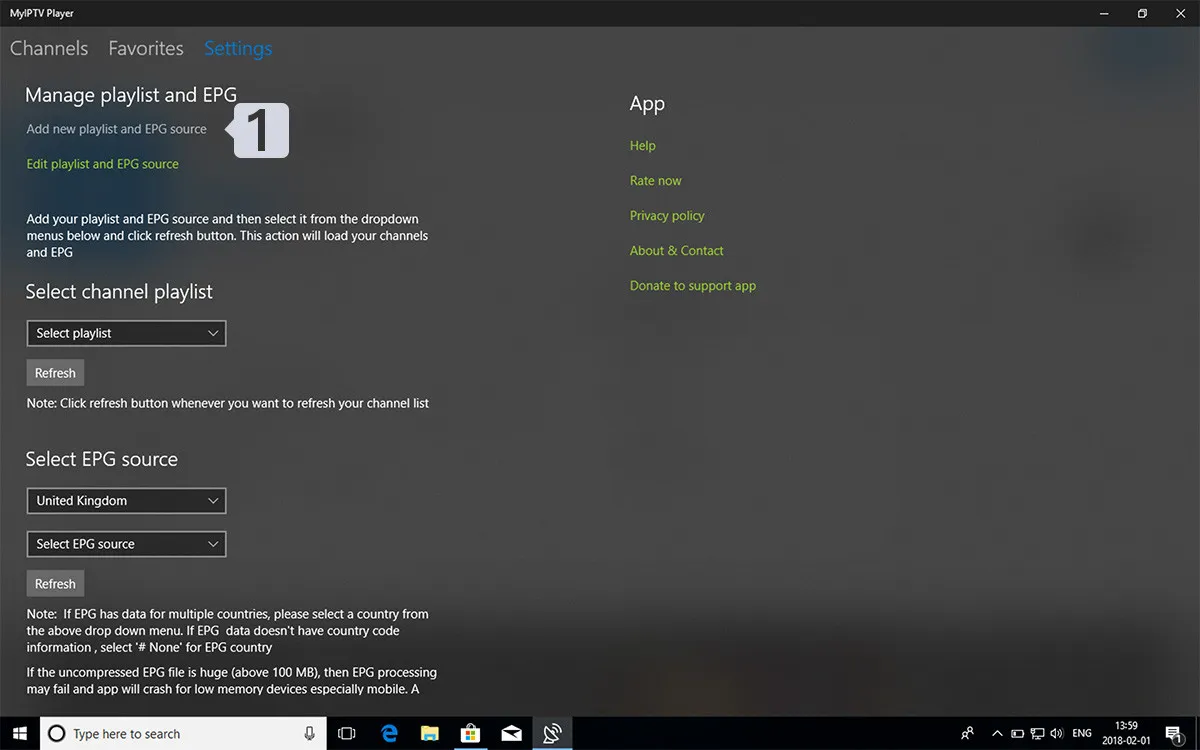
The wording of that option tells you something useful about how the player works: your channel list and your programme guide are added together as one source, not imported separately. If you have both URLs to hand now, you can complete the entire setup without coming back to this screen.
Step 3 — Enter your M3U link
Two fields matter here, a name for your own reference, and the link that does the actual work.
In Remote channel list name, type a name of your choice (for example, “myiptv”).
Paste your provider’s M3U link into Enter remote source URL.
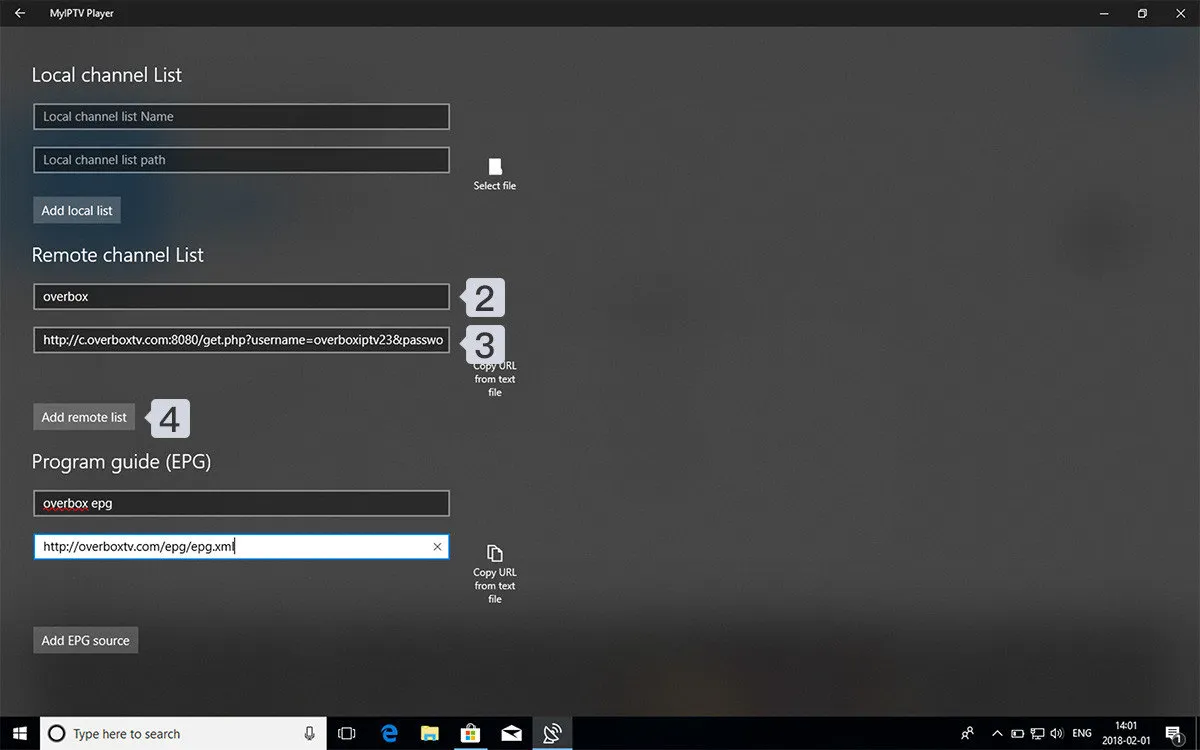
If you have an EPG URL, add it now under the Program guide (EPG) section on this same screen.
Select Add remote list.
The name has no technical function whatsoever; it exists so you can recognise the source later, which becomes genuinely useful if you end up with more than one playlist. Something descriptive beats something generic,”provider-2026″ tells you more in six months than “list1” will.
The link is a different matter. It has to be exact, including any query string after the domain, and M3U URLs are typically long strings containing your username and password as parameters. Copy and paste rather than typing it out: a single wrong character in the credentials portion produces a failure that looks identical to a broken subscription. If you’re on Xbox and pasting isn’t practical, read the URL back character by character before confirming.
Adding the EPG at this stage rather than later saves repeating the whole process. There’s no penalty for skipping it, the player works fine without a guide, but you’ll notice the difference the first time you try to find out what’s on.
Step 4 — Select the playlist to load
Adding a playlist and activating it are two separate actions. This is the step people miss.
Go back to Settings.
Under Select Channel playlist, choose the playlist you just added.
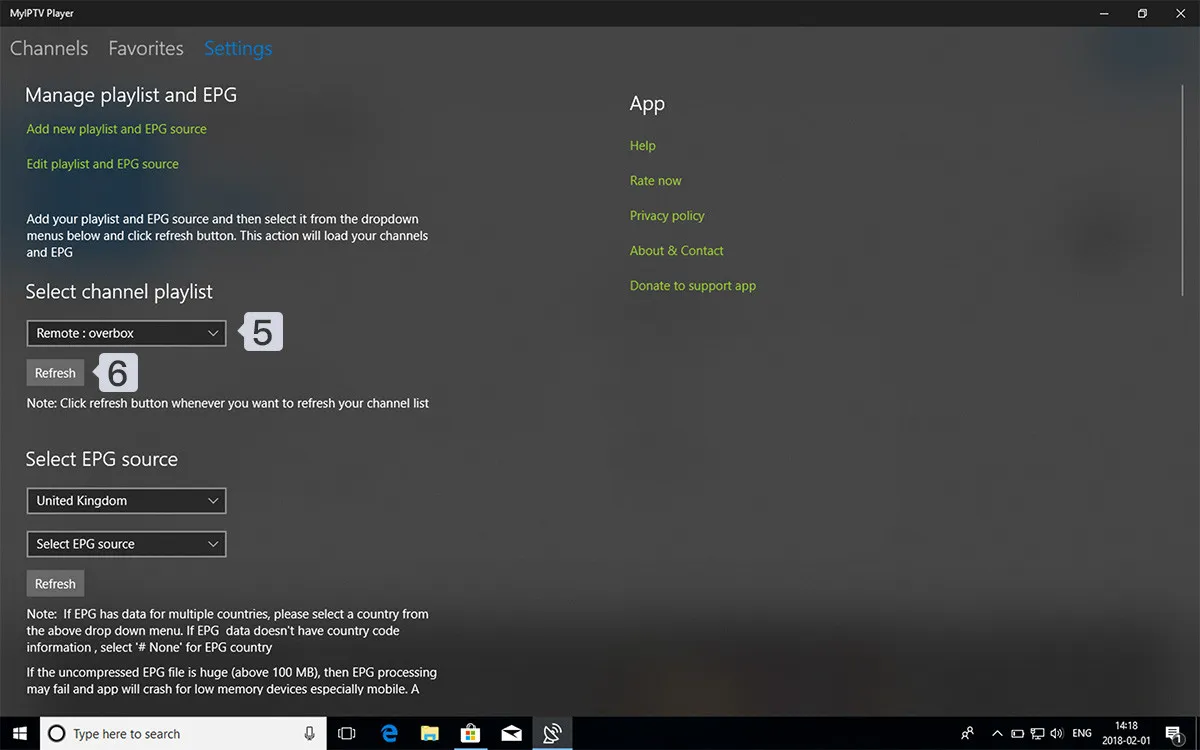
Until the list is selected here, the Channels tab stays empty even when the import has worked perfectly and the link is entirely correct. There’s no error message to tell you what’s wrong, which is why this catches so many people out, the natural assumption is that the URL failed.
This same setting is how you switch sources later. If you add a second provider, or a backup link from the same one, both will appear in this list and you can move between them without deleting anything.
Step 5 — Watch live TV and VOD
With the playlist selected, the channel list builds itself.
Return to the Channels tab.
Select the country or category you want.
Choose a channel to start playback.
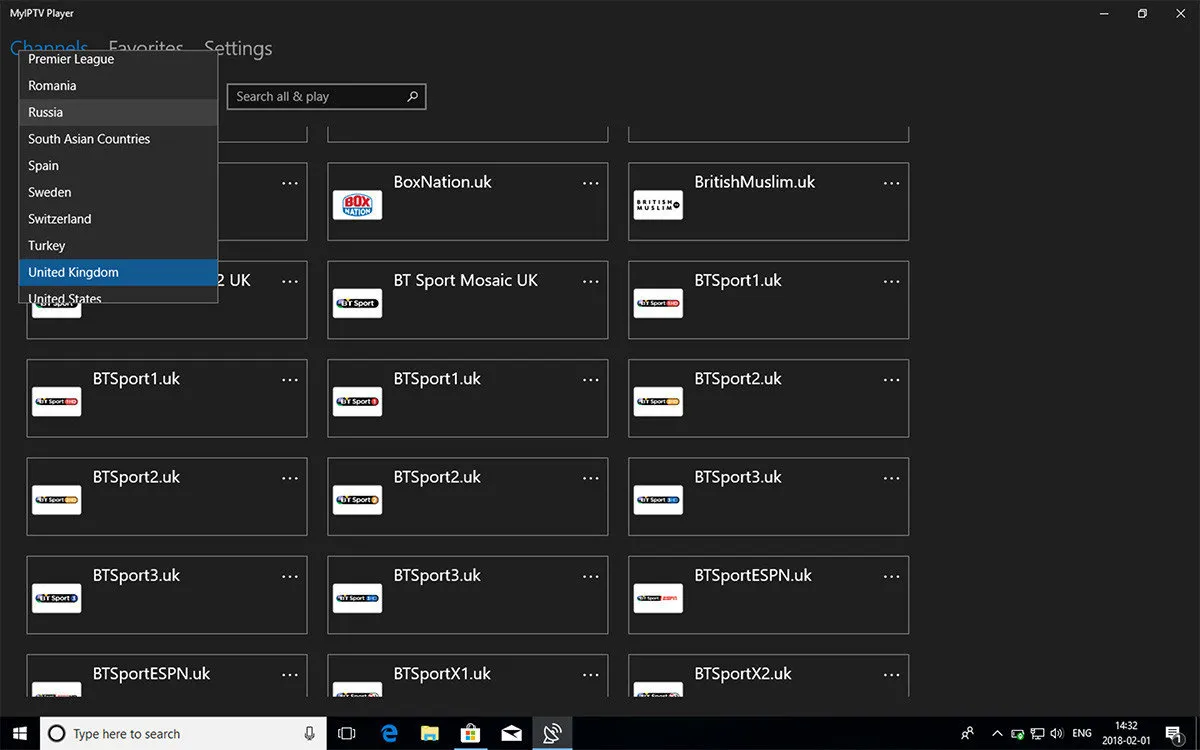
Channels are grouped by country, following the structure of the M3U file your provider supplies, which means the organisation you see reflects their file, not a choice the player makes. If the grouping looks chaotic, that’s a provider-side matter rather than something to fix in settings.
Live television and video on demand both appear through this same tab. Give the list a moment to populate on the first load, particularly with large playlists: the player is reading the entire file before it can display anything, and providers with several thousand entries take noticeably longer than compact lists.
Adding the programme guide (EPG)
If you skipped the EPG in Step 3, or your provider sent it separately, you can add it at any time.
- Return to Settings → Add new playlist and EPG source.
- Find the Program guide (EPG) section.
- Enter your EPG URL.
- Save the source.
Your EPG URL normally comes from the same provider as your M3U link, so start with the details they sent you. In many cases it can be derived from the M3U link itself by replacing get.php with xmltv.php and leaving the rest of the URL, domain, port, username, password, exactly as it is. This works with a good number of providers but isn’t universal; if it returns nothing, ask them directly rather than experimenting.
Be realistic about what the guide will deliver. EPG quality varies enormously between providers: some supply several days of accurate listings across every channel, others populate only the major networks and leave the rest blank. That’s a function of the feed, not the player.
Troubleshooting
Most problems come down to a handful of causes. Work through them in this order.
Nothing appears in the Channels tab. Check Step 4 first. Adding a playlist doesn’t select it, and this accounts for more failed setups than anything else. Only once you’ve confirmed the playlist is selected is it worth suspecting the link.
The playlist won’t import at all. The URL is the likeliest culprit — re-copy it from your provider’s message rather than retyping. If the link is definitely correct, check whether your subscription is active and whether you’ve exceeded your connection limit, since most providers cap the number of simultaneous streams per line.
Channels load but won’t play. This usually points to the stream itself rather than the setup. Try a different channel: if others play normally, the issue is with that specific stream on the provider’s side.
Playback stutters or buffers repeatedly. Test on a wired connection before anything else. If it’s stable wired and unstable on Wi-Fi, the network is your answer. If both stutter, contact your provider — the server may be overloaded or geographically distant.
The guide is empty or shows the wrong programmes. Confirm the EPG URL is entered correctly, then check your system clock and time zone. A wrong clock shifts the entire schedule even when the guide data itself is accurate.
Conclusion
MyIPTV Player remains one of the simplest routes to IPTV on Windows or Xbox. No account, no licence, no device registration, an M3U link and a playlist selection are the whole of it, and the setup takes a few minutes on a PC.
Its limitations are worth naming honestly. The player supports M3U playlists only, so if your provider works exclusively through Xtream Codes or a Stalker portal, this isn’t the right tool and you’ll want a player built for those protocols. The interface hasn’t changed much in years, and it lacks the recording, catch-up and multi-view features that paid players offer. For plenty of setups, none of that matters.
If you take one thing from this guide, make it Step 4: adding a playlist and selecting it are separate actions, and skipping the second leaves you with an empty Channels tab and no error message pointing at the cause.
Finally, keep your M3U and EPG URLs somewhere you can find them again. You’ll need them after a reinstall, when moving to another machine, or when setting the player up on a second device, and providers don’t always resend them quickly.
Frequently Asked Questions
Which devices does myIPTV Player work on?
Windows 10 and later, Windows Phone, and Xbox consoles. It’s installed free from the Microsoft Store, and the setup process is identical across all of them.
Does the app cost anything?
No. myIPTV Player is free. Any cost comes from your IPTV subscription, which is a separate arrangement with your provider — the player doesn’t include, sell or provide access to any channels.
How do I add an EPG?
Enter your EPG URL in the Program guide (EPG) section of the same screen where you add your playlist: Settings → Add new playlist and EPG source. You can do it when first adding the playlist or return to it later.
Where do I find my EPG link?
It usually comes from the same source as your M3U link, so check the details your provider sent you first. With many providers, replacing get.php with xmltv.php in your M3U URL produces the correct EPG address, leaving the rest of the link unchanged.
I added my playlist but the Channels tab is empty. What now?
Go back to Settings and select the playlist under Select Channel playlist. Adding a source doesn’t load it automatically, and no error appears to tell you so. This is the most common setup problem with this player.
Can I add more than one playlist?
Yes. Add each as a separate remote source, then switch between them from the Select Channel playlist setting. Useful if you run two providers, or keep a backup link from the same one.
Can I use a local M3U file instead of a URL?
Yes. The player reads playlists from local storage as well as remote URLs, which helps if your provider supplies a file rather than a link, or if you’ve built your own playlist.
Does it support Xtream Codes or Stalker portal connections?
No. myIPTV Player handles M3U playlists only. If your provider gives you an Xtream Codes login or a portal URL, you’ll need a player that supports those protocols, though many providers can supply an M3U link on request even when they advertise other methods.
Why do channels keep buffering?
Test a wired connection first, since IPTV is more sensitive to brief network drops than on-demand streaming. If the problem persists on Ethernet, it’s likely server-side and worth raising with your provider.
Do I need a VPN?
The player works without one. Whether you use a VPN is a separate decision, and some providers ask you not to, since it can trip their connection-limit checks. Follow whatever guidance your provider gives.
Useful Articles
Your free trial login works in every app in this article. Twelve hours of the full service, no card, then choose a plan or stop.
- No credit card
- Login by email in minutes
- Setup guides for every device