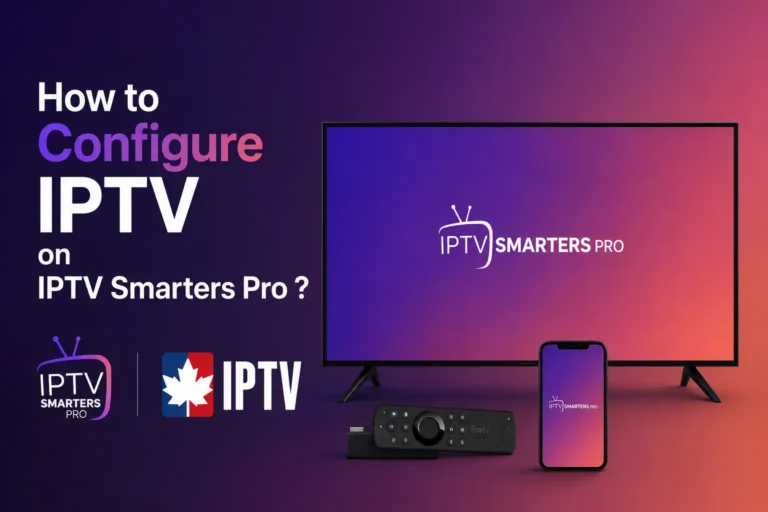
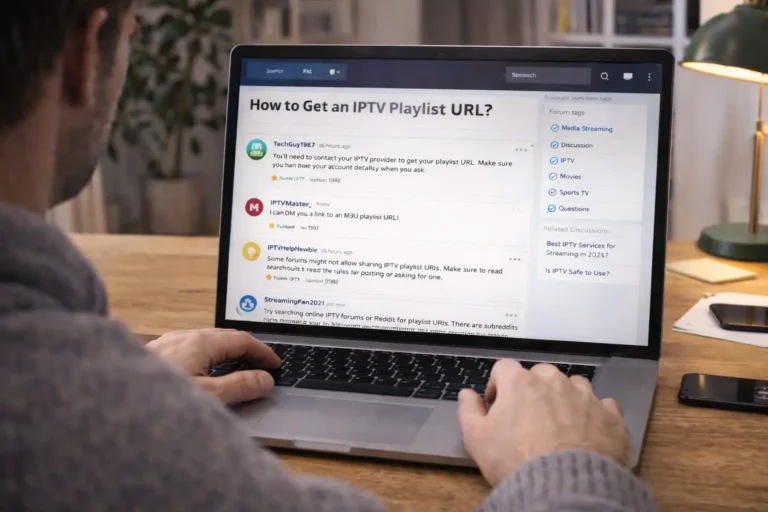
You can watch IPTV on your iPhone by installing a compatible IPTV player app from the App Store, then loading your provider’s M3U playlist URL or Xtream Codes login into the app, once connected, you get live TV, movies, and on-demand content streamed directly to your phone over Wi-Fi or mobile data.
No jailbreak is needed, and most modern IPTV players support EPG (electronic program guide), favorites, and catch-up features right on iOS. When paired with a dependable provider like Explore our services to discover why we are considered the top iptv service in canada for all your entertainment needs., your iPhone becomes a full portable TV with thousands of channels at your fingertips. Here are the five steps to get everything running smoothly.
1. Choose the Right IPTV Player App for iPhone
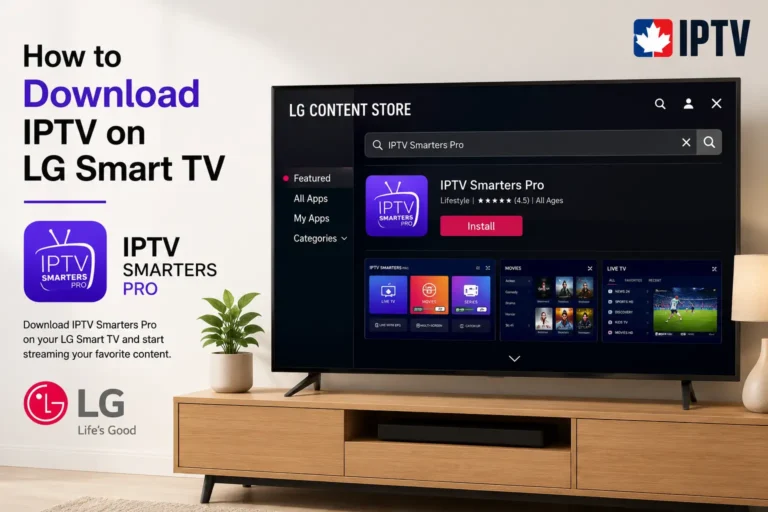
1. Open the App Store on your iPhone and search for an IPTV player, top options include IPTV Smarters Pro, GSE Smart IPTV, and IPTVX.
2. Choose a player that supports M3U playlists and Xtream Codes API for maximum compatibility.
3. Check the app ratings and reviews to make sure it is actively maintained and works on your iOS version.
4. Some players are free with ads, while others require a one-time purchase, paid apps usually offer a cleaner experience.
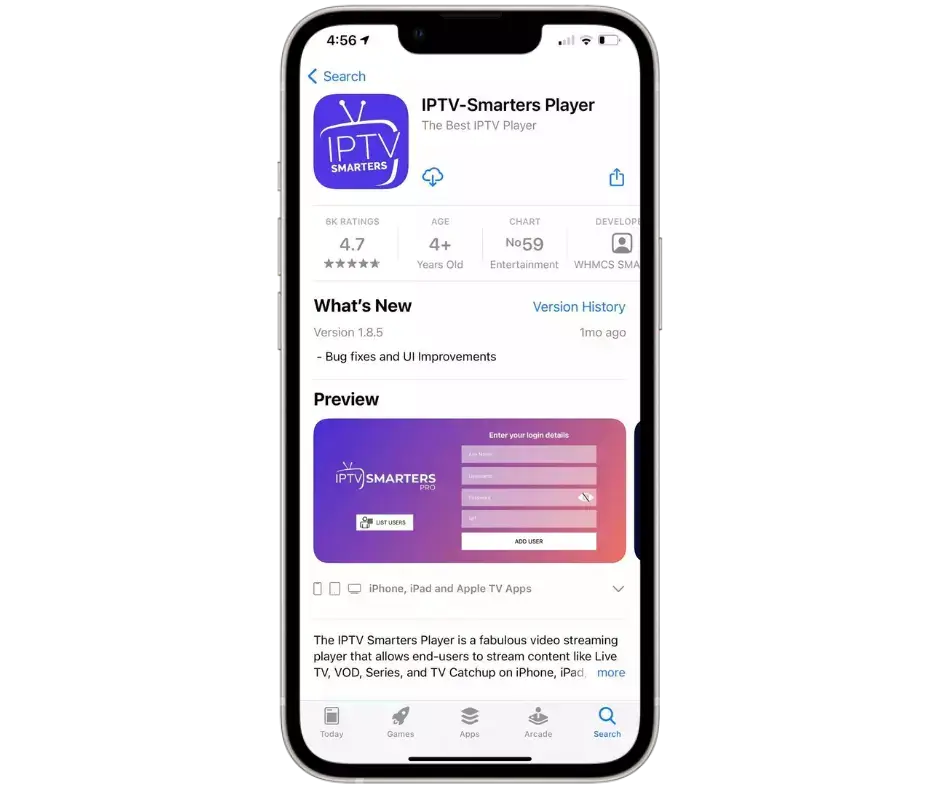
5. Download and install the app by tapping “Get“, it will appear on your home screen once installed.
2. Gather Your IPTV Credentials
1. Log in to your IPTV provider’s dashboard or check the welcome email you received after subscribing.
2. Copy your M3U playlist URL, it typically looks like: http://provider.com:port/get.php?username=XXX&password=XXX&type=m3u_plus.
3. Alternatively, note your Xtream Codes login details: server URL, username, and password.
4. If you don’t have credentials yet, contact your provider’s support team to request them.
5. Save the details somewhere accessible on your iPhone, the Notes app or a password manager works perfectly.
3. Add Your IPTV Playlist to the App
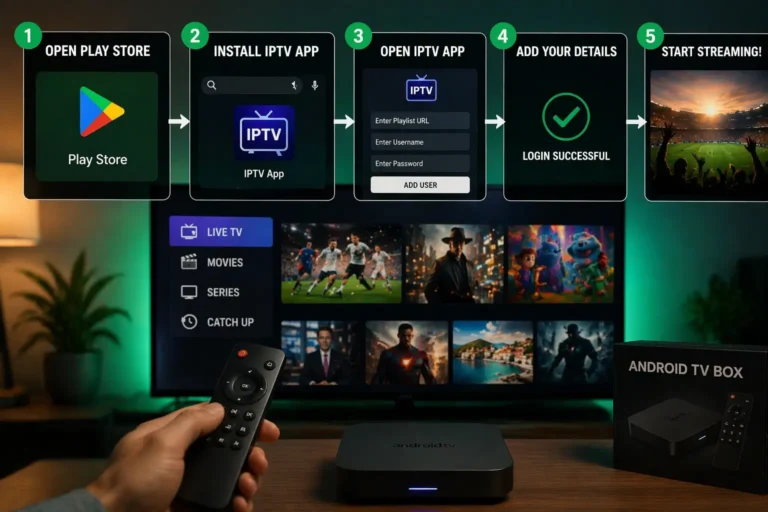
1. Open the IPTV player app and look for an option like “Add Playlist“, “Add New User“, or the “+” icon.
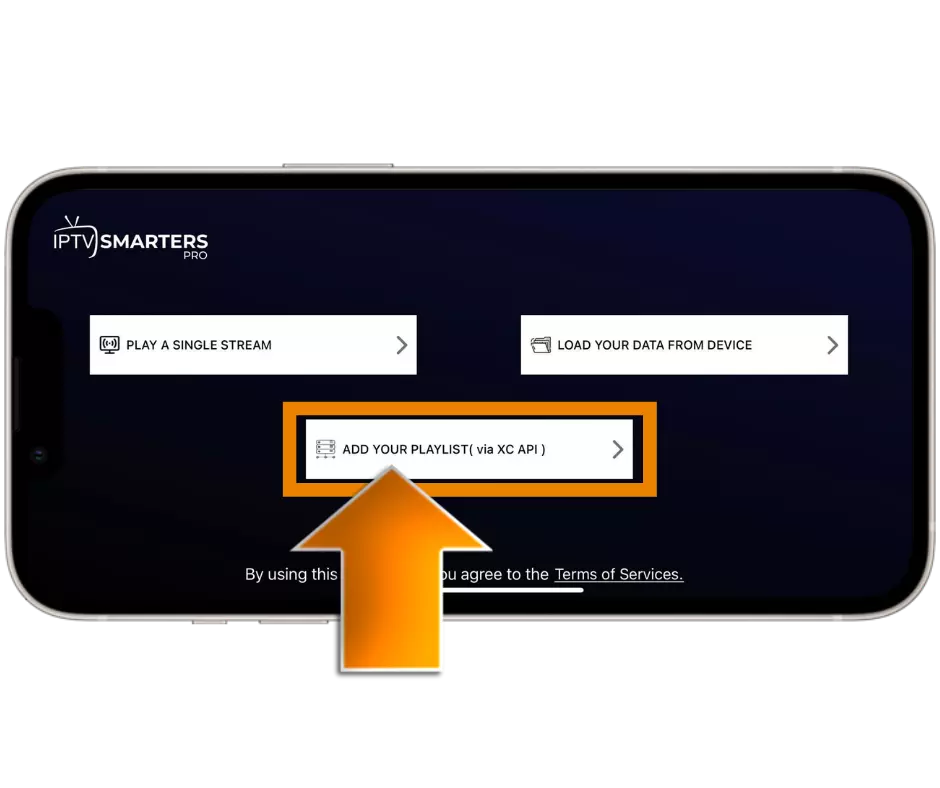
2. Select the login method, choose “M3U URL” to paste a playlist link, or “Xtream Codes API” to enter server, username, and password separately.
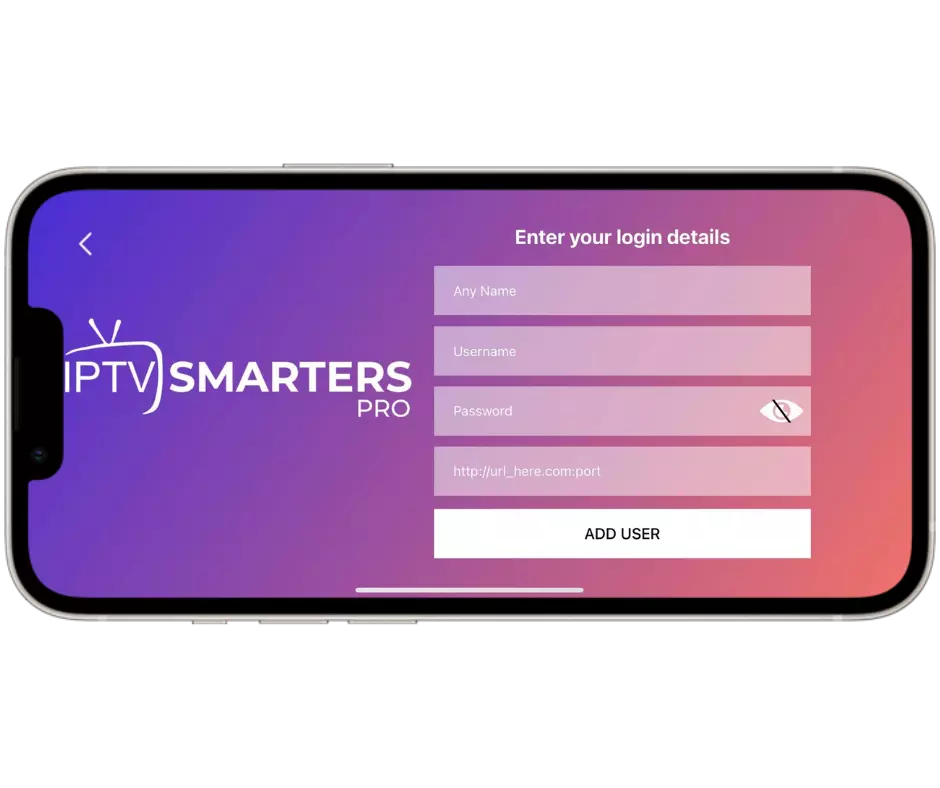
3. Paste or type your credentials carefully, a single typo will prevent channels from loading.
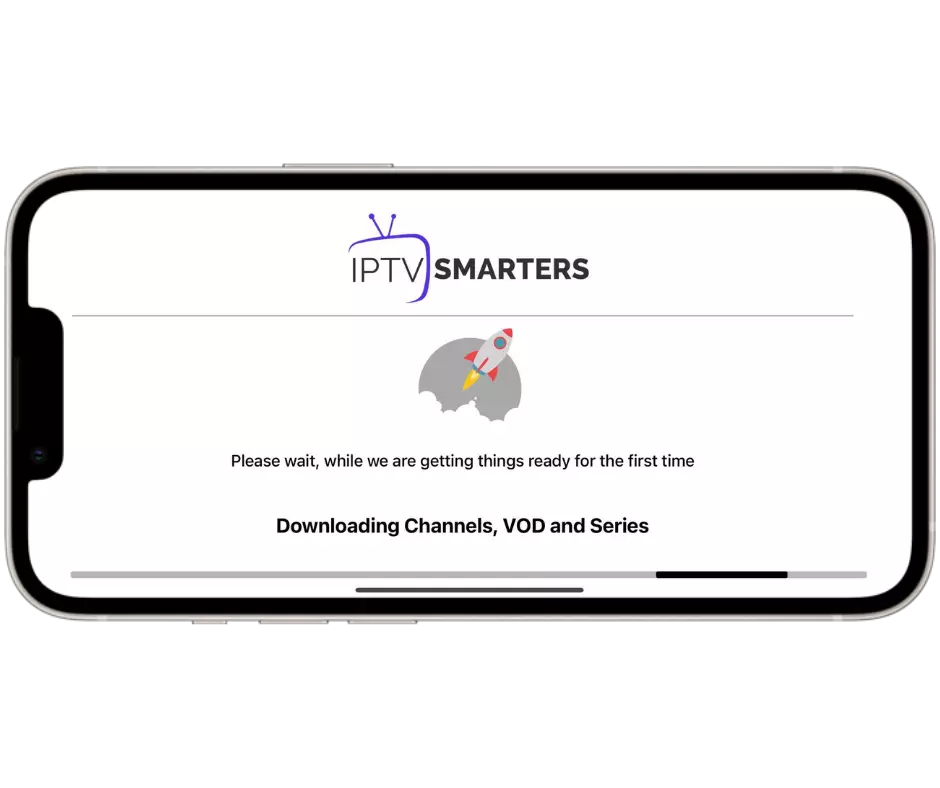
4. Tap “Add” or “Login” and wait for the app to fetch and parse the channel list from your provider’s server.
5. The loading time depends on playlist size, a list with thousands of channels may take 10 to 30 seconds.
4. Browse Channels and Start Watching
1. Once loaded, channels are usually sorted into categories: Live TV, Movies, Series, Sports, News, etc.
2. Tap any channel to start playback, the stream should begin within a few seconds.
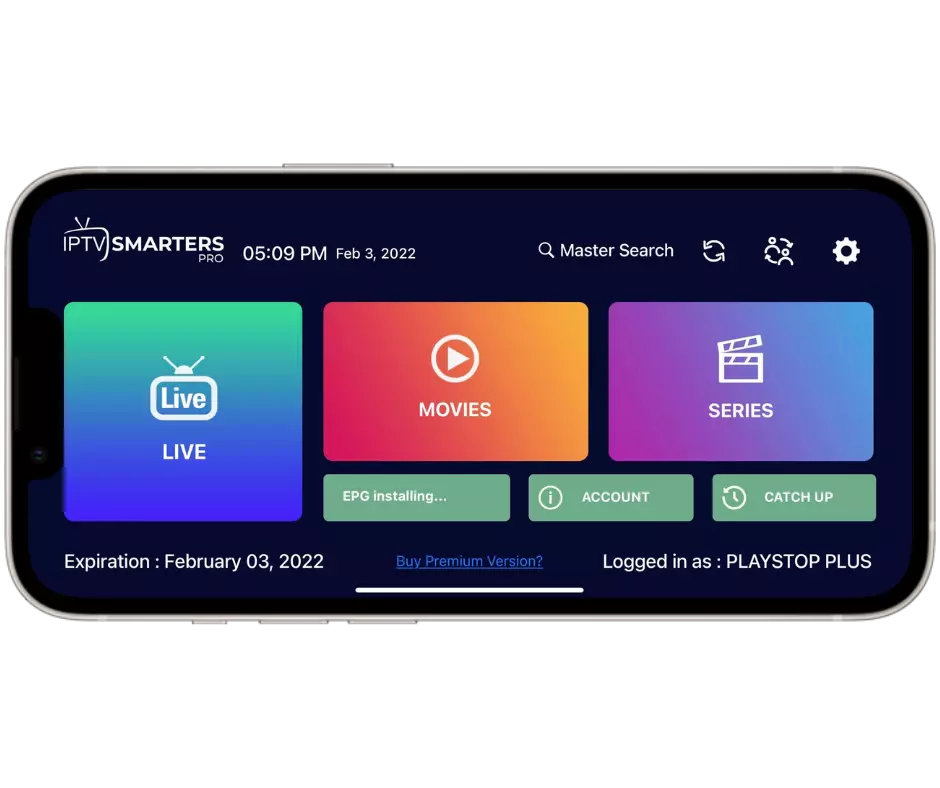
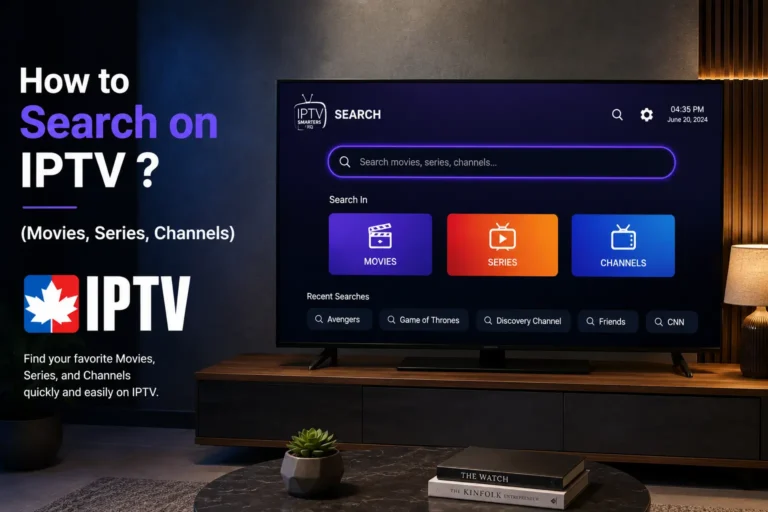
3. Use the EPG (program guide) feature if available to see what is currently airing and what is coming next.
4. Add your favorite channels to a “Favorites” list for quick access without scrolling through hundreds of options.
5. Adjust the video player settings (aspect ratio, subtitles, audio track) by tapping the on-screen controls during playback.
5. Optimize and Troubleshoot IPTV on iPhone
1. Use a stable Wi-Fi connection for the best quality — mobile data works but may buffer on HD and 4K streams.
2. If a channel buffers or won’t load, force-close the app and reopen it, or switch to a different player format (HLS vs MPEGTS) in settings.
3. Keep your IPTV app updated from the App Store to avoid bugs and compatibility issues.
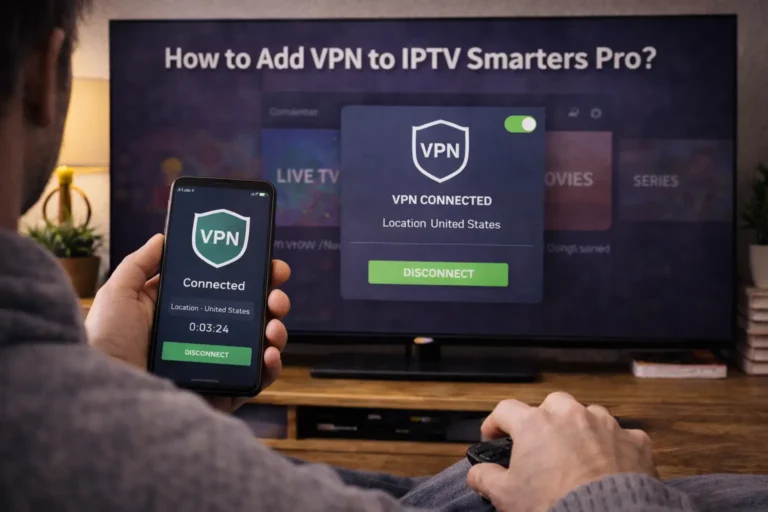
4. Use a VPN if your ISP throttles streaming traffic — install a VPN app, connect, then open the IPTV player.
5. If all channels go down at once, check your subscription status with your provider before troubleshooting further.
Frequently Asked Questions (FAQ)
Do I need to jailbreak my iPhone to watch IPTV?
No. All major IPTV players like GSE Smart IPTV and IPTV Smarters Pro are available on the official App Store and work without any jailbreak.
What is the best IPTV app for iPhone?
GSE Smart IPTV and IPTV Smarters Pro are the most popular choices. Both support M3U playlists, Xtream Codes, EPG, and have a clean, user-friendly interface.
Can I watch IPTV on iPhone using mobile data?
Yes, but a Wi-Fi connection is recommended for HD or 4K content. Mobile data works fine for SD channels but may cause buffering on heavier streams.
Is watching IPTV on iPhone free?
The player apps are free or low-cost, but you still need an active IPTV subscription from a provider to get the playlist URL or login credentials.
Can I cast IPTV from my iPhone to a TV?
Yes. You can use AirPlay to mirror your iPhone screen to an Apple TV or AirPlay-compatible smart TV while the IPTV app is playing.
Why are my IPTV channels not loading on iPhone?
Double-check your playlist URL or login details for errors. If correct, try switching your internet connection, clearing the app cache, or reinstalling the player.
How many channels can I watch on iPhone with IPTV?
That depends entirely on your IPTV subscription. Most providers offer packages ranging from a few hundred to over 10,000 live channels and VOD titles.
Read more about GSE Smart IPTV app.