To delete channel history on IPTV Smarters Pro, open your device Settings (the gear icon), go to Apps, select IPTV Smarters Pro, tap Clear Cache, confirm with OK, then return to the app and log back in. This method wipes the stored channel history and recently watched data, keeps the app private, and makes it run noticeably faster. It works because the history is held in the app cache, so clearing that cache removes it cleanly without affecting your subscription.
With a dependable IPTV Subscription from a trusted provider, logging back in after the cleanup is quick and your channels reload instantly. This clear, step-by-step guide walks you through the exact process, including how to clean up your channels too, even if you have never changed these settings before.
Step 1: Open the Settings on Your Device
Start by opening the Settings menu on the device where IPTV Smarters Pro is installed. This is the device system settings, not the settings inside the app itself, because the channel history is stored in the app cache and cleared from outside the app.
Look for the gear icon, which is the universal symbol for settings on phones, smart TVs, and streaming boxes. Make sure the app is fully closed before you begin, since clearing the cache while the app runs can leave traces behind. A calm, careful start here makes the rest of the process smooth and avoids having to repeat it.
1- Go to your device home screen.
2- Locate the gear icon ⚙ for Settings.
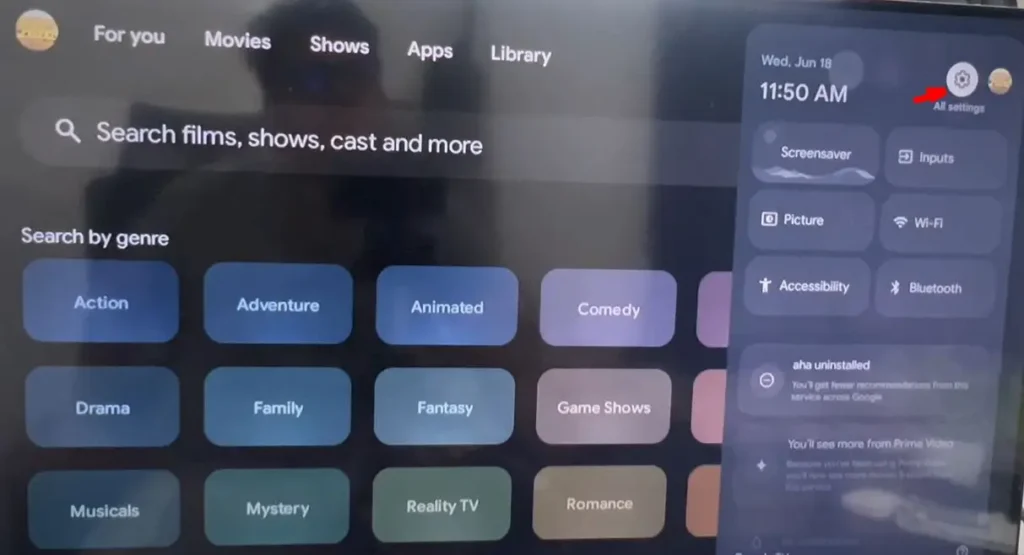
3- Open the Settings menu and let it load fully.
4- Close IPTV Smarters Pro if it is still running.
5- Keep the Settings menu open for the next step.
Step 2: Go to the Apps or Applications Section
Next, find the Apps or Applications section inside Settings, since this is where every installed app is managed individually. The exact name can be Apps, Applications, or Manage Apps depending on your device brand and system version.
This section lists all your installed apps, including IPTV Smarters Pro, along with their storage and cache controls. Entering the right menu is essential, because this is the only place the Clear Cache option appears. Take a moment to scroll patiently and find it rather than rushing, as the menu layout differs slightly between devices.
1- Scroll through the Settings list.
2- Tap Apps, Applications, or Manage Apps.
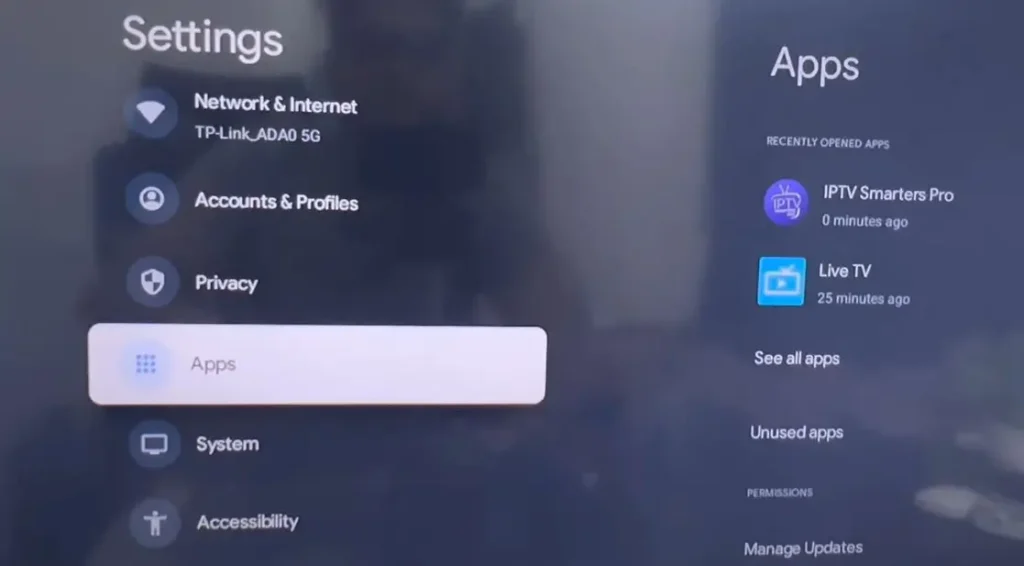
3- Wait for the full list of installed apps to load.
4- Avoid changing any unrelated app settings.
Step 3: Select IPTV Smarters Pro From the List
Now select IPTV Smarters Pro from the list of installed apps. If you use a different IPTV player, choose that app instead, since the method is identical. Tapping the app opens its individual storage and cache options.
Choosing the correct app matters, because clearing the wrong one will not remove your channel history. Confirm the name before you continue.
1- Scroll the app list until you see IPTV Smarters Pro.
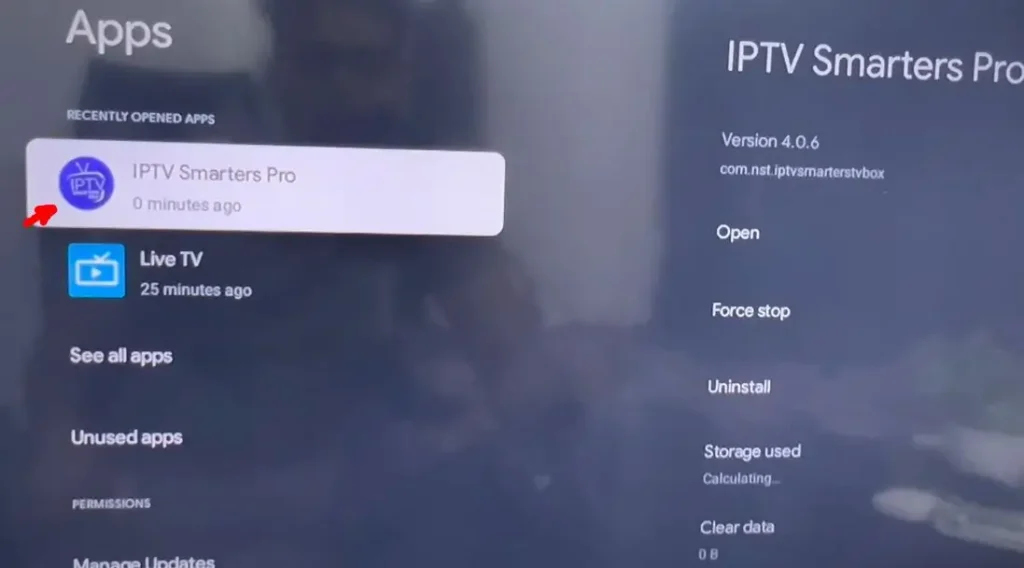
2- Tap the app to open its information page.
3- If you use another IPTV app, select that one instead.
4- Confirm you opened the correct app, not a similar name.
5- Look for the Storage or Clear Cache options.
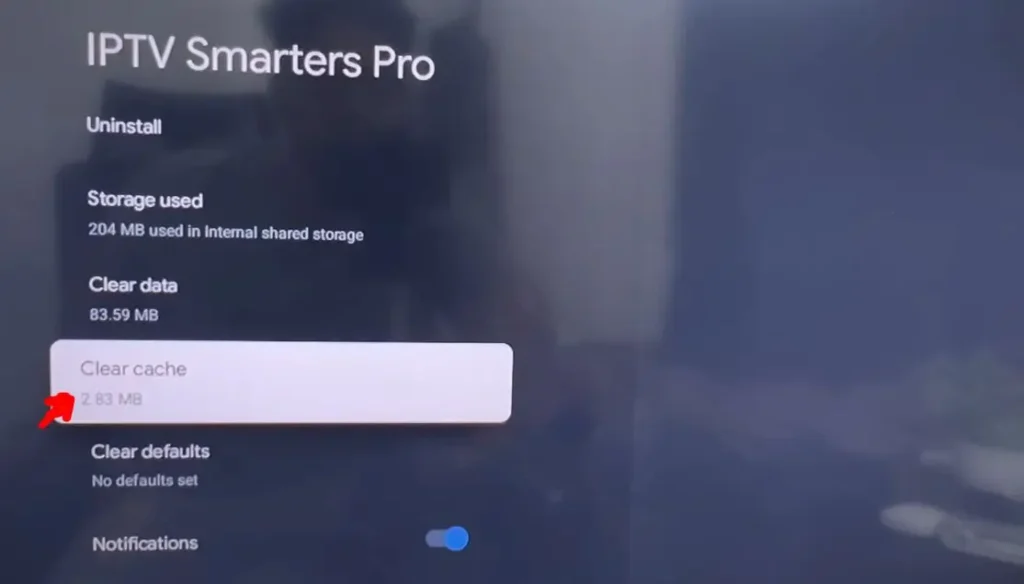
Step 4: Tap Clear Cache and Confirm With OK
This is the key step: tap Clear Cache to remove the stored channel history, then confirm with OK. The cache holds your recently watched channels and temporary data, so clearing it deletes that history at the source.
Some devices place this option under a Storage submenu first, so open that if you do not see it immediately. Confirming the action with OK makes sure the data is fully wiped rather than partially cleared. This single step is what actually removes the history, so it is the most important part of the whole process.
1- Open the Storage section if your device shows one.
2- Tap the Clear Cache button.
3- Press OK or Confirm if a prompt appears.
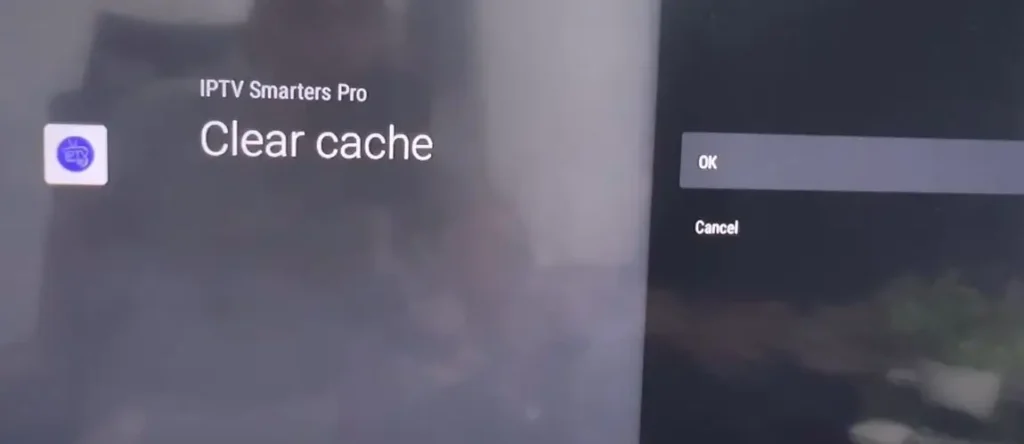
4- Wait a moment for the cache size to drop to zero.
5- Do not tap Clear Data unless you want a full reset.
Step 5: Return to the App and Log Back In
After clearing the cache, return to IPTV Smarters Pro and log back in to reload your service with a clean slate. Clearing the cache may sign you out, which is completely normal and expected behaviour, not a problem.
Logging in again refreshes the app with an empty history and rebuilds the channel list from scratch. Having your subscription details ready beforehand makes this step fast and avoids any interruption.
Once you are back inside, the old channel history will be gone and the app will feel noticeably lighter. If you need a refresher on entering your credentials, see our guide on how to set up and log in to IPTV on a Smart TV.
1- Reopen IPTV Smarters Pro from the home screen.
2- Enter your login or M3U details if asked.
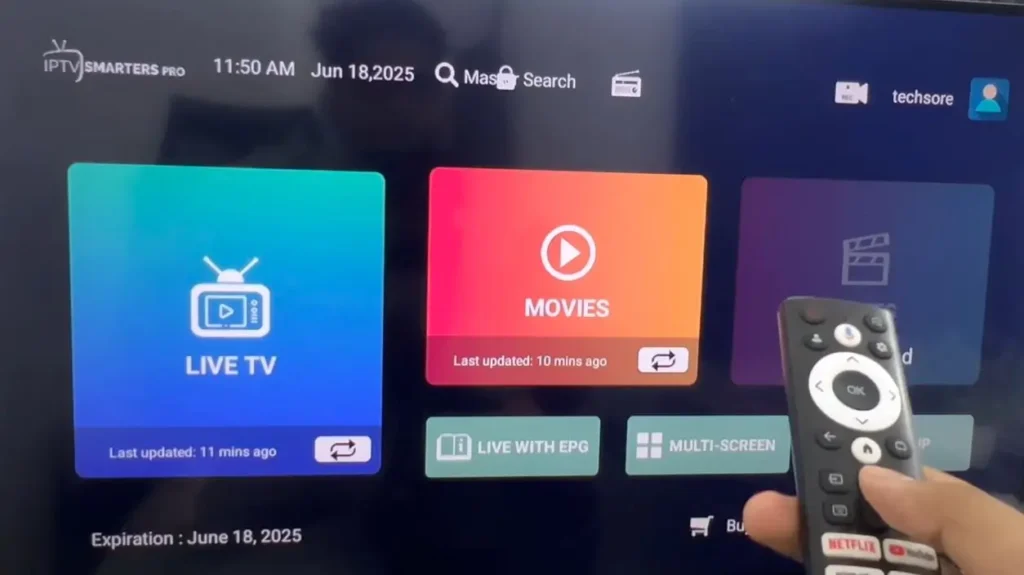
3- Wait for the channels and content to reload.
4- Confirm the recently watched list is now empty.
5- Keep your credentials saved for future cleanups.
Step 6: Clean Up and Manage Your Channels
Now tidy up the channels themselves, since a clean history is far more useful alongside an organized channel list. IPTV Smarters Pro does not let you delete individual channels directly, but you can hide unwanted ones and reload a fresh list to achieve the same result.
Using parental controls to hide entire categories removes clutter quickly and keeps the app focused on what you watch. Reloading the playlist also refreshes everything to its current state and clears outdated entries. Together, these actions keep both your history and your channel list clean and easy to navigate.
1- Open the app and go to its internal Settings.
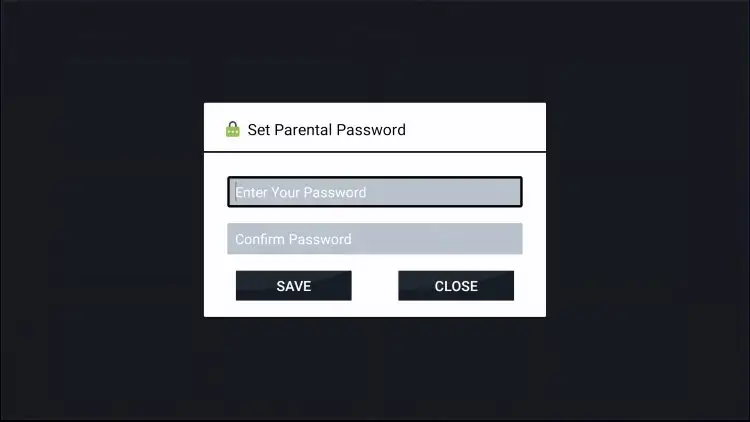
2- Select Parental Control to hide unwanted categories.
3- Enter the parental PIN if the app requests one.
4- Hide adult or unused categories to declutter the list.
5- Reload or refresh the playlist to update all channels.
Step 7: Verify Everything Is Cleared and Refreshed
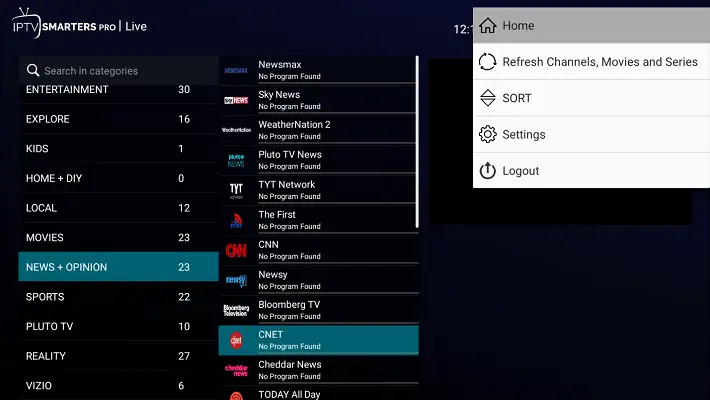
Finally, verify that the channel history is gone and the channel list looks clean and organized. Remember that IPTV Smarters Pro has no separate “History” menu: the recently watched items appear as a “Recently Watched” row or category inside the Live TV, Movies, and Series sections.
A quick check there confirms the cache clearing worked and nothing old remains. Restarting the app once helps it rebuild its menus completely without the old data interfering. If anything still appears, simply repeat the cache clearing step, as it occasionally needs a second pass on certain devices.
1- Repeat Step 4 if any history is still showing.
2- Close and reopen IPTV Smarters Pro completely.
3- Open Live TV and check the Recently Watched category.
4- Also check the Movies and Series sections for recent items.
5- Confirm these lists are empty with no old channels.
6- Check that hidden categories no longer appear.
Bonus: How to Enable Auto Clear Cache in IPTV Smarters Pro
To avoid repeating the manual steps every time, enable the built-in Auto Clear Cache option so the app clears its cache automatically. This keeps your channel history from building up without any extra effort.
The option lives inside the app’s own settings, usually under Automation or General settings, and its exact name or location can vary slightly by app version. If your version does not include it, the manual cache clearing in Steps 1 to 5 remains the reliable method. Turning it on once saves time for the long term.
1- Open IPTV Smarters Pro and go to its internal Settings.
2- Look for Automation Settings or General Settings.
3- Find the Auto Clear Cache option in the list.
4- Toggle Auto Clear Cache to ON.
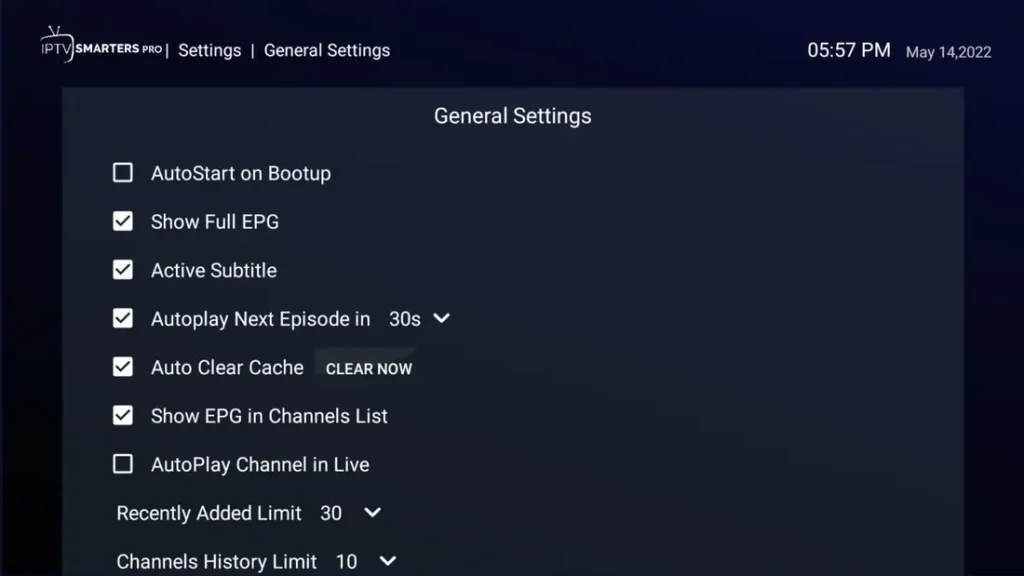
5- Save or exit settings so the choice takes effect.
6- The app will then clear its cache automatically on its own.
Extra Tips for a Cleaner IPTV Smarters Pro Experience
A few simple habits keep both your history and channels clean over time. Clearing the cache regularly improves privacy and performance, especially on shared devices. Keeping your channel list organized makes everyday viewing faster and less cluttered. These small routines take only seconds but prevent most common issues.
- Clear the cache regularly if the device is shared at home.
- Note your login details before clearing, in case you are signed out.
- Use favourites and hidden categories to keep channels tidy.
- Restart the app after any cleanup to refresh all menus.
- Keep the app updated so settings stay easy to find.
- Reload your playlist after clearing to refresh all channels.
- Save your provider’s support contact for quick help.
FAQ: Common Questions About Deleting Channel History on IPTV Smarters Pro
Where exactly do I clear the channel history?
You clear it from your device Settings, not inside the app. Go to Settings, Apps, IPTV Smarters Pro, then Clear Cache and confirm with OK.
Will clearing the cache delete my subscription or playlist?
No, clearing only the cache removes history and temporary files. Your subscription stays active, though you may simply need to log in again.
What is the difference between Clear Cache and Clear Data?
Clear Cache removes history and temporary files only. Clear Data fully resets the app and erases your playlist setup, requiring a complete re-login and reload.
Why am I logged out after clearing the cache?
This is normal on some devices. Simply reopen the app and enter your login or M3U details to restore your channels with a clean history.
Can I delete individual channels in IPTV Smarters Pro?
Not directly. Instead, use Parental Control to hide categories, build a favourites list, or reload an edited playlist from your provider.
How often should I clear my channel history?
There is no fixed rule. Many users do it monthly for privacy and performance, or whenever the app feels slow or cluttered with old channels.
Do I need to reinstall the app to remove history?
No, reinstalling is not needed. Clearing the cache through device Settings removes the history while keeping the app installed.
Conclusion
Deleting channel history on IPTV Smarters Pro is quick and reliable: open device Settings, go to Apps, select IPTV Smarters Pro, tap Clear Cache, confirm with OK, then return to the app and log back in. Adding a quick channel cleanup with parental controls and a playlist refresh keeps everything tidy and easy to navigate.
Doing this regularly protects your privacy, frees storage, and helps the app run smoothly, which is especially valuable on shared devices. With a reliable provider and these simple steps, you can manage your history and channels confidently and enjoy a cleaner, faster, and more private IPTV experience on any device you use.