To search on IPTV, open your IPTV app, choose the right category such as Live TV, Movies, or Series, tap the search bar, type a title or keyword, then filter the results to find exactly what you want to watch. The process takes only seconds once you know where the search tools are, and it works in a similar way across most IPTV player apps, whether on a TV, phone, or box.
With a dependable IPTV Subscription from a trusted provider, the content library is well organized and kept up to date, so searches return accurate results quickly.
This clear, step-by-step guide walks you through how to search for movies, series, and channels on IPTV efficiently, even if you have never used the search feature before.
Step 1: Open Your IPTV App and Reach the Main Menu
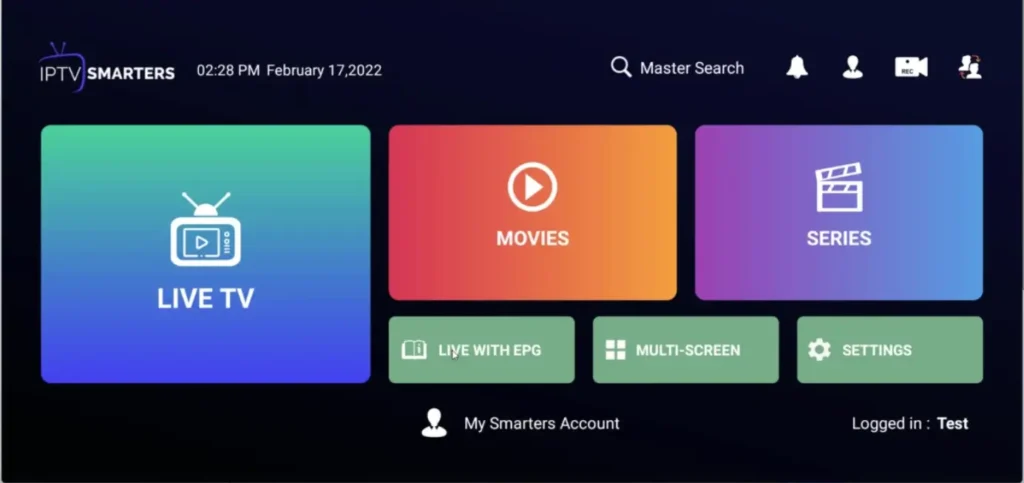
Start by opening your IPTV player app and waiting for the main menu to fully load. The search feature lives inside this main interface, so a complete load ensures every option appears correctly.
A quick check of your internet connection helps the library and search index load properly, since search relies on the content list being up to date. If the app feels slow, a fast restart usually makes navigation smoother and the search more responsive. Knowing your way around the home screen makes every search faster afterwards and prevents unnecessary scrolling.
1- Turn on your device and open your IPTV app.
2- Wait for the full content library to finish loading.
3- Confirm your internet connection is active and stable.
4- Locate the main menu or home dashboard of the app.
5- Restart the app once if menus respond slowly.
Step 2: Choose the Right Category Before Searching
Next, select the correct category, because most IPTV apps separate Live TV, Movies, and Series into different sections. Searching inside the right category gives faster and more accurate results than a broad search across everything.
For example, looking for a film works best inside the Movies or VOD section, while a TV show belongs in the Series section. Choosing the category first also narrows the results so you are not scrolling through unrelated channels and titles.
This small habit makes every search much more efficient and is the single biggest time-saver most users overlook. It also reduces confusion when a title exists both as a movie and a series.
1- Look at the main menu for Live TV, Movies, and Series tabs.
2- Choose Live TV to search for channels.
3- Choose Movies or VOD to search for films.
4- Choose Series or Shows to search for episodes.
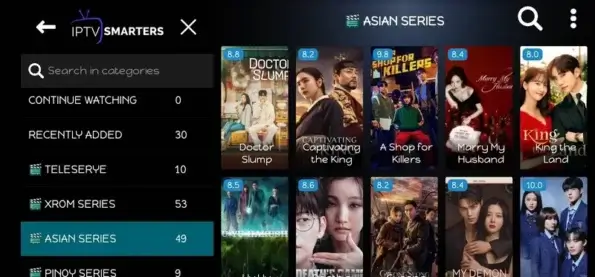
5- Open the chosen category before tapping search.
Step 3: Use the Built-In Search Bar
This is the key step: open the search bar inside your chosen category and prepare to type your query. Almost every IPTV app includes a magnifying glass icon or a clearly labelled search field. Tapping it opens an on-screen keyboard for your device.
Using the dedicated search bar is far faster than scrolling through long lists manually. Keeping the search field easy to find saves time on every future search.
1- Look for a magnifying glass or search icon 🔍 on screen.
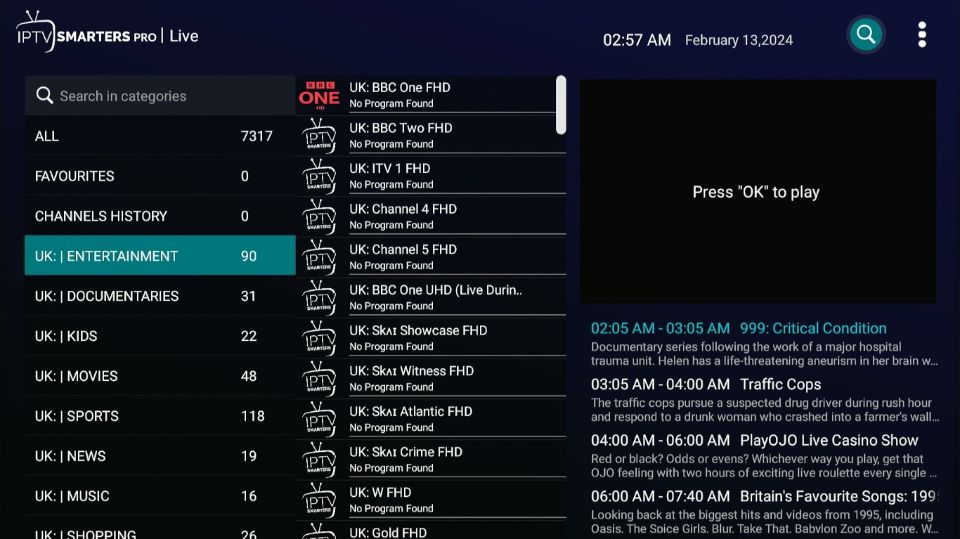
2- Tap the icon to open the search field.
3- Wait for the on-screen keyboard to appear.
4- Make sure you are still inside the correct category.
5- Get ready to enter your title or keyword.
Step 4: Type Keywords Effectively
Now type your search terms carefully, because accurate keywords return better results. You can search by the exact title, a partial name, or a general keyword like a genre or an actor’s name. Spelling matters a lot, so type slowly and double-check the title before confirming.
If the full name does not work, try just the first one or two words, since many libraries index titles differently. Smart keyword choices are the difference between finding content instantly and missing it entirely. Shorter, simpler queries usually return more matches than long, exact phrases, so start broad and refine if needed.
1- Enter the exact title if you know it precisely.
2- Try a partial title if the full name returns nothing.
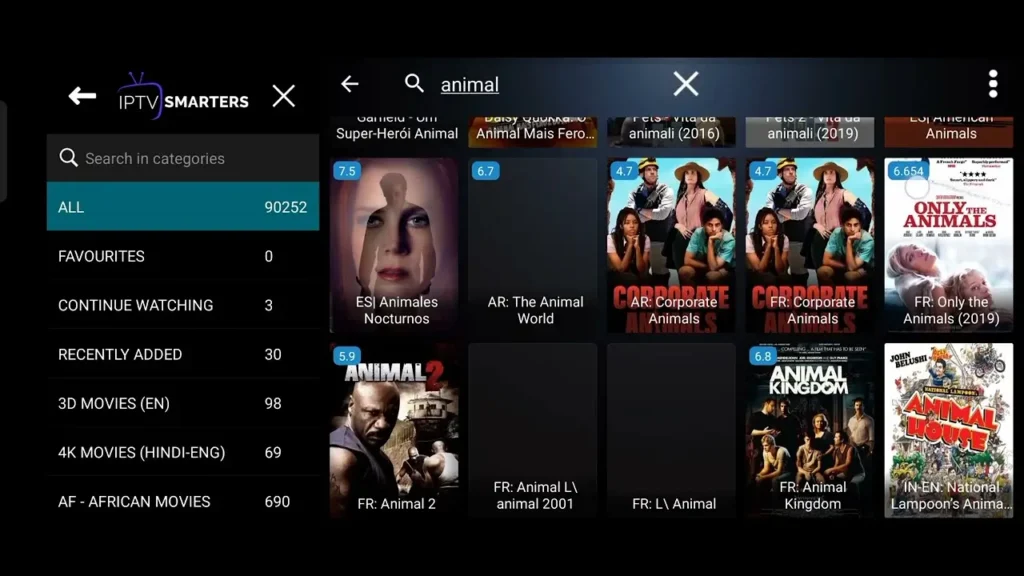
2- Use a keyword or genre for broader discovery.
3- Check your spelling before confirming the search.
4- Remove extra spaces that can block matches.
Step 5: Filter and Sort the Search Results
After the results appear, use filters and sorting to narrow them down to exactly what you want. Many IPTV apps let you filter by genre, release year, language, or category, which is extremely useful in large libraries. Sorting by newest or alphabetical order also helps a lot when there are many results on screen.
Filtering is especially valuable for common titles that return several versions in different qualities or languages. A few seconds of filtering turns a long, overwhelming list into a precise, easy choice. This step is what separates a frustrating search from a quick, satisfying one.
1- Open the filter or sort option near the results.
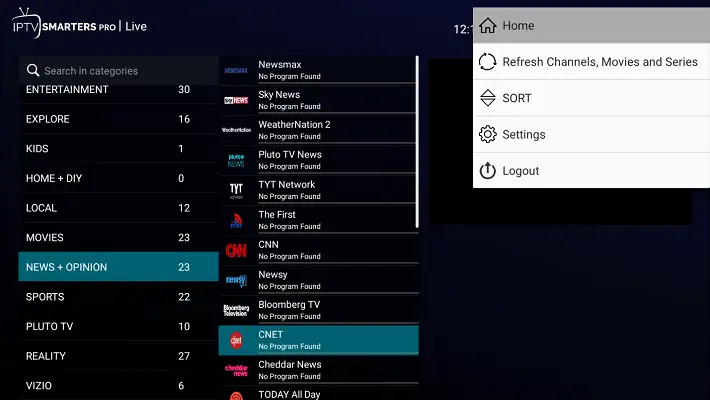
2- Filter by genre, year, or language if available.
3- Sort results by newest or alphabetical order.
4- Scan the filtered list for the exact match.
5- Select the correct title to start watching.
Step 6: Save Favourites and Use Categories for Faster Access
Once you find content you like, save it to favourites so you do not have to search for it again later. Most IPTV apps let you mark channels, movies, or series as favourites with a single click. Organized favourites and categories drastically reduce repeat searching and make the app feel much faster.
This is especially helpful for channels you watch daily or series you follow weekly, since they stay one tap away. Building a clean favourites list is one of the best long-term habits for a smooth IPTV experience. For ideas on what Canadian series are worth adding, see our guide to the best Canadian TV series.
1- Highlight the channel, movie, or series you found.
2- Select the favourite or star option to save it.
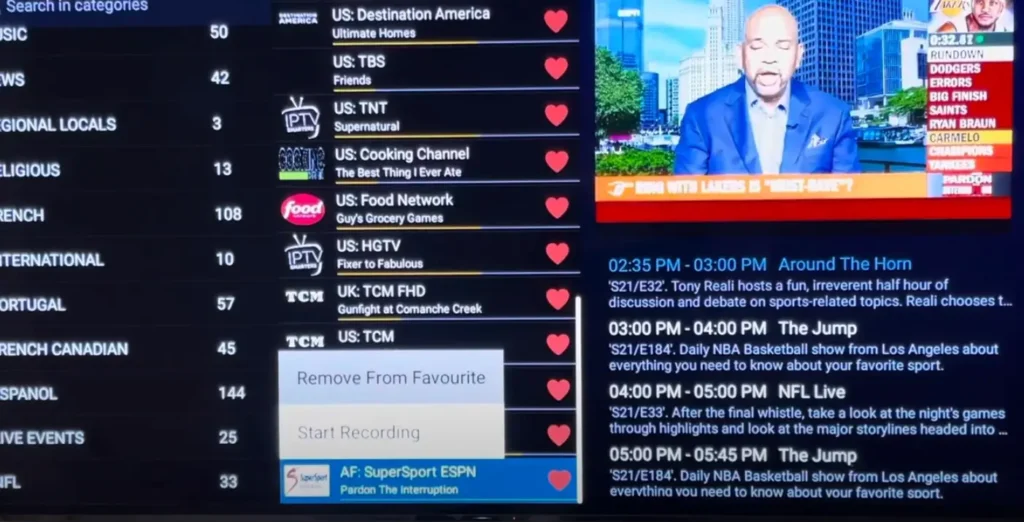
3- Group similar favourites into clear categories.
4- Open favourites first before searching next time.
5- Review and clean your favourites list occasionally.
Step 7: Troubleshoot When Search Does Not Find Content
Finally, if a search returns no results, apply a few quick checks before assuming the content is unavailable. Most failed searches come from spelling, the wrong category, or an outdated library rather than genuinely missing content.
Refreshing the app or reloading the library often solves the problem instantly without any further effort. Knowing these simple fixes saves frustration and helps you locate content much faster. A calm, step-by-step check almost always reveals the real issue, which is rarely the content itself.
- Recheck your spelling and try a shorter keyword.
- Confirm you are searching in the correct category.
- Refresh or reload the content library in settings.
- Restart the app to rebuild the search index.
- Contact your provider’s support if content is truly missing.
Extra Tips for Faster Searching on IPTV
A few simple habits make finding content on IPTV much quicker over time. Searching inside the right category and using clear keywords are the two biggest time-savers. Keeping favourites organized also reduces how often you need to search at all.
- Always choose the category before opening the search bar.
- Use short, accurate keywords instead of long phrases.
- Keep your app updated so the library stays current.
- Build favourites lists for channels and series you follow.
- Refresh the library if new content does not appear.
- Note the correct spelling of titles you search often.
- Use the favourites list as your main starting point.
For broader context on how Canadians watch and find content online, you can also explore Statistics Canada, a reliable and high-authority national resource with clear public data.
FAQ: Common Questions About Searching on IPTV
Why can’t I find a movie when I search on IPTV?
This is usually a spelling mistake, the wrong category, or an outdated library. Try a shorter keyword, switch sections, or refresh the content list.
Does every IPTV app have a search bar?
Most modern IPTV player apps include a search icon or field. If yours does not, browsing by category or updating the app usually helps.
Can I search for live channels the same way as movies?
Yes, the method is the same. Just make sure you are in the Live TV section before searching, since channels and movies are usually separate.
Why do my search results show multiple versions of the same title?
Libraries often include several quality or language versions. Use filters by language or year, then pick the version that suits you best.
How can I find content faster without searching every time?
Save channels, movies, and series to favourites. Opening favourites first removes the need to repeat the same search again and again.
Does a better subscription improve search results?
A well-organized library makes searches faster and more accurate. A reliable provider keeps content sorted, which directly improves the search experience.
My search bar is not responding, what should I do?
Restart the app first, then check your internet connection. If it still fails, reload the library or reinstall the app from an official source.
Conclusion
Searching on IPTV is fast and simple once you know the steps: open the app, choose the right category, use the search bar, type accurate keywords, filter the results, and save favourites for next time. Most failed searches come down to spelling or the wrong category and are easy to fix with a quick check rather than assuming content is missing.
With a reliable provider and a well-organized library, finding movies, series, and channels becomes effortless. The more you use categories and favourites, the less you will need to search at all, letting you spend less time looking and more time watching what you actually enjoy.