
How to Set Up IPTV on Android TV Box?
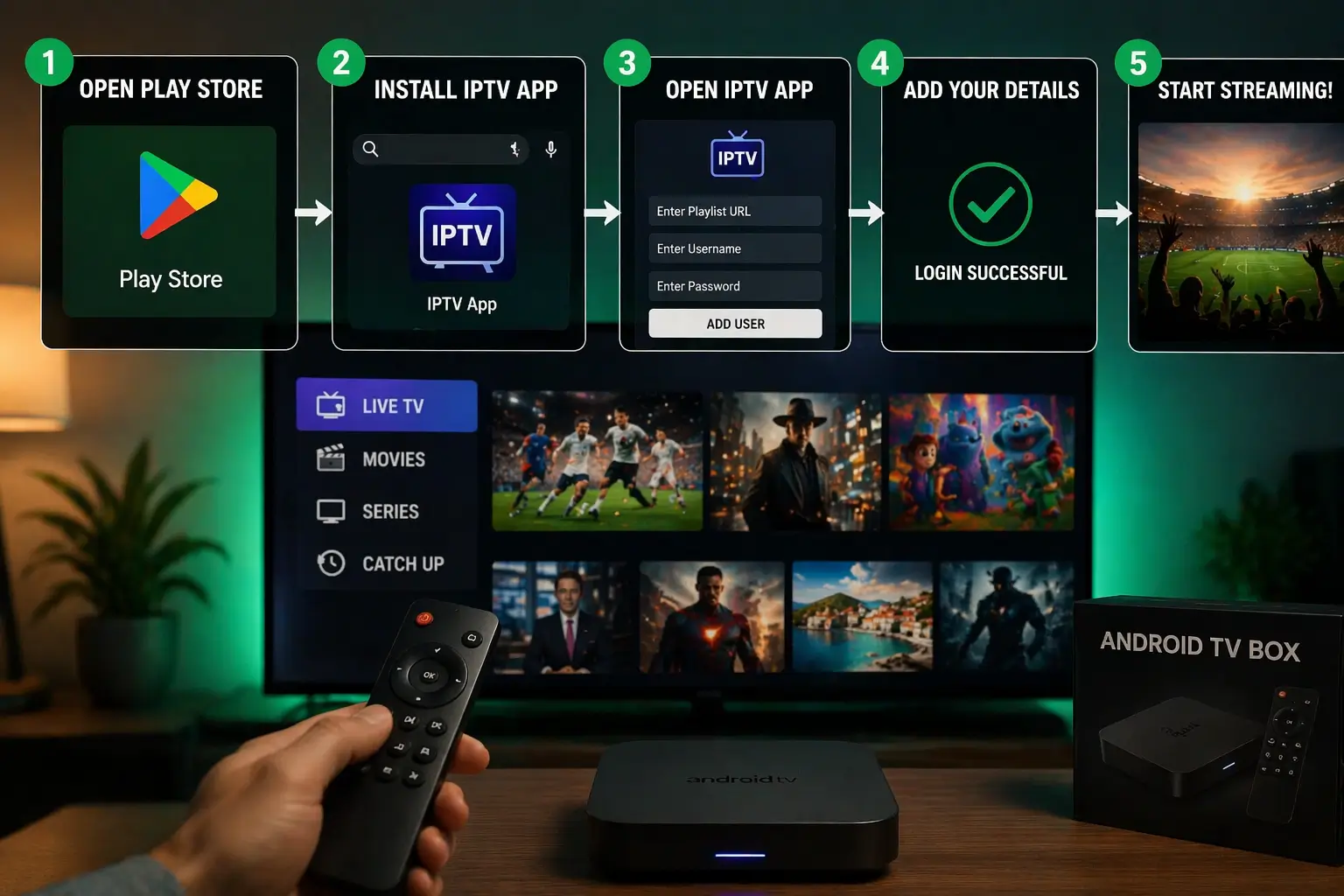
Setting up IPTV on an Android TV Box takes just 5 to 10 minutes and involves downloading an IPTV player app, entering your subscription...
On this page (6)
Setting up IPTV on an Android TV Box takes just 5 to 10 minutes and involves downloading an IPTV player app, entering your subscription details, and configuring your settings for optimal streaming. Android TV Boxes are among the most popular devices for IPTV because they offer full access to the Google Play Store, powerful hardware, and easy customization.
Once you have a reliable For the best viewing experience, consider securing a premium iptv subscription in canada. with your M3U URL or Xtream Codes credentials, you’re ready to transform your TV into a complete entertainment hub. This step-by-step guide walks you through the entire process from start to finish.
Step 1: Prepare Your Android TV Box
Before installing any IPTV app, you need to ensure your device is ready for the setup process.
Connect your Android TV Box to your television using an HDMI cable.
Ensure your device is connected to a stable WiFi network or use an Ethernet cable for better performance.
Go to Settings > Device Preferences >
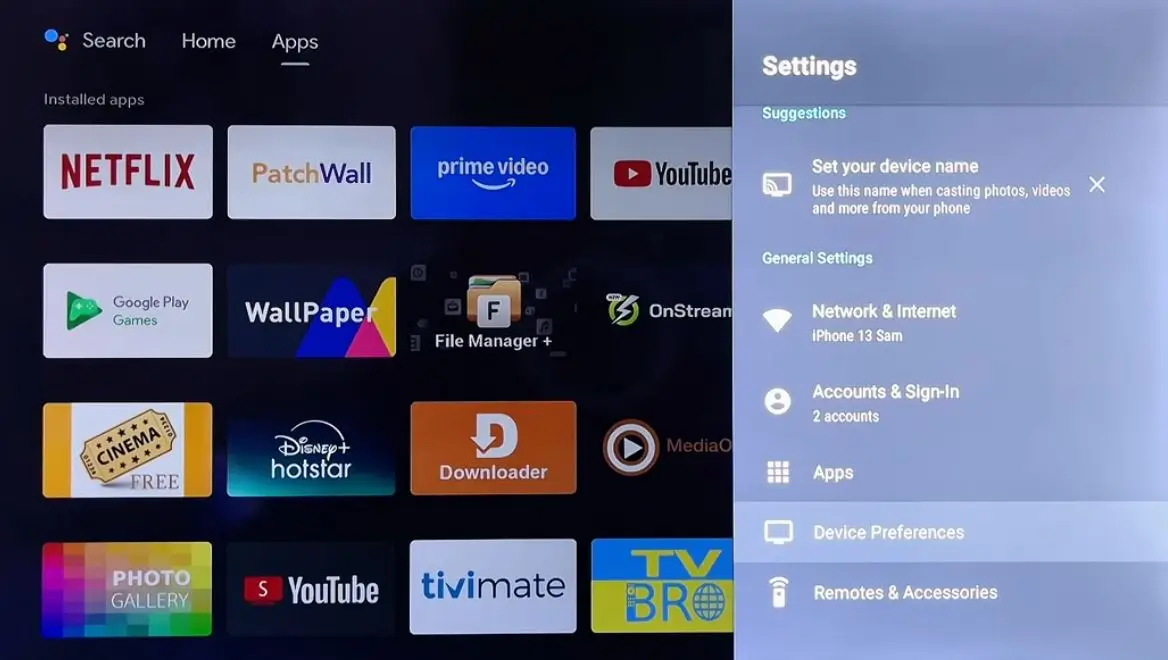
And Security & Restrictions.
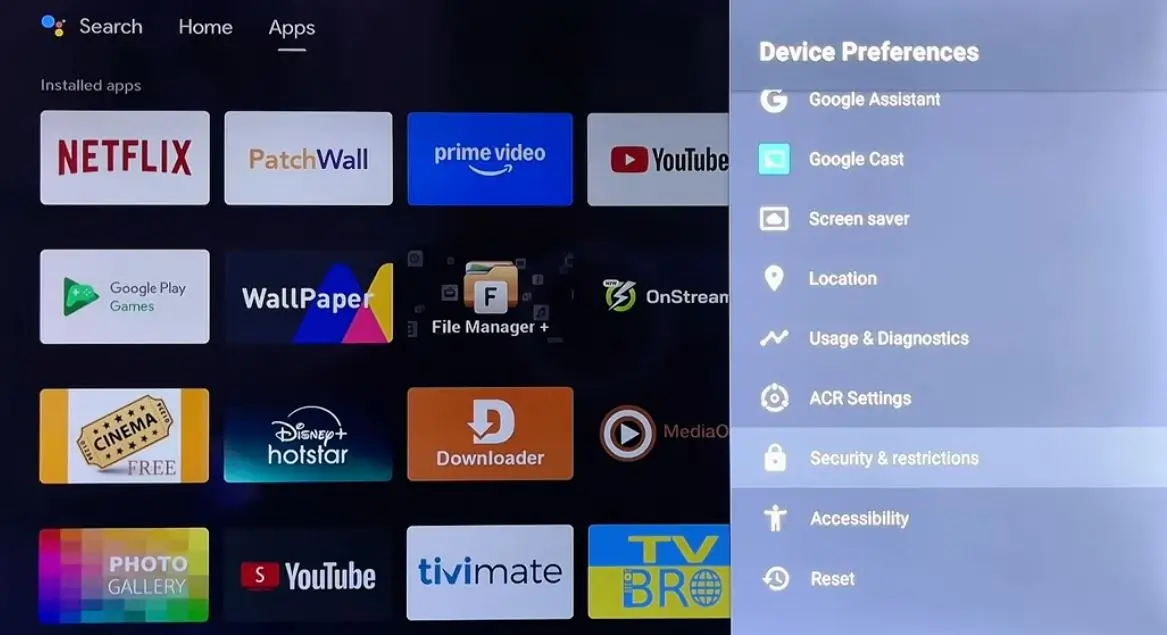
Enable Unknown Sources to allow installation of third-party apps if needed.
Check that your Android TV Box has at least 1GB of free storage space.
Update your device firmware to the latest version for optimal compatibility.
Restart your device to apply any pending updates.
Step 2: Download and Install an IPTV Player App
You need a dedicated IPTV player app to stream your content on the Android TV Box.
Open the Google Play Store on your Android TV Box.
Search for popular IPTV players like IPTV Smarters Pro, TiviMate, or OTT Navigator.
Select your preferred app and click Install.

Wait for the download and installation to complete.
If your chosen app isn’t on the Play Store, download the APK file using the Downloader app from AFTVnews.
Once installed, the app icon will appear on your home screen or in your apps list.
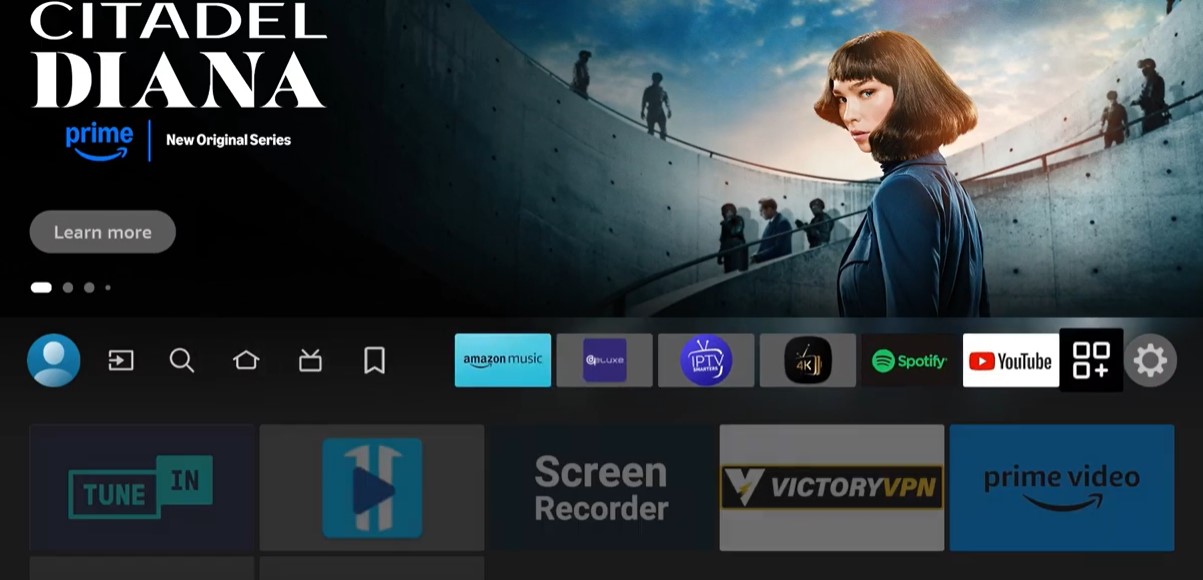
Do not open the app yet — first gather your subscription credentials.
Step 3: Gather Your IPTV Subscription Details
Your IPTV provider supplies the login information needed to activate your service.
Locate the welcome email or message from your IPTV provider.
Find your M3U URL link — this is a long web address ending in .m3u or .m3u8.
Alternatively, look for your Xtream Codes credentials: Server URL, Username, and Password.
Some providers also offer a MAC address portal option for certain apps.
Copy these details carefully or keep them accessible on your phone.
Double-check for typos as incorrect credentials will prevent connection.
If you haven’t chosen a provider yet, explore is IPTV worth it in 2026 to understand your options.
Step 4: Configure the IPTV App With Your Credentials
Now it’s time to enter your subscription details into the IPTV player app.
Open the IPTV player app you installed earlier.
Select Add New User or Add Playlist depending on the app.
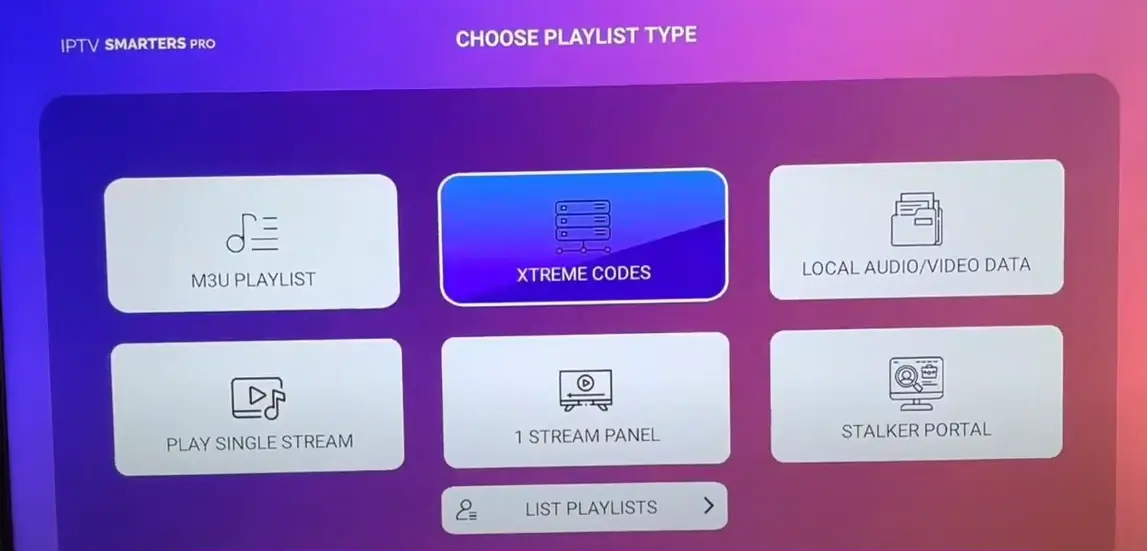
Choose your login method: Xtream Codes API (recommended) or M3U URL.
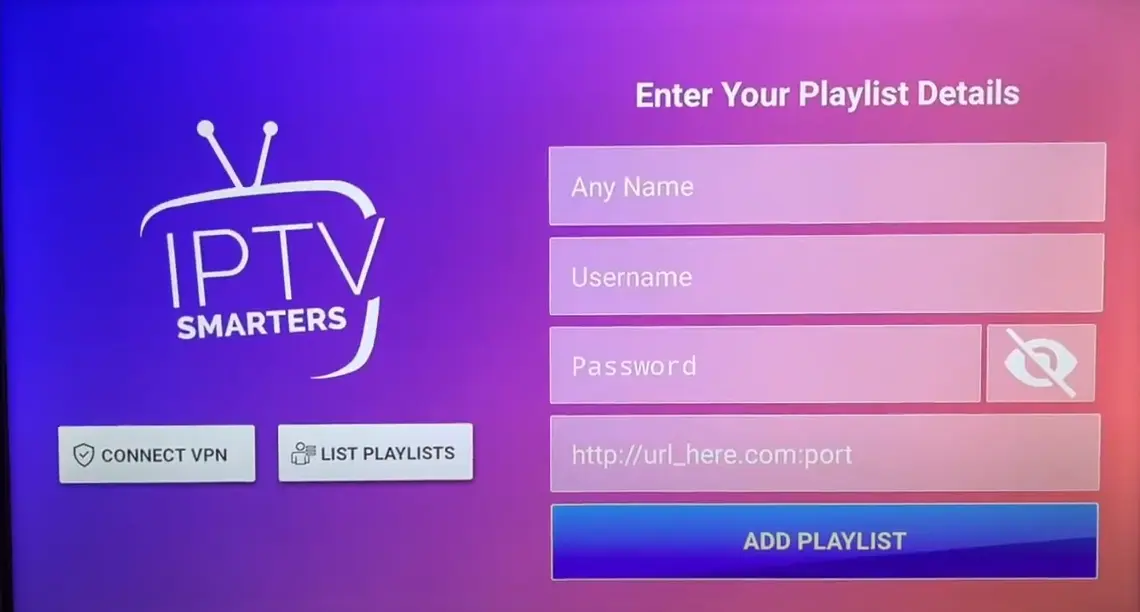
For Xtream Codes: Enter the Server URL, Username, and Password in the designated fields.
For M3U URL: Paste the complete M3U link into the URL field.
Give your playlist a name like “My IPTV” for easy identification.
Click Add User or Login and wait for the channels to load.
The app will download your channel list and EPG (Electronic Program Guide).
Step 5: Customize Settings and Start Watching
Final adjustments will optimize your viewing experience on the Android TV Box.
Navigate to the app’s Settings menu.
Set your preferred Video Player — ExoPlayer usually works best for Android devices.
Enable Auto-start on boot if you want the app to launch automatically.
Adjust the EPG timezone to match your local time for accurate program schedules.
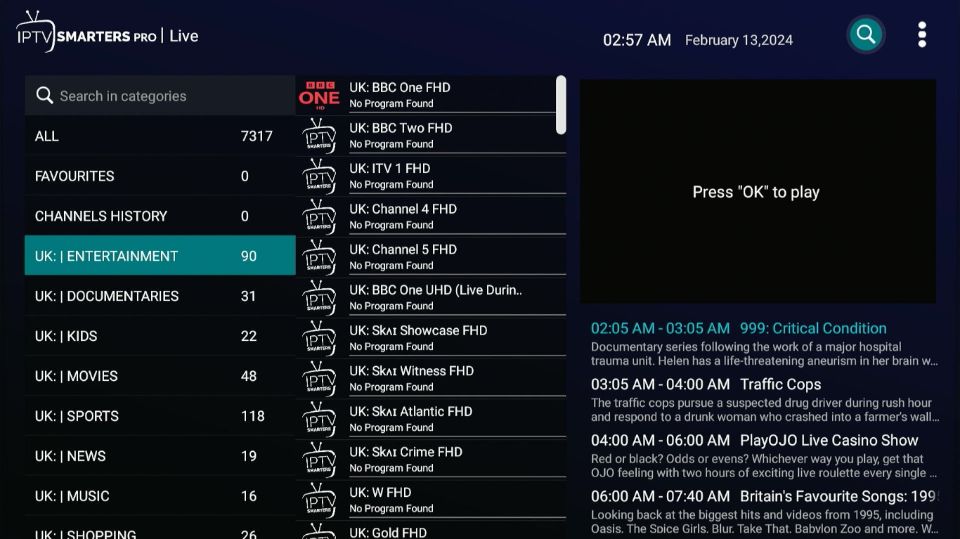
Set your preferred streaming quality: Auto, HD, or 4K based on your internet speed.
Organize channels by adding favorites for quick access.
Test several channels to confirm everything works correctly.
Enjoy your complete IPTV experience on the big screen.
Frequently Asked Questions
Which IPTV app is best for Android TV Box?
IPTV Smarters Pro and TiviMate are the most popular choices, offering user-friendly interfaces and reliable performance. For Fire TV users, check the similar setup process for Firestick.
Why won’t my IPTV channels load?
Check your internet connection, verify your subscription credentials are correct, and ensure your subscription is still active.
Do I need a VPN for IPTV on Android TV Box?
A VPN is optional but recommended for privacy and to prevent potential ISP throttling during streaming.
Can I record live TV with IPTV on Android TV Box?
Yes, apps like TiviMate offer DVR functionality to record live broadcasts if your device has sufficient storage.
How many devices can I use with one IPTV subscription?
Most providers allow 1-4 simultaneous connections depending on your subscription plan.
What internet speed do I need for smooth streaming?
A minimum of 15-25 Mbps is recommended for HD content, and 50+ Mbps for 4K streams.
Why is my IPTV buffering on Android TV Box?
Buffering usually indicates slow internet, server issues, or too many devices using your network simultaneously.

Your free trial login works in every app in this article. Twelve hours of the full service, no card, then choose a plan or stop.
- No credit card
- Login by email in minutes
- Setup guides for every device