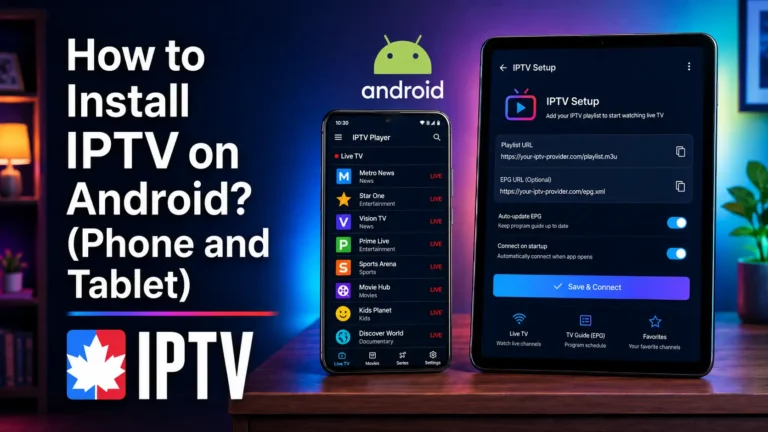
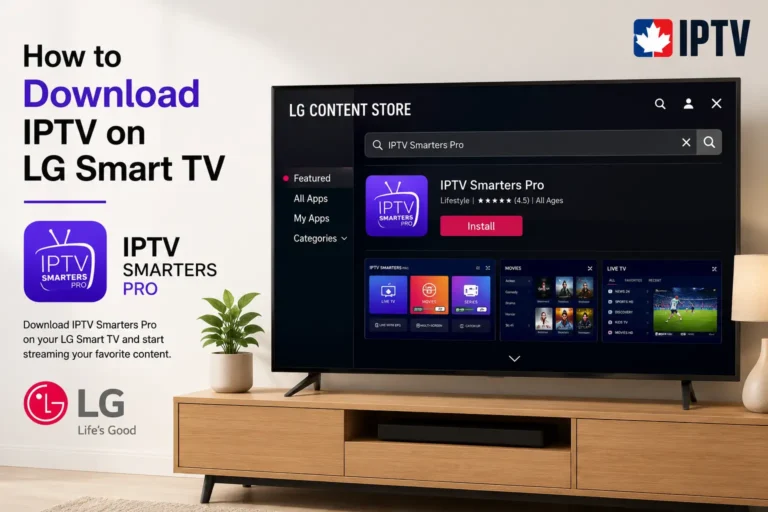
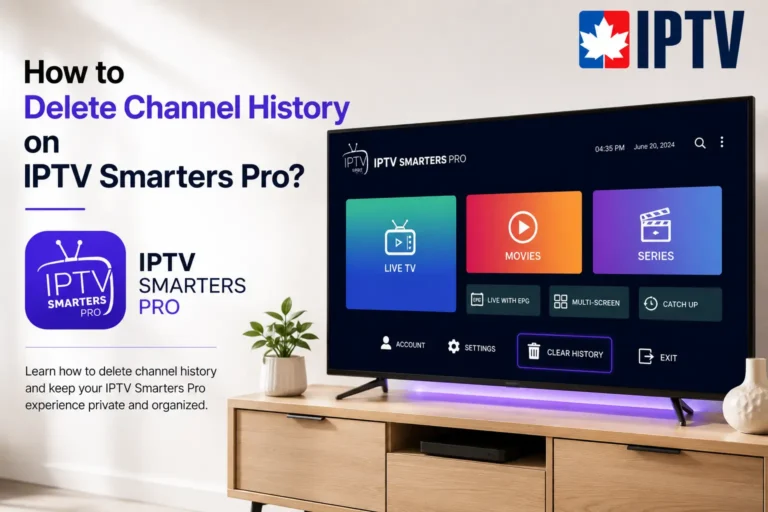
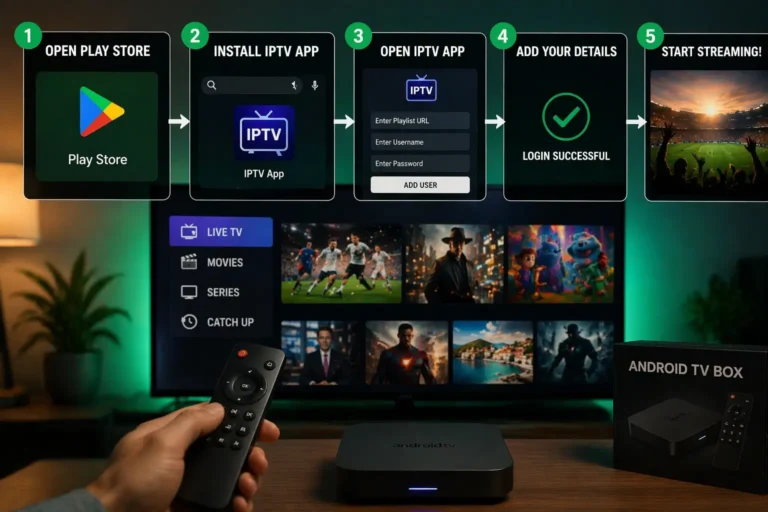
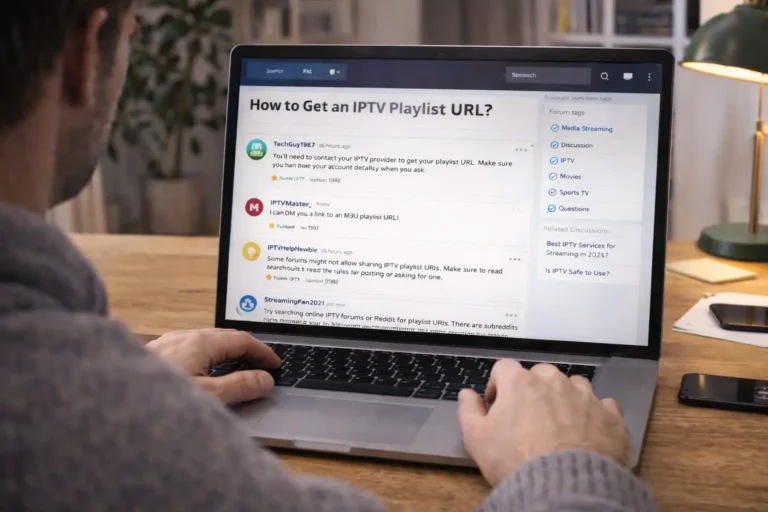
To install IPTV on Google TV, open the Google Play Store on your device, search for an IPTV player app such as IPTV Smarters or TiviMate, install it, then launch the app and log in using the credentials provided by your IPTV service.
The whole process takes less than five minutes and requires no technical skills — just your device, a stable internet connection, and the login details from your provider. Google TV runs on Android TV, which means it supports a wide range of IPTV player apps directly from the Play Store, making setup quick and straightforward.
For the best experience, pair your player with a reliable IPTV Subscription that delivers stable streams and broad channel coverage. This step-by-step guide walks you through everything, from connecting your device to troubleshooting common issues.
Step 1: Connect Your Google TV to the Internet
Before installing anything, make sure your Google TV is connected to a stable internet connection. A weak connection is the number one cause of buffering and freezing during playback.
Open the Settings menu from your Google TV home screen.
Select Network & Internet.
Choose your Wi-Fi network and enter the password, or connect an Ethernet cable for the most stable signal.
Wait for the “Connected” confirmation to appear.
For 4K streaming, aim for a download speed of at least 25 Mbps.
A wired Ethernet connection is always more reliable than Wi-Fi for live TV, so use one if your device and setup allow it.
Step 2: Sign In With Your Google Account
To access the Play Store and download apps, your Google TV needs to be linked to a Google account. This is usually done during initial setup, but it’s easy to check.
Go to Settings, then Accounts & Sign-In.
If no account is listed, select Add account and follow the prompts.
Enter your Gmail address and password, or sign in using your phone.
Confirm the account appears in the list once signed in.
If you already signed in when you first set up the device, you can skip straight to the next step.
Step 3: Open the Google Play Store
The Google Play Store is where you’ll download your IPTV player. It comes pre-installed on every Google TV device.
From the home screen, scroll to the Apps tab.
Select the Google Play Store icon, or use the search bar at the top.
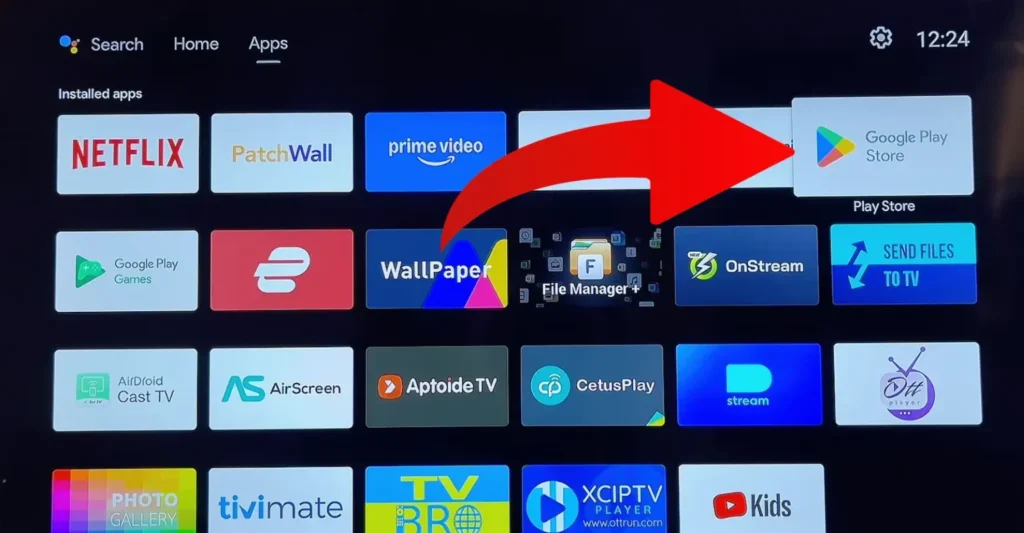
Wait for the store to load fully.
Make sure you’re signed in with the correct Google account.
If you can’t find the Play Store, restart your device — it almost always reappears after a quick reboot.
Step 4: Search for an IPTV Player App
Google TV supports several trusted IPTV player apps. Pick one that matches your needs, as each offers slightly different features and layouts.
Use the search bar in the Play Store and type the app name.
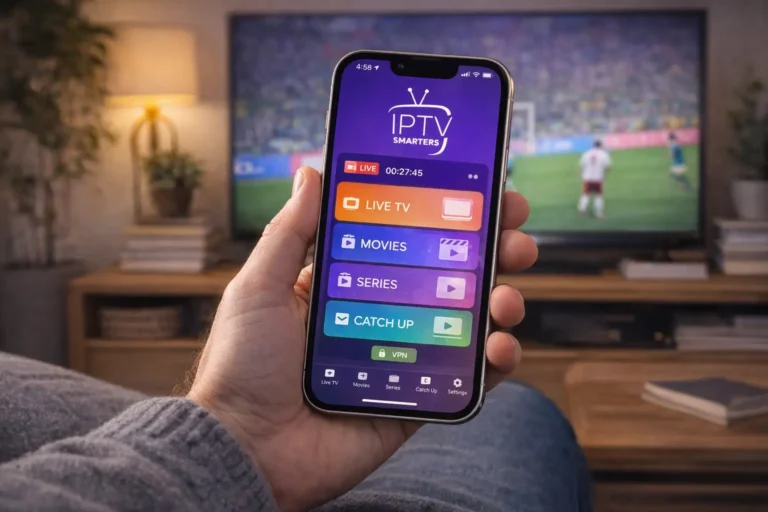
Popular, well-reviewed options include IPTV Smarters Pro, TiviMate, and Sparkle TV.
Check the rating and number of downloads before choosing.
For most beginners, IPTV Smarters Pro is the easiest starting point.
Stick to apps with high ratings and many downloads — these are the most stable and frequently updated. If you’re unsure which one to pick, our guide to the best IPTV player apps breaks down the strengths of each.
Step 5: Install the IPTV Player
Once you’ve chosen your app, installing it takes just a few taps. The app downloads and sets up automatically.
Select your chosen IPTV player from the search results.
Click the Install button.
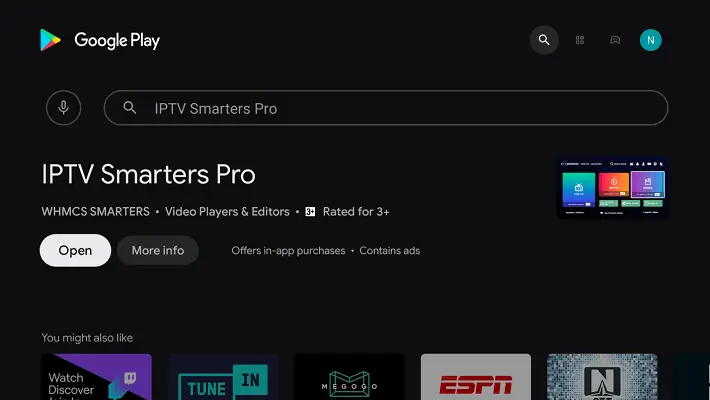
Wait for the download and installation to complete.
The button will change to Open once it’s ready.
Installation time depends on your internet speed, but most apps are small and install within a minute.
Step 6: Launch the App and Grant Permissions
The first time you open an IPTV player, it will ask for a few permissions so it can function properly. Granting these is safe and necessary.
Select Open to launch the app for the first time.
Allow the app to access storage when prompted (needed to save your channel list).
Accept the terms of use if a prompt appears, select your device.
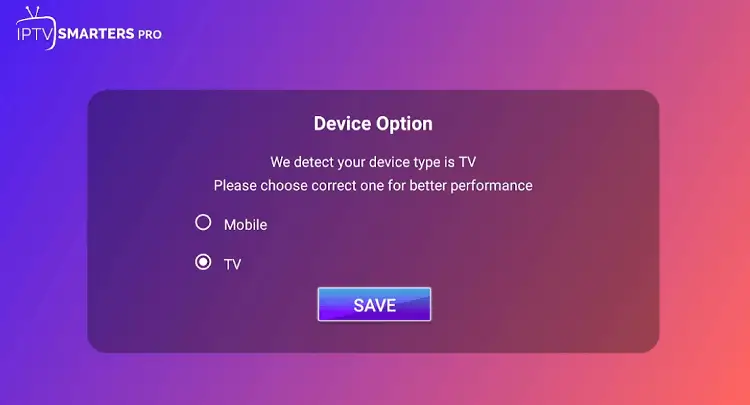
Wait for the main screen or login page to load.
These permissions only let the app store your playlist and settings locally — nothing more.
Step 7: Enter Your IPTV Subscription Details
This is the key step that connects the player to your channels. You’ll need the login information your provider gave you when you subscribed.
Choose your login method: Xtream Codes API or M3U URL, depending on what your provider supplied.
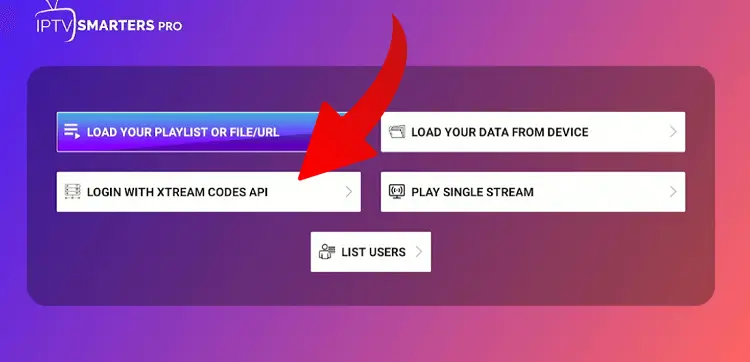
For Xtream Codes, enter your username, password, and server URL.
For M3U, paste the playlist URL exactly as provided.
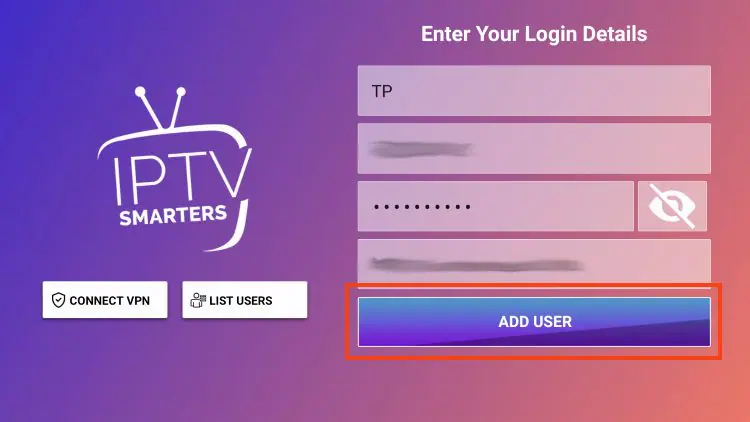
Give the playlist a name (optional) and confirm.
Double-check every detail, since a single wrong character will stop the channels from loading. Keep these credentials private and never share them.
Step 8: Let the Channels Load
After entering your details, the app imports your full channel and content list. This may take a moment the first time.
Wait while the app downloads the channel list and program guide (EPG).
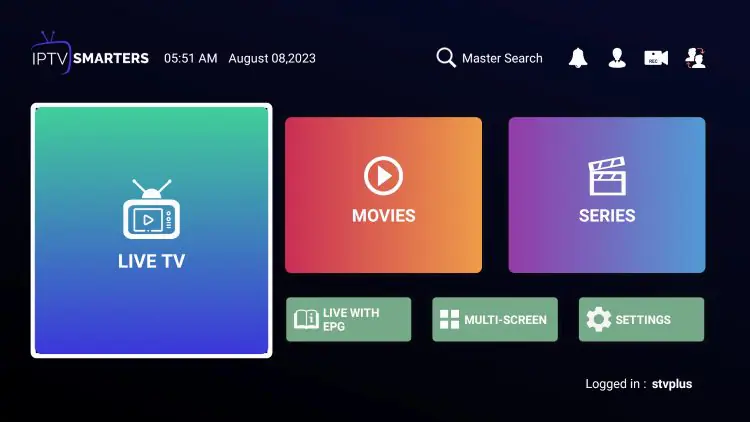
Avoid closing the app during this process.
Once finished, your channels appear sorted into categories.
The EPG shows what’s playing now and next.
A larger channel package takes a little longer to load on first launch — this is completely normal.
Step 9: Organize and Test Your Channels
With everything loaded, take a minute to set up the app the way you like and confirm it’s working. A quick test now saves frustration later.
Browse the categories: Live TV, Movies, Series, and more.
Mark your most-watched channels as favorites for quick access.
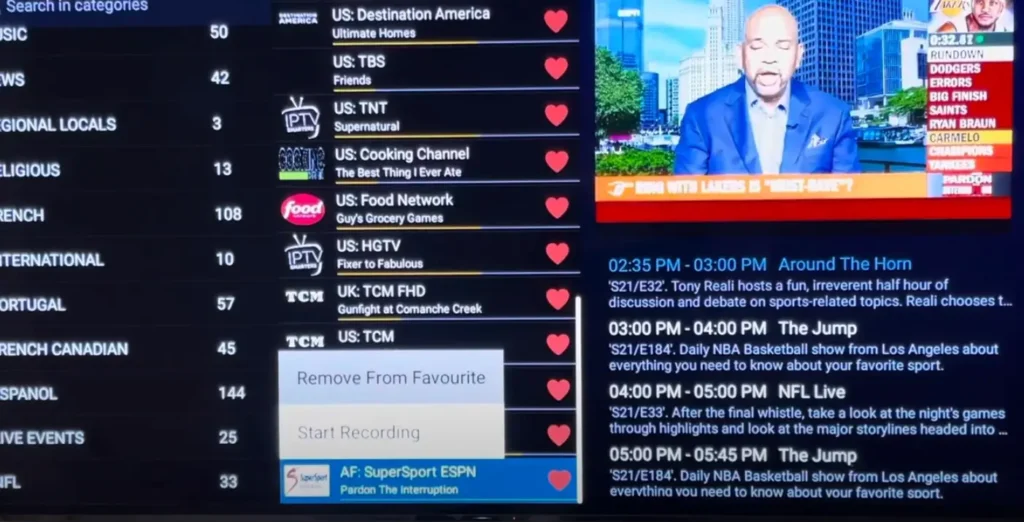
Open a few channels to confirm they play smoothly.
Adjust video quality or aspect ratio in settings if needed.
If a channel buffers, try a different one first — occasional single-channel issues are usually on the provider’s side, not your setup.
Step 10: Troubleshoot Common Issues
If something isn’t working, most problems have simple fixes. Run through these checks before contacting support.
- Channels won’t load: verify your internet connection and re-enter your login details carefully.
- Constant buffering: switch to Ethernet, lower the stream quality, or restart your router.
- App crashes: clear the app’s cache in Settings, or reinstall it.
- Expired playlist: confirm your subscription is still active with your provider.
- Black screen: restart both the app and your Google TV device.
If issues persist across all channels, a quick message to your provider’s support team usually resolves it fast.
Conclusion
Installing IPTV on Google TV is genuinely simple: connect to the internet, download a player app from the Play Store, enter your subscription details, and let your channels load. The whole setup takes just a few minutes, and once it’s done, you have live TV, movies, and series in one place, no cable box required.
For the smoothest experience, remember the essentials: use a wired connection when possible, pick a well-rated player app, double-check your login credentials, and always go with a legitimate, properly licensed provider.
It’s no surprise that streaming has overtaken cable for many households, a growing number of Canadians have cut the cord in favor of internet-based TV, and Google TV makes joining them easier than ever. Follow the ten steps above, keep your subscription active, and you’ll be set for reliable streaming for years to come.
FAQ
Is IPTV legal on Google TV?
IPTV technology itself is completely legal. What matters is the source of your content — always use a legitimate, properly licensed provider to stay on the right side of copyright rules.
Do I need a VPN to use IPTV on Google TV?
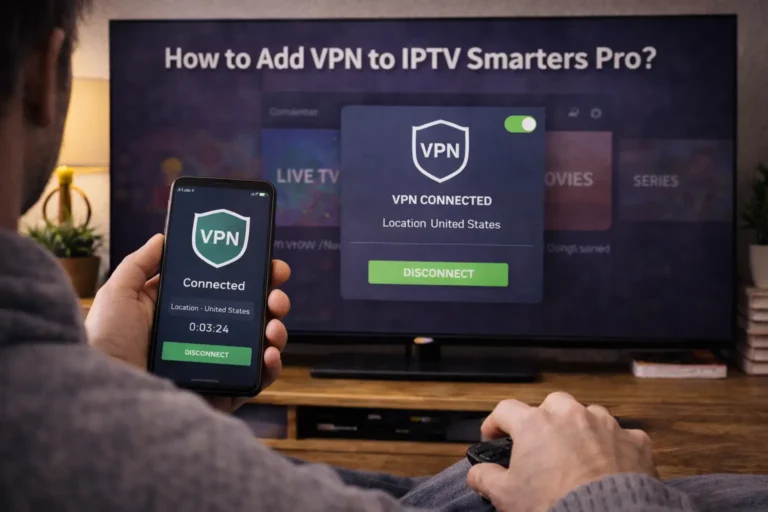
A VPN isn’t required, but some users add one for privacy and a more stable connection. It’s optional and depends on your preferences.
Which IPTV app is best for Google TV?
IPTV Smarters Pro is the most beginner-friendly, while TiviMate is favored by advanced users for its polished interface and EPG features.
Why does my IPTV keep buffering?
Buffering is usually caused by a slow internet connection. Switch to Ethernet, reduce the stream quality, or restart your router to improve stability.
Can I install IPTV without the Google Play Store?
Yes, you can “sideload” apps using a tool like Downloader, but the Play Store method is far simpler and safer for most users.
How much internet speed do I need for IPTV?
A minimum of 10 Mbps works for standard definition, 25 Mbps is recommended for HD, and 50 Mbps or more is ideal for smooth 4K streaming.
Do I need a separate subscription for the app and the channels?
Most IPTV player apps are free or a one-time purchase. The channels come from your separate IPTV subscription with your chosen provider.