
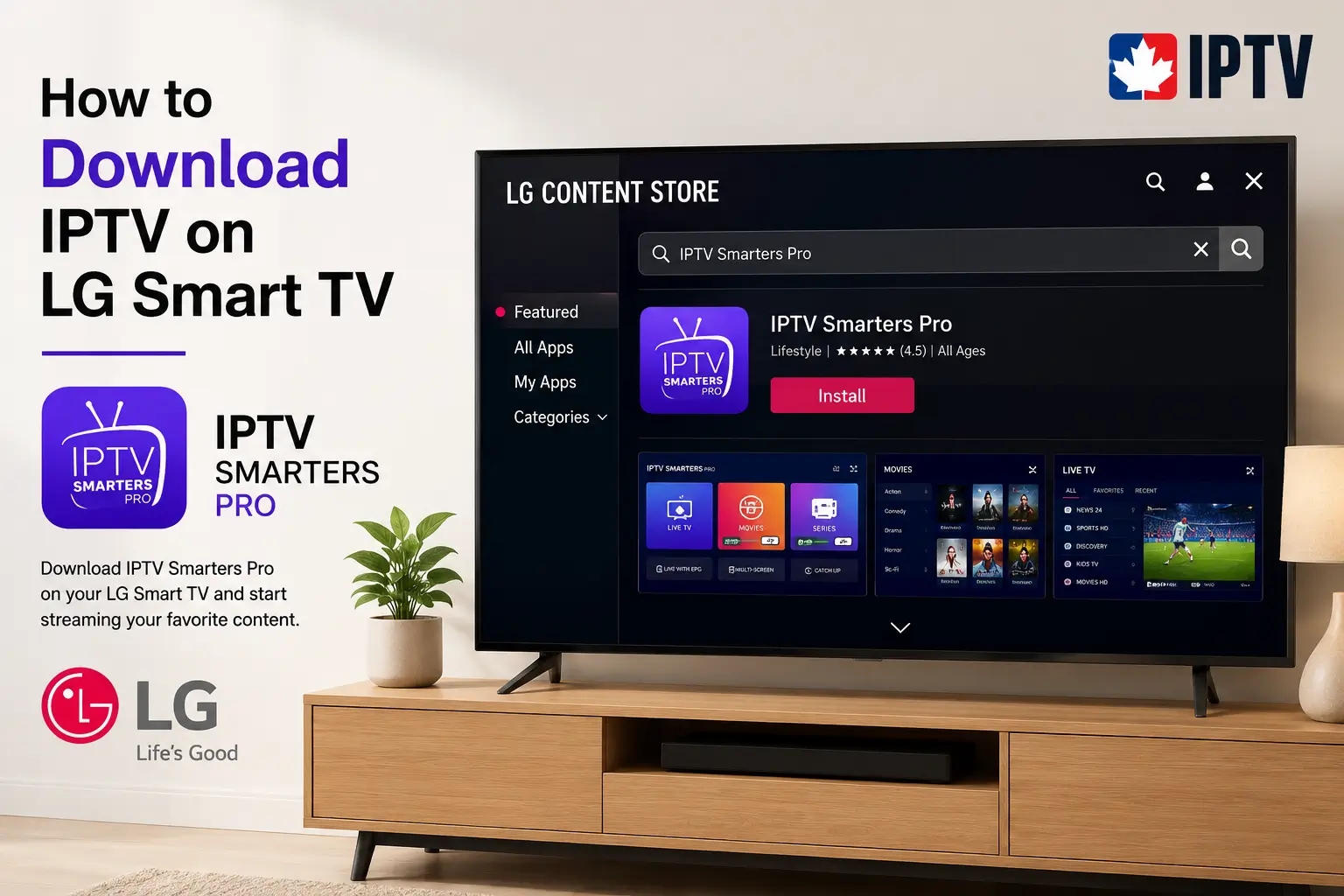
How to Download IPTV on LG Smart TV?
To download IPTV on an LG Smart TV, connect the TV to the internet, open the LG Content Store, search for a compatible IPTV app, install it
On this page (10)
- Step 1: Prepare Your LG Smart TV and Internet Connection
- Step 2: Get Your IPTV Subscription and Login Details Ready
- Step 3: Open the LG Content Store
- Step 4: Search for and Download a Compatible IPTV App
- Step 5: Launch the App and Enter Your Login or M3U
- Step 6: Load Channels and Adjust the Settings
- Step 7: Start Watching and Fix Common Issues
- Extra Tips for a Better IPTV Experience on LG Smart TV
- FAQ: Common Questions About Downloading IPTV on LG Smart TV
- Conclusion
To download IPTV on an LG Smart TV, connect the TV to the internet, open the LG Content Store, search for a compatible IPTV app, install it, then open the app and enter your subscription login or M3U playlist to start watching. The entire process takes only a few minutes and uses the tools already built into your LG webOS television, with no extra hardware required at all.
With a dependable IPTV Subscription from a trusted provider, the app installs smoothly and the channels load reliably on your LG screen, even during busy evening hours. This clear, step-by-step guide walks you through the whole process so you can set up IPTV on your LG Smart TV quickly and confidently, even if you have never installed an app before.
Step 1: Prepare Your LG Smart TV and Internet Connection
Before downloading anything, make sure your LG Smart TV is updated and connected to a stable internet connection. IPTV depends on a continuous data stream, so a weak or unstable connection is the most common cause of buffering later.
Checking this first saves you from troubleshooting after the app is installed. A quick system update also ensures the LG Content Store and apps work correctly. Taking a few minutes here makes the rest of the setup much smoother.
1- Turn on your LG Smart TV and confirm it reaches the home screen.
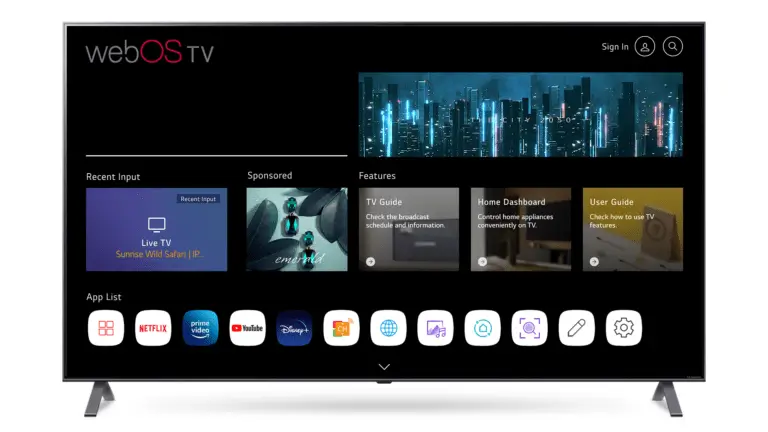
2- Connect it to Wi-Fi or, ideally, a wired Ethernet cable.
3- Make sure the connection speed is at least 15 to 25 Mbps for HD.
4- Open Settings and install any pending webOS system updates.
5- Restart the TV once if it feels slow before continuing.
Step 2: Get Your IPTV Subscription and Login Details Ready
Next, make sure you have an active subscription and your login details on hand, since the app needs them to load your channels. A reliable provider sends you either an M3U playlist link or a username, password, and server URL by email after sign-up.
Having these details ready before you start avoids interruptions during setup. Choosing a provider with stable servers matters more than the app itself, because a weak service will buffer regardless of your TV. Keep the credentials somewhere easy to access during the process.
1- Choose a trusted provider with stable servers and clear terms.
2- Complete your subscription and open the confirmation email.
3- Locate your M3U URL or your username, password, and server.
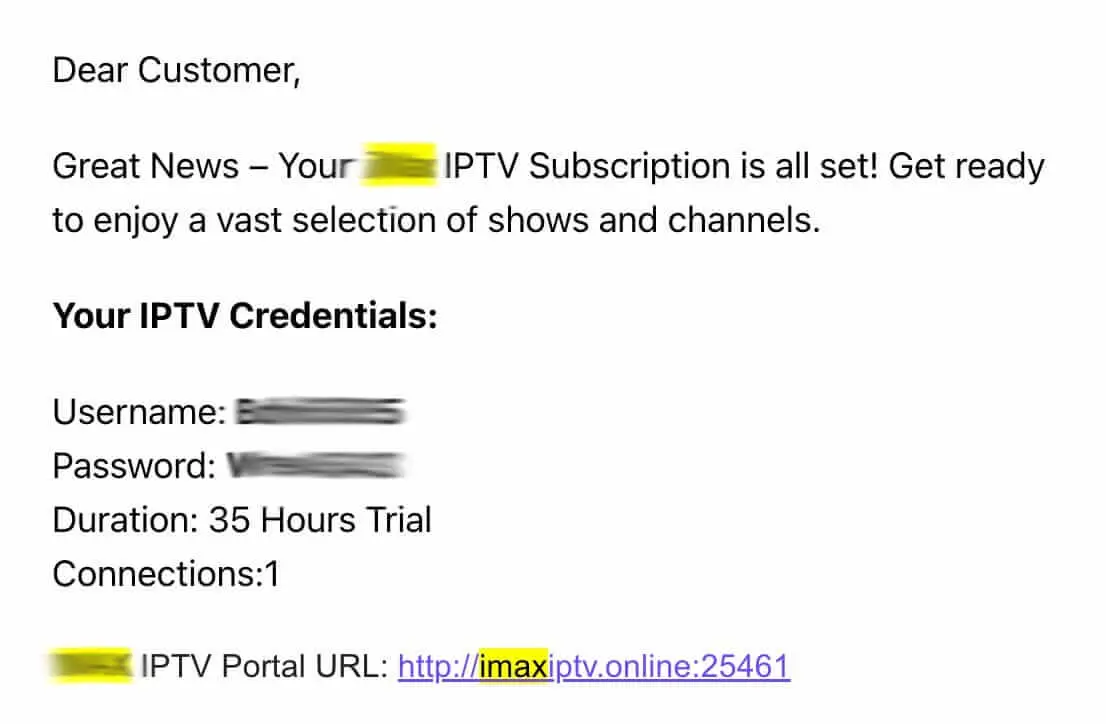
4- Save the details on your phone or write them down clearly.
5- Check the spam folder if the email does not arrive quickly.
Step 3: Open the LG Content Store
Now open the LG Content Store, which is the official app marketplace built into every LG Smart TV. This is the safest place to download an IPTV player, because apps there are checked before they appear. Using the official store protects your TV from unsafe software.
The Content Store icon is usually on the home bar or in the apps menu. Spending a moment to locate it makes the next step faster.
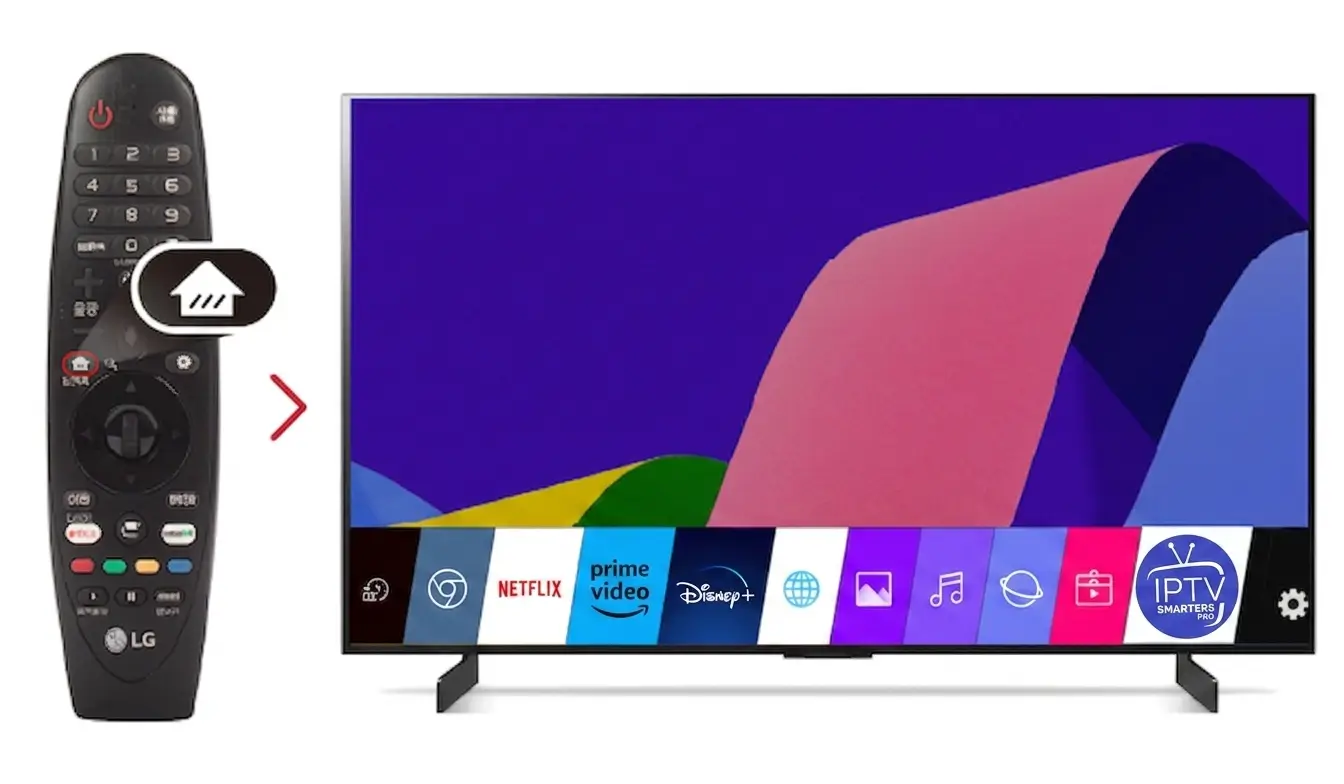
1- Press the Home button on your LG remote control.
2- Find the LG Content Store icon on the launcher bar.
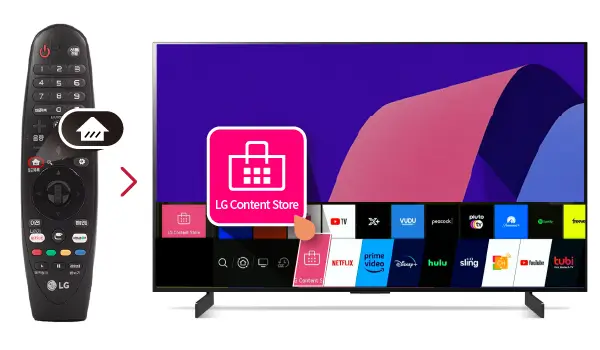
3- Open it and sign in with an LG account if prompted.
4- Wait for the store to fully load all categories.
5- Keep the store open and move to the search step.
Step 4: Search for and Download a Compatible IPTV App
This is the key step: find a compatible IPTV player in the LG Content Store and install it on your TV. LG televisions run webOS, so the app must support that system to work correctly. Choosing a well-known, stable player gives you the smoothest experience and the fewest issues over time.
It also helps to confirm with your provider which app they officially recommend, since some players work better with certain services. Always download only from the official store to stay safe, and you can check your model details and webOS support on the official LG Canada site.
1- Open the search bar inside the LG Content Store.
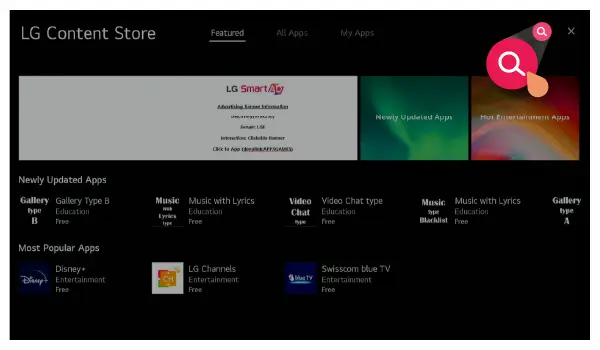
2- Type the name of a known IPTV player recommended by your provider.
3- Select the correct app from the official search results.
4- Press Install and wait for the download to finish.
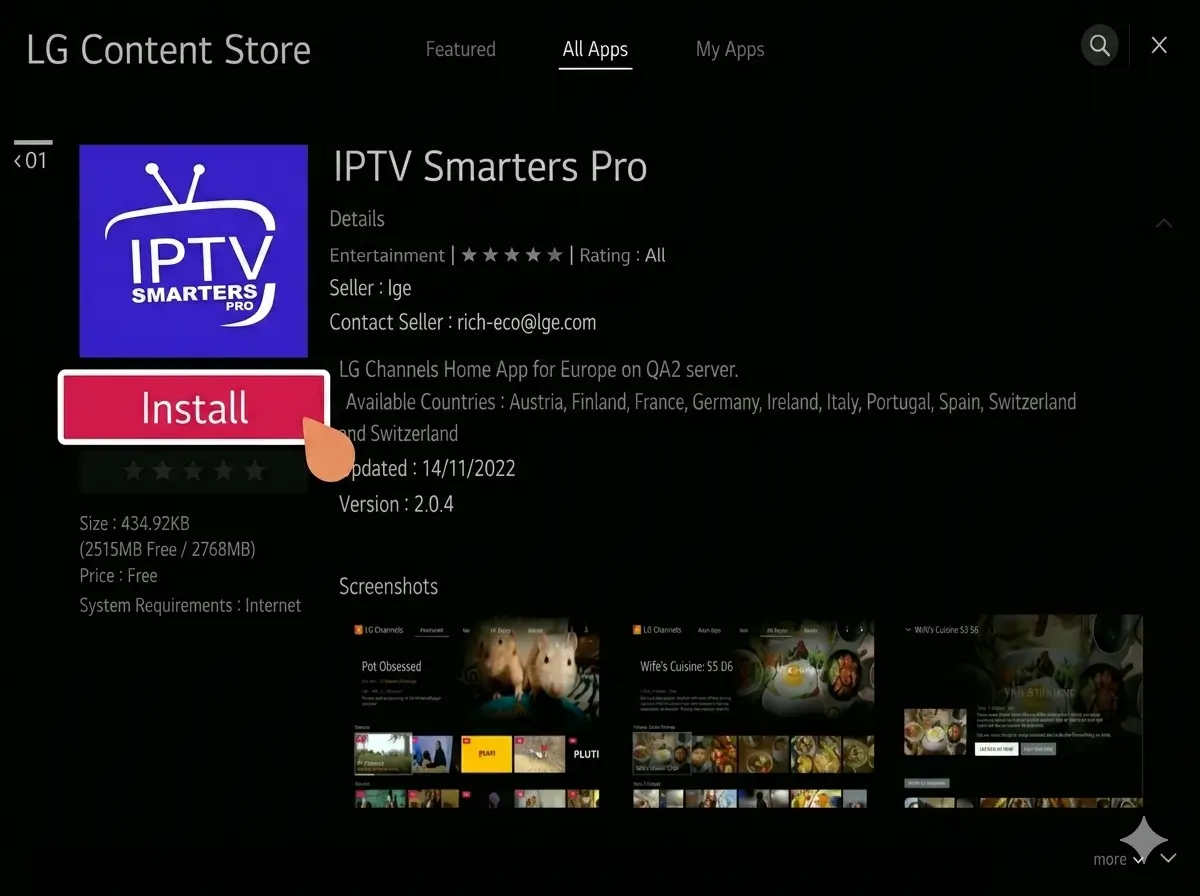
5- Avoid unofficial apps or links from outside the store.
Step 5: Launch the App and Enter Your Login or M3U
After installation, open the app and connect it to your subscription using your login details or M3U playlist. The app needs this information to fetch your channels and content.
Entering the details carefully avoids login errors and empty lists. Most problems at this stage come from a small typing mistake, so type slowly and double-check each field. Once the details are correct, the app loads your full lineup automatically.
1- Return to the home screen and open the installed IPTV app.
2- Choose the login method: M3U URL or XTREME Codes.
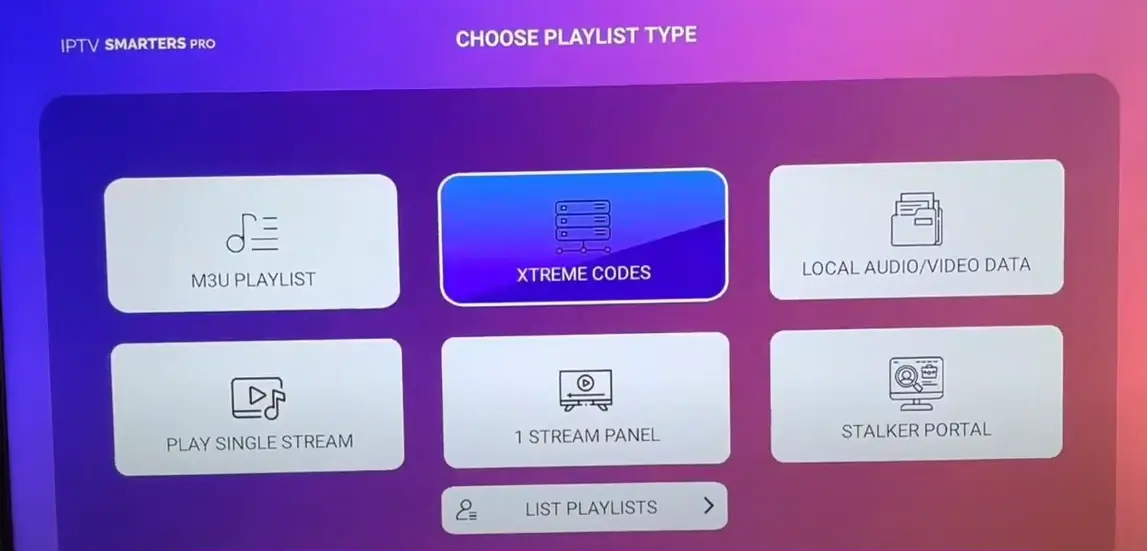
3- Enter your credentials exactly as your provider sent them.
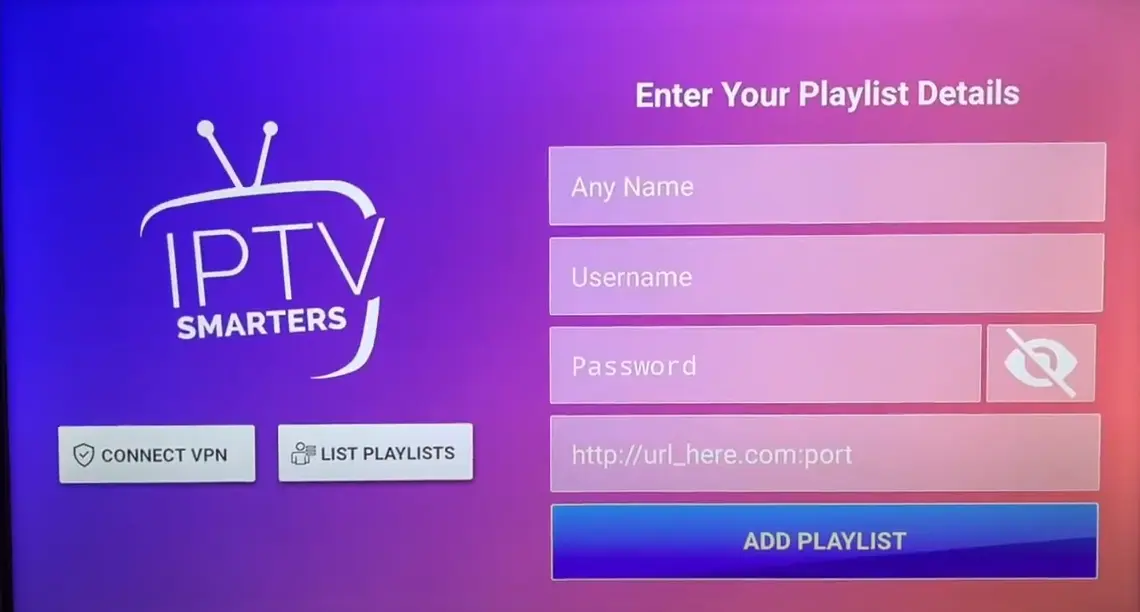
4- Double-check for typos or extra spaces before confirming.
5- Submit the details and let the app connect to the service.
Step 6: Load Channels and Adjust the Settings
Once connected, let the app load your channels, then adjust a few settings for the best experience on your LG screen. The first load may take a moment while the channel list and program guide download.
A quick check of the settings ensures smooth, comfortable viewing. Setting the right quality for your connection prevents buffering during busy hours. Organizing favorites now also makes everyday viewing faster later.
1- Wait for the full channel list and guide to finish loading.
2- Browse the categories to confirm the channels appear.
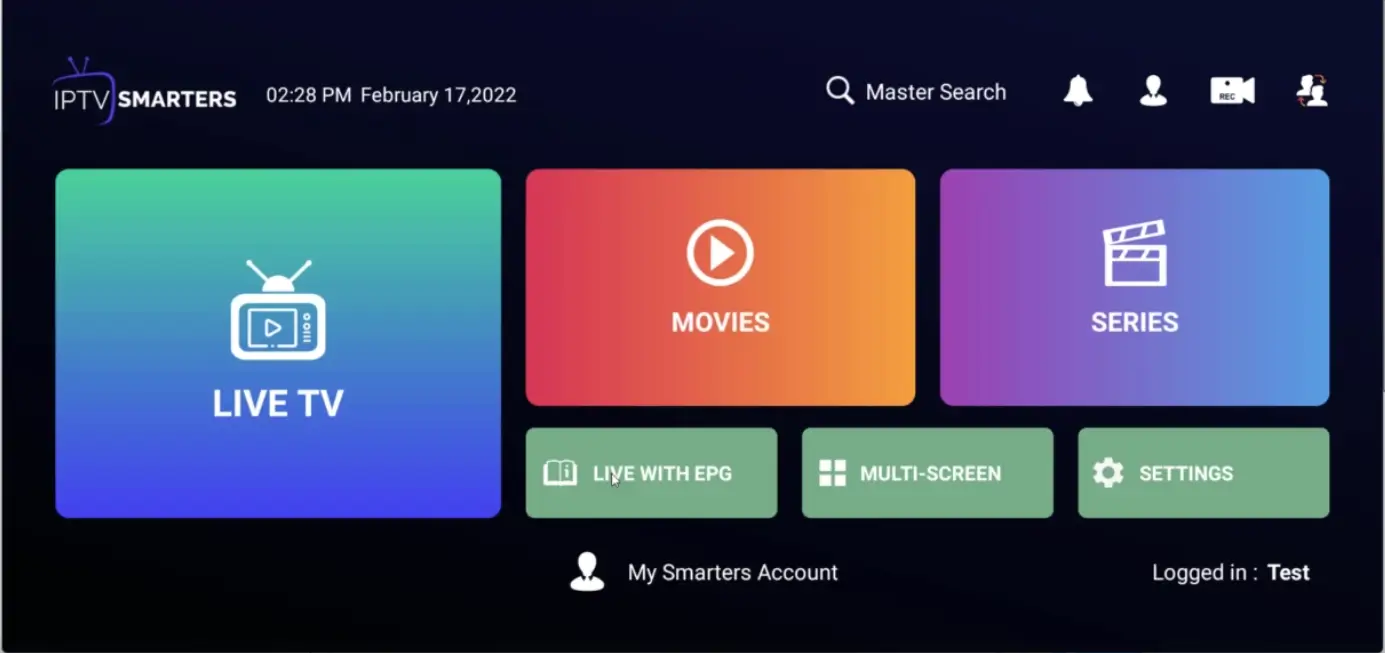
3- Set the streaming quality to match your internet speed.
4- Enable the program guide if the app offers one.
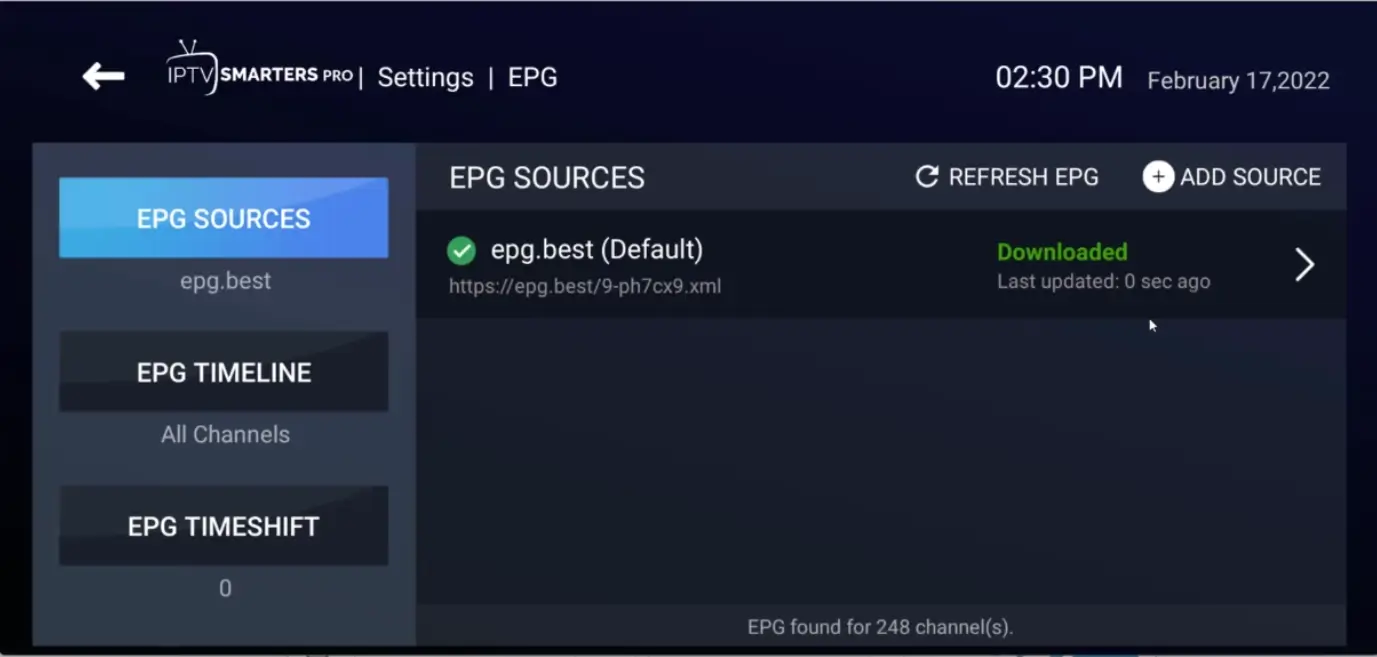
5- Add favourite channels for quicker access in the future.
Step 7: Start Watching and Fix Common Issues
Finally, start watching and apply a few quick checks if something does not work right away. Most early problems come from the connection or login details rather than the TV itself.
Knowing these simple fixes helps you solve issues without stress. In most cases a restart or a small correction to the playlist details fixes everything within a minute, so there is rarely any need to reinstall the app.
This guide focuses specifically on LG webOS televisions, but if you also own other TV brands at home, our broader overview covers them too. For a general guide covering other television brands, see our article on how to install IPTV on a Smart TV.
1- Select a channel and confirm the stream plays smoothly.
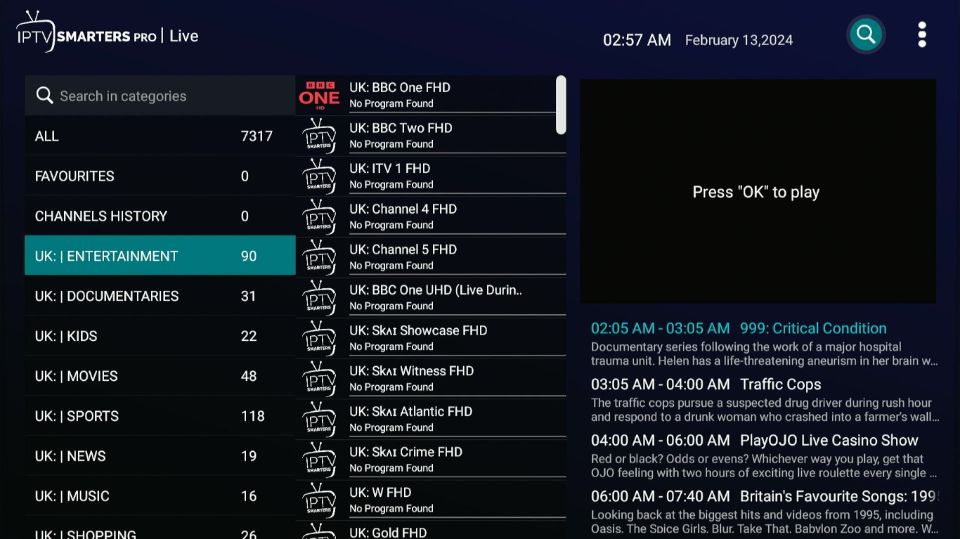
2- If channels are empty, recheck your M3U or login details.
3- If buffering occurs, lower the streaming quality setting.
4- Restart the app or the TV if the app freezes.
5- Contact your provider’s support if problems continue.
Extra Tips for a Better IPTV Experience on LG Smart TV
A few simple habits keep IPTV running smoothly on an LG Smart TV over time. A stable connection and an updated app make the biggest difference in everyday viewing quality. Keeping the system clean also helps the app load faster and reduces glitches. These small routines take only seconds but prevent most common frustrations.
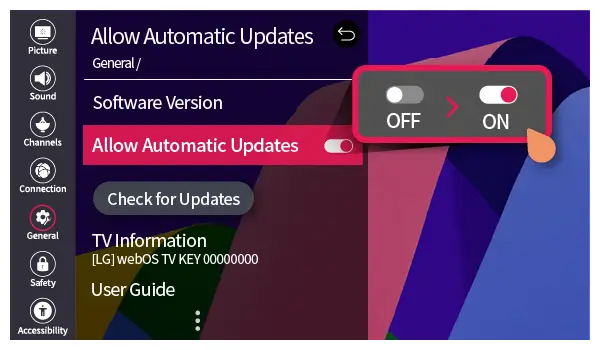
1- Keep your LG webOS system and the IPTV app updated regularly.
2- Use a wired Ethernet connection during important live events.
3- Restart the app occasionally to refresh the channel list.
4- Note your login details in case you reinstall the app.
5- Lower the resolution if you are on a limited data plan.
6- Keep your provider’s support contact saved for quick help.
7- Reboot your router weekly to maintain a stable connection.
FAQ: Common Questions About Downloading IPTV on LG Smart TV
Which IPTV app should I download on my LG Smart TV?
Use a stable IPTV player available in the LG Content Store and recommended by your provider. Always install from the official store, never from outside links.
Why can’t I find an IPTV app in the LG Content Store?
App availability varies by region and webOS version. If one app is missing, search for an alternative recommended by your provider or update your TV software.
Do I need extra hardware to use IPTV on an LG TV?
No, an LG Smart TV with webOS has everything needed. You only require an internet connection, a subscription, and a compatible app.
Why are my channels not loading after setup?
This is usually a login or playlist error. Recheck your M3U URL or username and password and confirm your subscription is still active.
How do I fix buffering on my LG Smart TV?
Lower the streaming quality, switch to a wired connection if possible, and restart the router. A stable connection is the most important fix.
Is it safe to download IPTV apps on an LG Smart TV?
Yes, if you only use the official LG Content Store. Avoid unofficial apps and outside links, which can expose your TV to unsafe software.
Will the IPTV app stay installed after I turn off the TV?
Yes, once installed the app remains on your LG TV. You only need to log in again if you clear data or reset the television.
Conclusion
Downloading IPTV on an LG Smart TV is a quick and simple process: prepare your connection, get your subscription details, open the LG Content Store, install a compatible app, enter your login or M3U, load the channels, and start watching. Most early issues come down to connection speed or login details and are easy to fix with a quick check rather than a reinstall.
The television itself is rarely the problem, so a stable internet connection and a reliable provider are what truly matter. With these clear steps, you can turn your LG Smart TV into a complete entertainment hub and enjoy a smooth, stable, and private IPTV experience straight from your living room.

Your free trial login works in every app in this article. Twelve hours of the full service, no card, then choose a plan or stop.
- No credit card
- Login by email in minutes
- Setup guides for every device