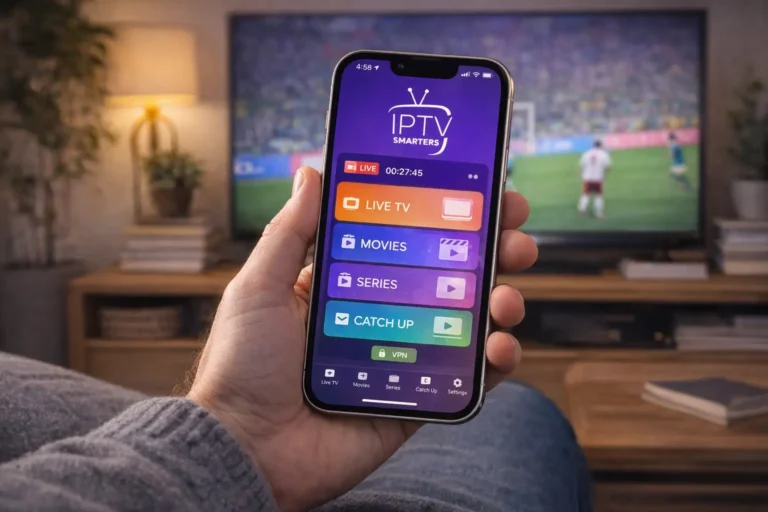
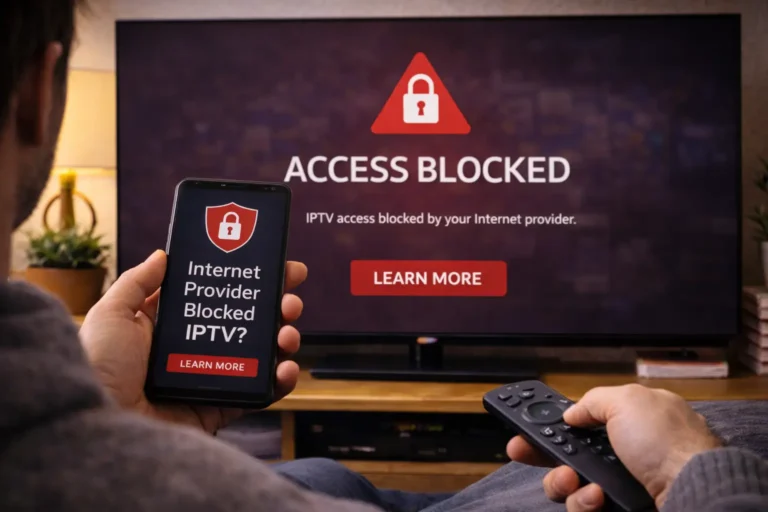
Adding a VPN to IPTV Smarters Pro means running a VPN connection on your device before launching the app, this encrypts your traffic, bypasses ISP throttling, and unlocks geo-restricted channels for buffer-free streaming. IPTV Smarters Pro does not have a built-in VPN setting, so you install and connect a VPN app separately, then open Smarters as usual; the entire data flow is automatically routed through the VPN tunnel.
This works on Android, Firestick, iOS, and Windows, and when paired with a reliable service like Learn more about IPTV Canada, a leading iptv provider in canada., you get the best combination of stable streams and private, unrestricted access. Follow the five steps below to set everything up in under five minutes.
1. Choose a VPN That Works With IPTV Streaming
1 . Pick a VPN known for fast speeds and unlimited bandwidth — ExpressVPN, NordVPN, Surfshark, and CyberGhost are top choices.
2. Make sure the VPN has servers in the country whose channels you want to watch.
3. Avoid free VPNs, they throttle speed, inject ads, and often block streaming traffic.
4. Check that the VPN supports your device (Firestick, Android TV, iOS, Windows, etc.).
5. Look for a VPN with a kill switch feature to prevent data leaks if the connection drops.
2. Install the VPN App on Your Device
- On Android / Android TV: open the Google Play Store, search for your VPN, and install it.
- On Amazon Firestick: go to the search icon, type the VPN name, and download it directly from the Amazon App Store.
- On iOS (iPhone/iPad): open the App Store, search for the VPN, and tap “Get” to install.
- On Windows: visit the VPN provider’s website, download the desktop client, and run the installer.
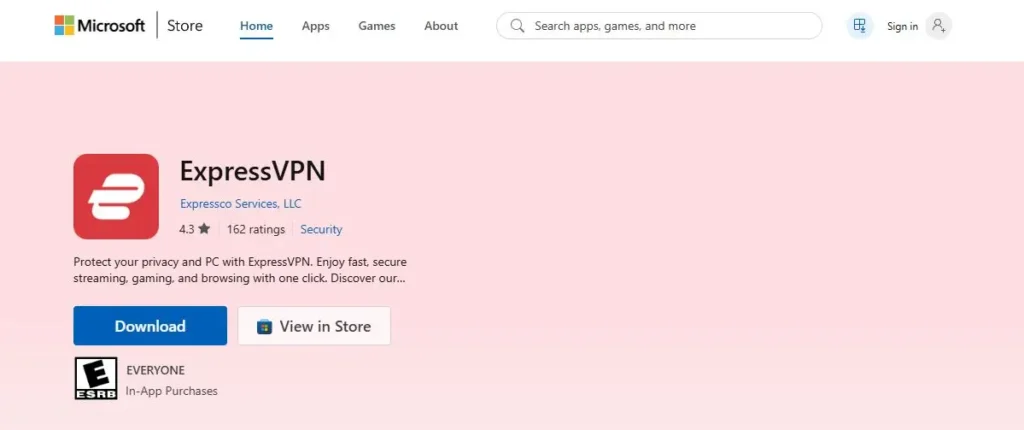
Log in with your VPN account credentials once the app is installed.
3. Connect to a VPN Server Before Opening IPTV Smarters
1. Open the VPN app and select a server location, choose one close to your IPTV provider’s server for the best speed.
2. Tap “Connect” and wait until the VPN status shows “Connected” or a green indicator.
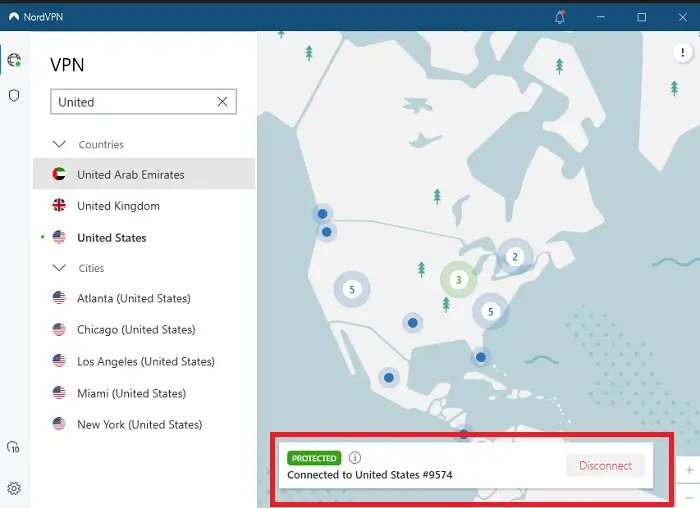
3. If you want US channels, connect to a US server; for UK channels, pick a UK server, and so on.
4. Enable the kill switch in the VPN settings to automatically block traffic if the VPN disconnects.
5. Once connected, minimize the VPN app, it will keep running in the background.
4. Open IPTV Smarters Pro and Start Streaming
1. Launch IPTV Smarters Pro from your app drawer or home screen while the VPN stays active.
2. Log in with your IPTV credentials (username, password, and server URL) as you normally would.

3. Browse the channel list and play any channel, all traffic is now routed through the encrypted VPN tunnel.

4. If a channel buffers, switch to a different VPN server closer to the IPTV server location and retry.
5. You should notice less buffering and no ISP throttling compared to streaming without a VPN.
5. Troubleshoot Common VPN + IPTV Smarters Issues
1. If channels won’t load after connecting the VPN, disconnect and reconnect to a different server.
2. Clear the IPTV Smarters Pro cache (Settings >

Cherchez Apps >

Cliquez sur IPTV Smarters > Clear Cache) if streams freeze.

3. Make sure your VPN subscription is active and not expired — an expired VPN blocks all traffic.
4. Disable IPv6 in your device’s network settings if you experience DNS leaks or connection drops.
5. Contact your VPN provider’s support if speeds are consistently slow — they can recommend an optimized server.
Frequently Asked Questions (FAQ)
Can I use a VPN directly inside IPTV Smarters Pro?
No. IPTV Smarters Pro has no built-in VPN feature. You need to install a separate VPN app on your device and connect it before opening Smarters.
Will a VPN slow down my IPTV streaming?
A premium VPN may reduce speed by 5–10%, but it often improves streaming by preventing ISP throttling. Free VPNs will slow you down significantly.
Which VPN server should I connect to?
Connect to a server closest to your IPTV provider’s server location. If unsure, ask your provider or try servers in the same country as your subscription.
Do I need a VPN every time I use IPTV Smarters?
Not necessarily, but it is recommended. A VPN protects your privacy and prevents your ISP from throttling IPTV traffic. A VPN helps prevent potential ISP blocking issues with your IPTV service.
Does a VPN work with IPTV Smarters on Firestick?
Yes. Install the VPN from the Amazon App Store, connect to a server, then open IPTV Smarters Pro. The process is the same as on any Android device.
What should I do if my IPTV stops working after connecting the VPN?
Try switching to another VPN server. If the issue persists, clear the Smarters app cache, restart your device, and reconnect the VPN.
Can I use a free VPN with IPTV Smarters Pro?
Technically yes, but free VPNs have data caps, slow speeds, and limited servers — they are not suitable for live TV streaming. A paid VPN is strongly recommended.