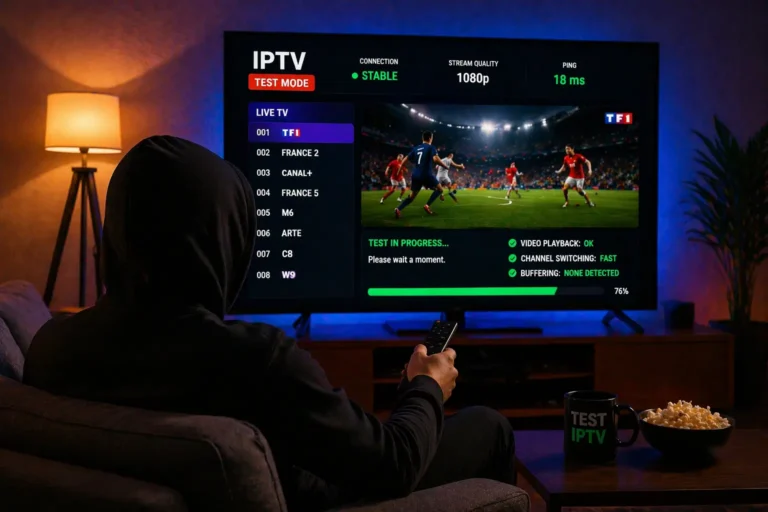
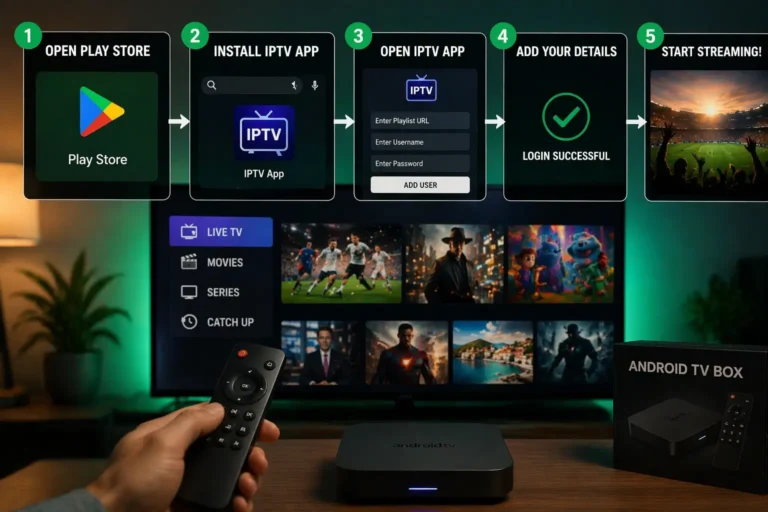
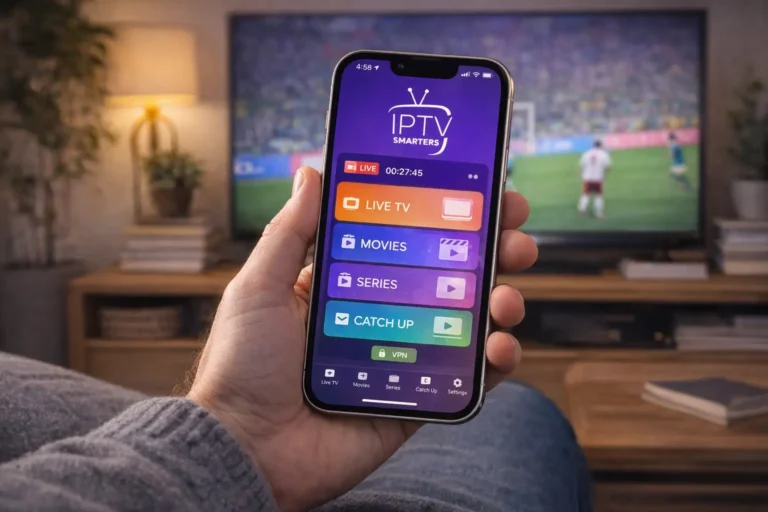
Fixing IPTV buffering issues requires optimizing your internet connection, adjusting app settings, clearing cache, using a VPN, and upgrading your hardware if necessary. Buffering is the most common frustration for IPTV users, but the good news is that most causes are easily fixable within minutes.
Even the best IPTV Subscription can experience occasional interruptions when your setup isn’t properly configured. Understanding whether the problem originates from your network, device, or provider helps you apply the right solution quickly.
This guide walks you through five proven steps to eliminate buffering and enjoy smooth, uninterrupted streaming.
Step 1: Optimize Your Internet Connection
Your internet speed and stability are the primary factors affecting IPTV streaming performance.
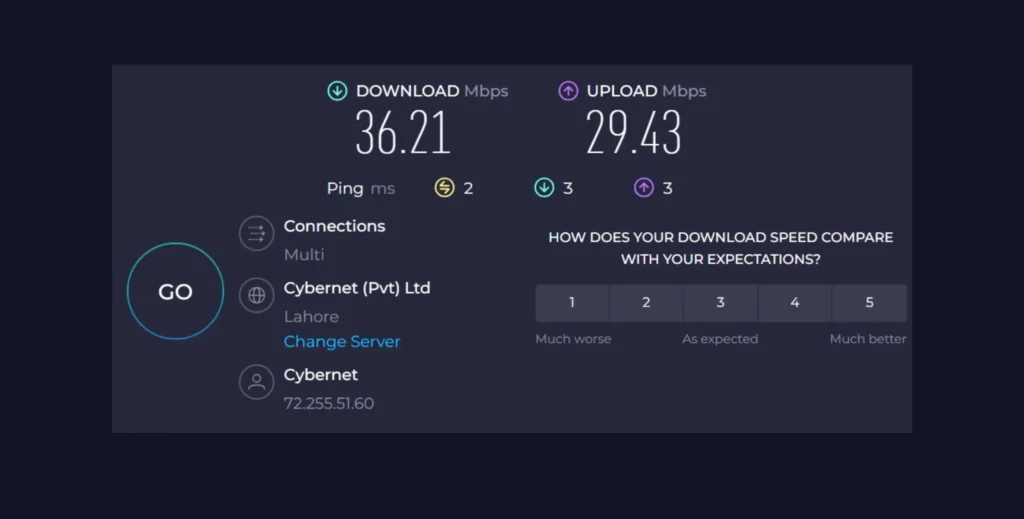
Run a speed test at Speedtest.net to check your current download speed.
Ensure you have at least 15-25 Mbps for HD and 50+ Mbps for 4K content.
Connect your streaming device directly to your router using an Ethernet cable instead of WiFi.
If WiFi is necessary, move your device closer to the router to strengthen the signal.
Disconnect other devices consuming bandwidth: smartphones, tablets, computers downloading files.
Restart your modem and router by unplugging them for 30 seconds then reconnecting.
Contact your ISP if speeds are consistently below what you’re paying for.
Step 2: Adjust Your IPTV App Settings
Incorrect app configurations often cause unnecessary buffering even with fast internet.
Open your IPTV player app and navigate to Settings or Player Settings.
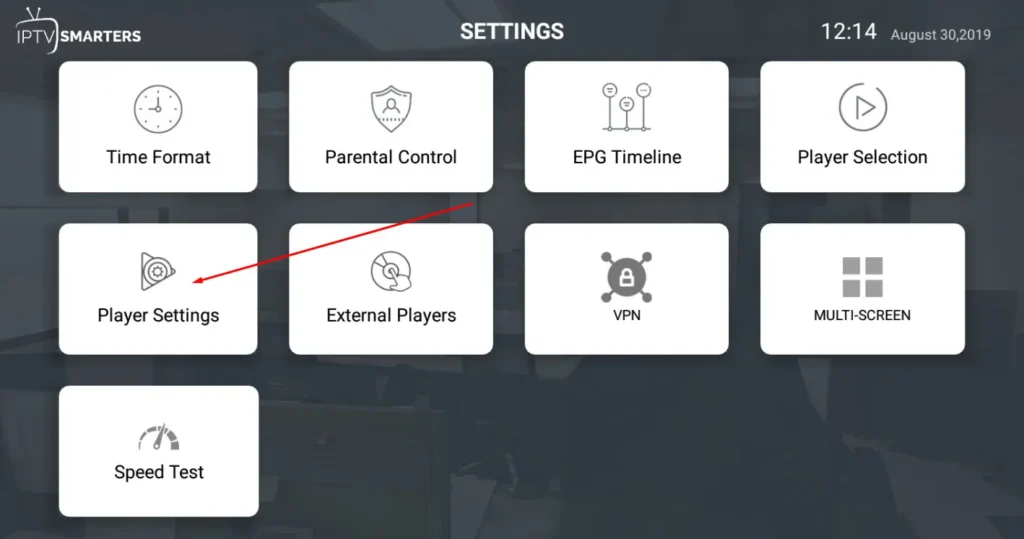
Change the video player to ExoPlayer or VLC, these handle streams more efficiently.
Reduce stream quality from 4K or HD to Auto or a lower resolution temporarily.
Increase the buffer size in settings, set it to 5-10 seconds if the option exists.
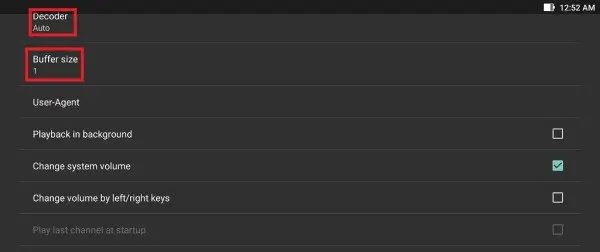
Disable hardware acceleration if your device struggles with high-resolution content.
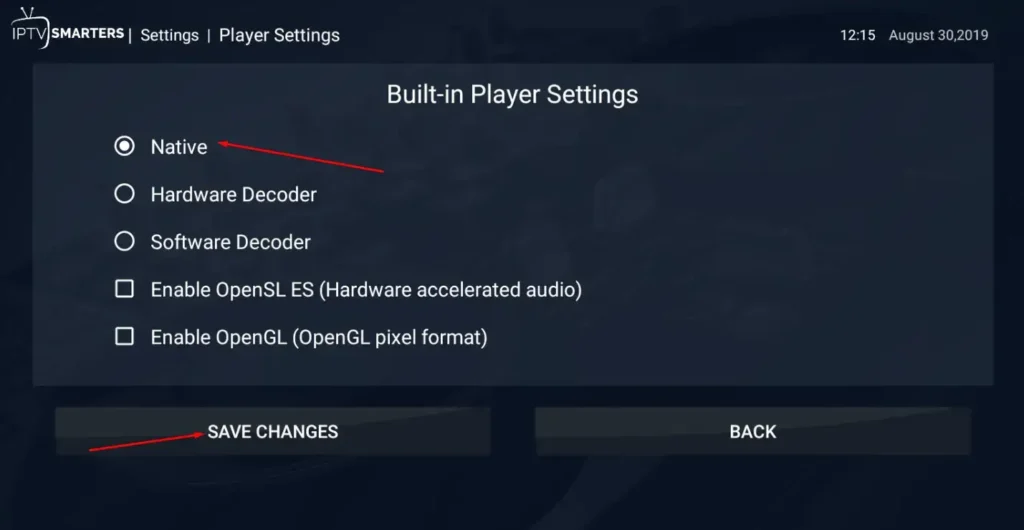
Turn off any EPG auto-update features during playback to reduce background processes.
Enable aggressive buffer mode if your app offers this option.
Check if your provider offers multiple server locations and switch to the nearest one.
Step 3: Clear Cache and App Data
Accumulated cache files can slow down your IPTV app and cause playback problems.
Go to your device’s Settings > Apps or Application Manager.
Find your IPTV player app in the list and select it.
Tap Clear Cache to remove temporary files without losing your settings.

If problems persist, select Clear Data, note this will reset your app login.
Uninstall and reinstall the IPTV app for a completely fresh start.
Delete any old or unused IPTV apps consuming device resources.
Restart your streaming device after clearing cache to apply changes.
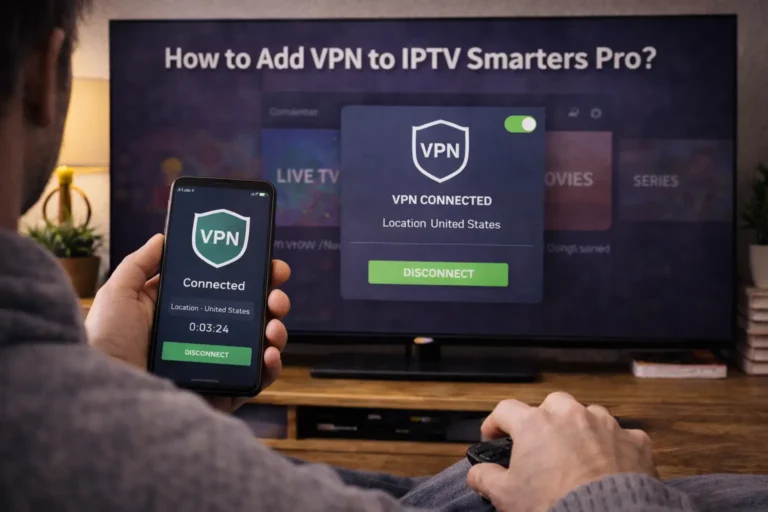
Step 4: Use a VPN to Bypass ISP Throttling
Internet Service Providers sometimes intentionally slow down streaming traffic, causing buffering.
Download a reputable VPN app for IPTV compatible with your device
Choose a VPN server location close to your physical location for best speeds
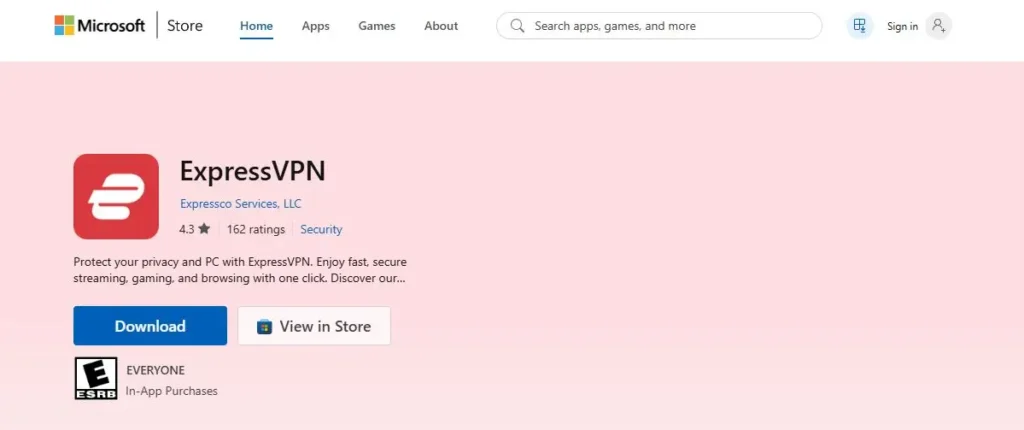
Connect to the VPN before launching your IPTV application.
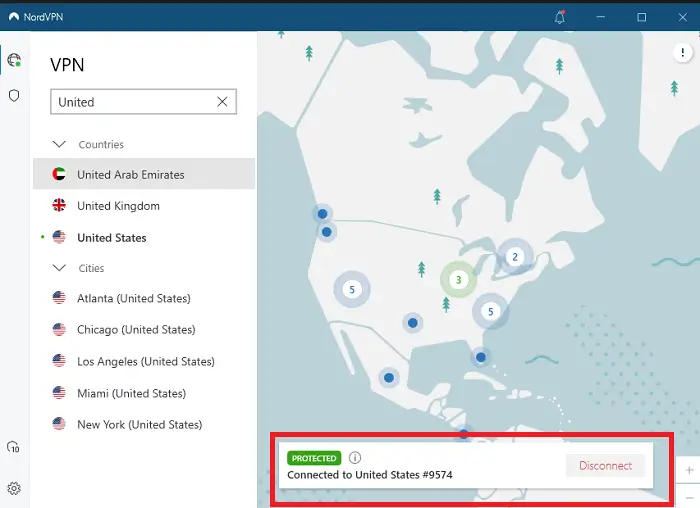
Test playback on channels that previously buffered heavily
If buffering stops, your ISP was likely throttling your streaming traffic
Experiment with different VPN server locations to find the fastest option
Use VPN protocols like WireGuard or OpenVPN for optimal streaming performance
If you’re new to IPTV, learn more in our guide on how to test an IPTV service before subscribing
Frequently Asked Questions
Why does my IPTV buffer only during peak hours?
Peak hours mean more users on your ISP network and IPTV servers, causing congestion. Try using a VPN or switching server locations.
Is buffering always my internet’s fault?
No, buffering can also result from overloaded provider servers, outdated apps, or underpowered devices.
What buffer size should I set in my IPTV app?
A buffer size between 5-10 seconds typically provides smooth playback without excessive loading delays.
Will a wired Ethernet connection really help?
Yes, Ethernet provides faster and more stable speeds than WiFi, often eliminating buffering completely.
How do I know if my ISP is throttling IPTV?
If buffering stops when using a VPN but returns without it, your ISP is likely throttling streaming traffic.
Should I lower video quality to fix buffering?
Temporarily reducing quality to 720p can help. Once buffering stops, gradually increase quality again.
When should I contact my IPTV provider about buffering?
Contact them if all troubleshooting fails and other users report similar issues — the problem may be server-side.