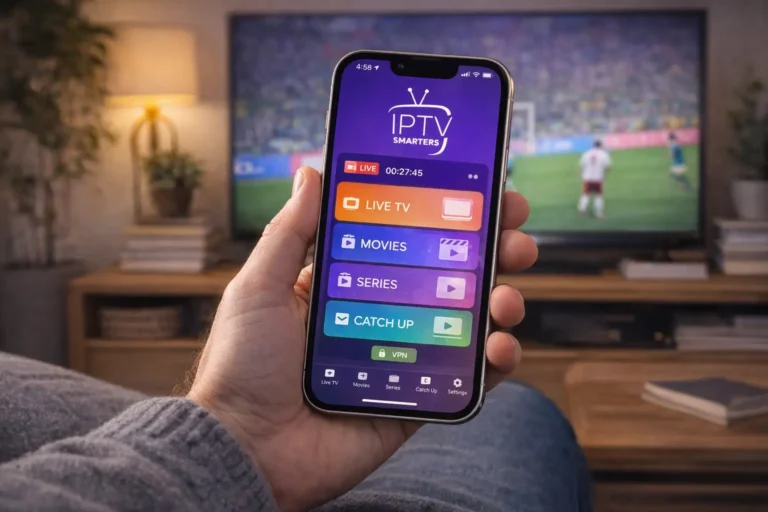
To configure IPTV on IPTV Smarters Pro, install the app on your device, open it and tap “Add New User,” choose your login method, Xtream Codes API or an M3U URL, enter the details your provider sent you, and tap “Add User” to load your channels, movies, series, and TV guide.
IPTV Smarters Pro is one of the most popular IPTV players because it’s free, runs on almost every device — Fire TV, Android TV, phones, tablets, computers, and more — and includes a built-in program guide, subtitles, recording, and parental controls.
It holds no channels of its own, so you’ll need an active subscription from a reliable IPTV Canada provider that supplies Xtream Codes credentials or an M3U link. This complete guide covers installation on every major device, full configuration, subtitle and audio settings, the EPG, and troubleshooting.
What is IPTV Smarters Pro and what do you need to start?
IPTV Smarters Pro is a free media player that organizes your IPTV service into a clean interface with live TV, movies, series, and a guide.
It is only a player, so it does nothing on its own, you connect it to a subscription using your provider’s details. Before you begin, gather a few essentials so setup goes smoothly on any device.
- An active IPTV subscription from a licensed provider.
- Your login details: server URL, username, and password (or an M3U URL).
- A compatible device and a stable internet connection.
- Enough data if you’re on a capped plan, since video uses a lot.
How do you install IPTV Smarters Pro on a Firestick or Fire TV?
On a Fire TV Stick or Fire TV, you install IPTV Smarters Pro by sideloading it, because it isn’t always listed in the device’s own store.
The process is simple once you allow installations from outside the store. You’ll use a small downloader tool to fetch the official app file. Take care to use only the official source for the file.
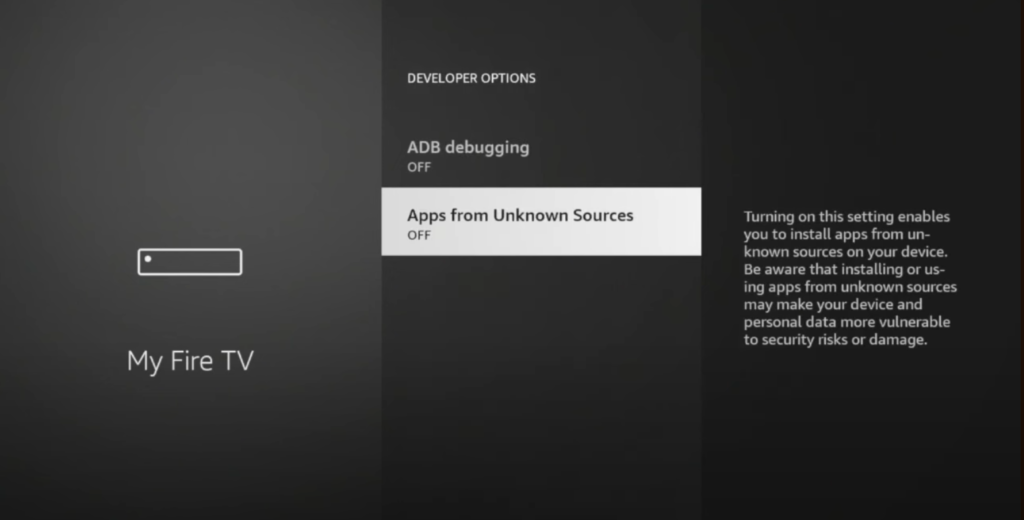
Open Settings, then My Fire TV,

Then Developer Options, and allow installs from unknown sources.
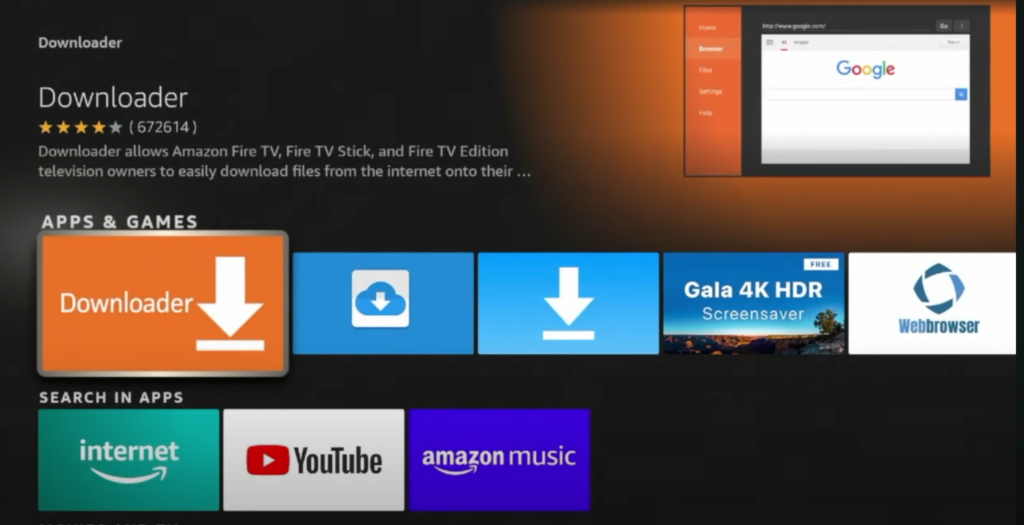
Install a downloader/sideloading tool from the Fire TV store.
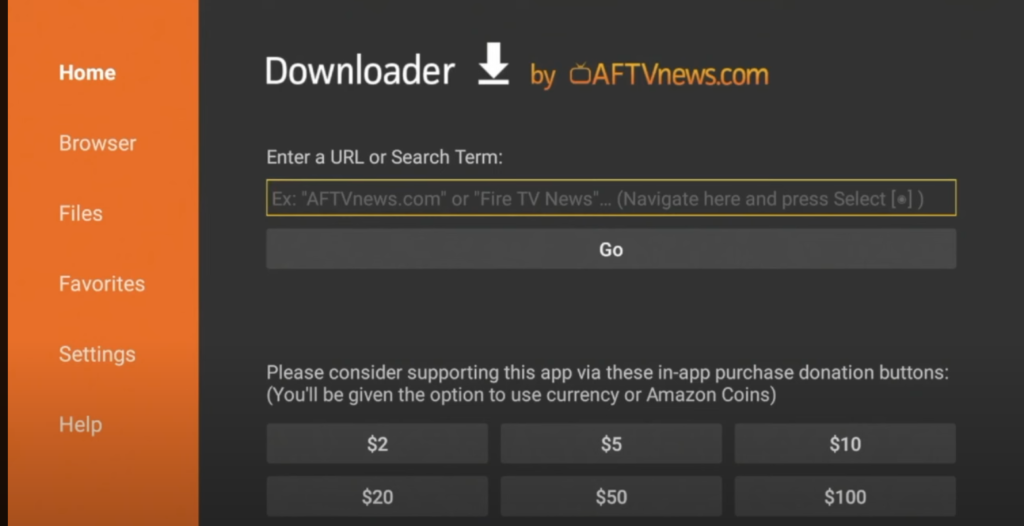
Open the tool and enter the official app file address, then download it.
Select Install,
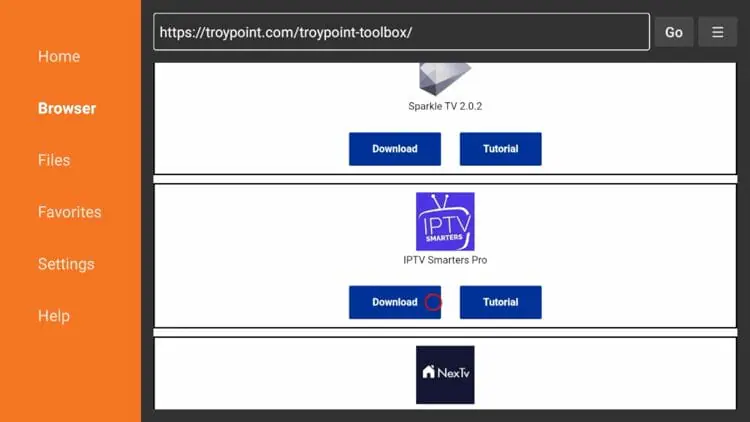
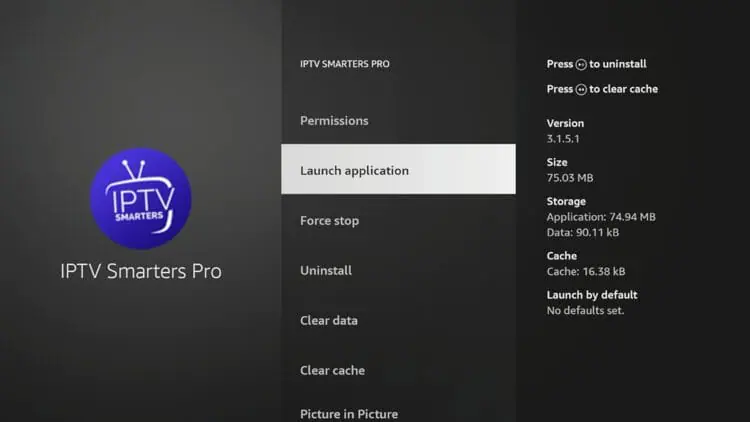
Then open IPTV Smarters Pro when it finishes.
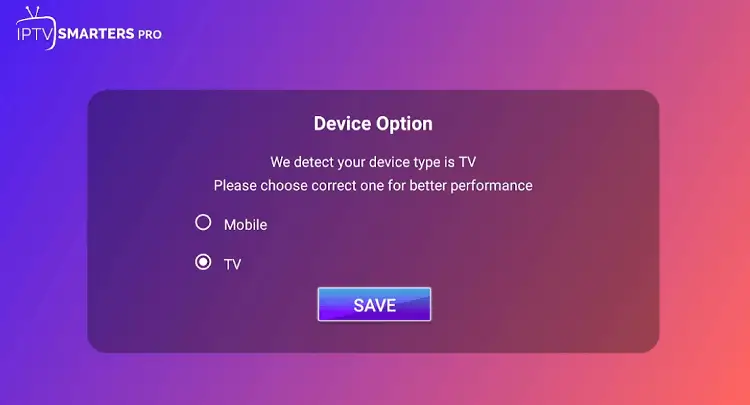
Select your device.
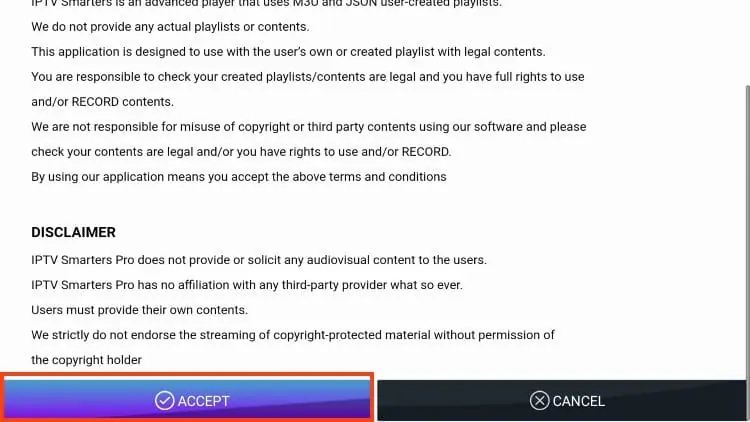
Accept the terms and conditions.
Click on Login with Xtream Codes API.
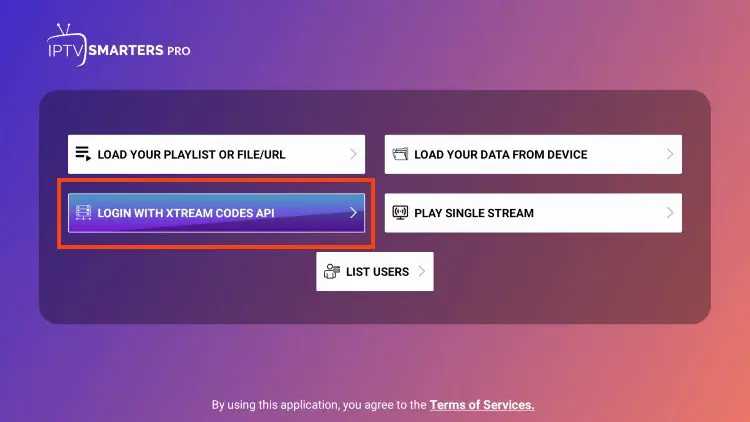
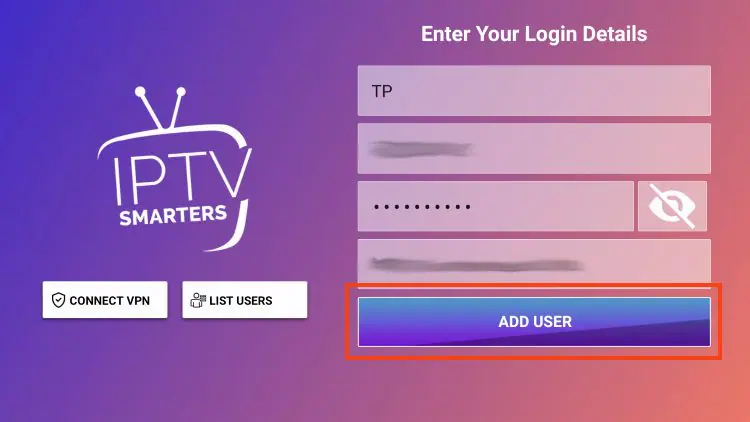
Enter account information and click OK or “Add User”.
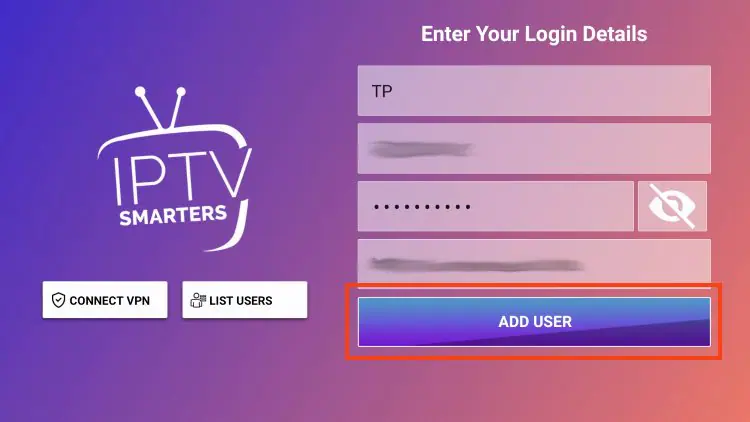
For a full Firestick walkthrough, our Firestick IPTV Smarters setup guide covers it step by step.
How do you install IPTV Smarters Pro on Android TV or an Android box ?
On an Android TV box (as well as Android TV and Google TV), you install IPTV Smarters Pro directly from the Google Play Store that’s built into the device. You open the Play Store, search for the app, and install it like any other — no sideloading is needed, and the whole process takes under a minute.
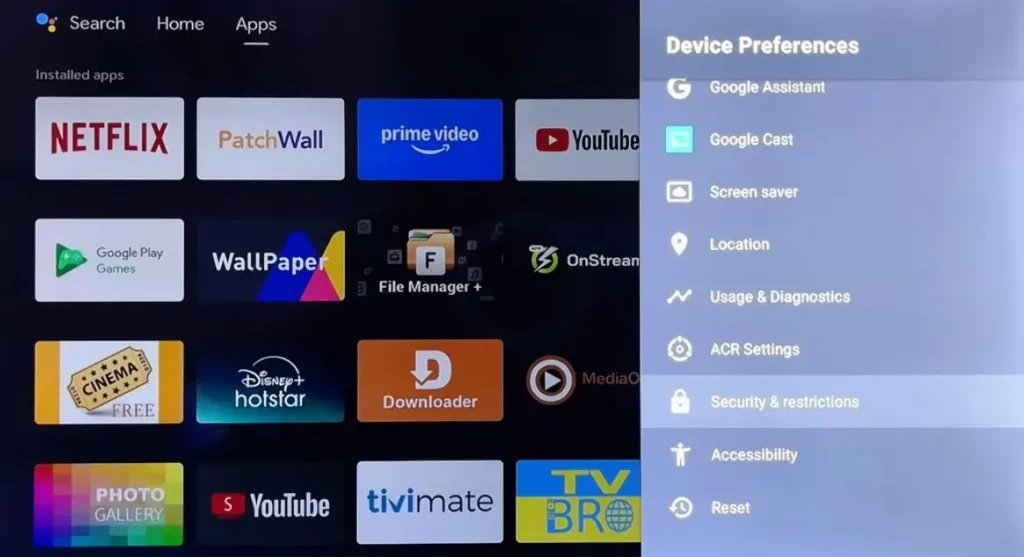
Go to Settings > Device Preferences >
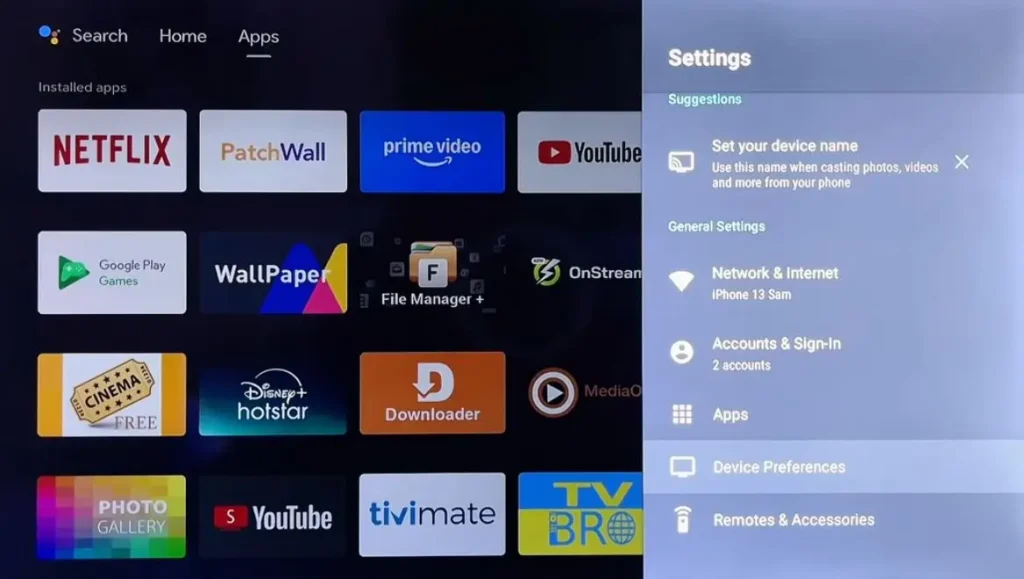
Security & Restrictions,
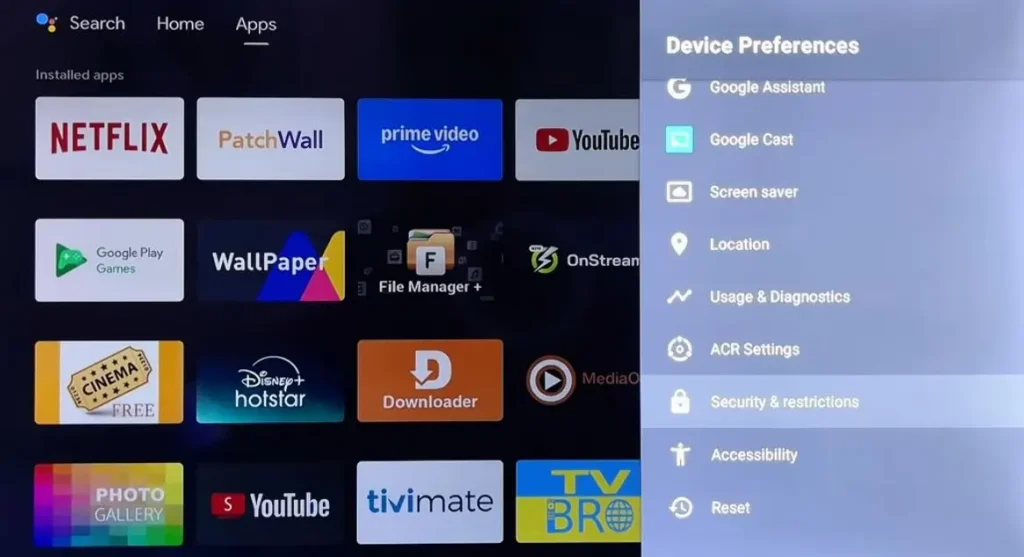
and enable Unknown Sources to allow installation of third-party apps if needed.
From the home screen, open the Google Play Store.
Select the search bar and type “IPTV Smarters Pro.”

Choose the app, select Install, and wait for it to download.
Choose your device.
Click on Login with Xtream Codes API.
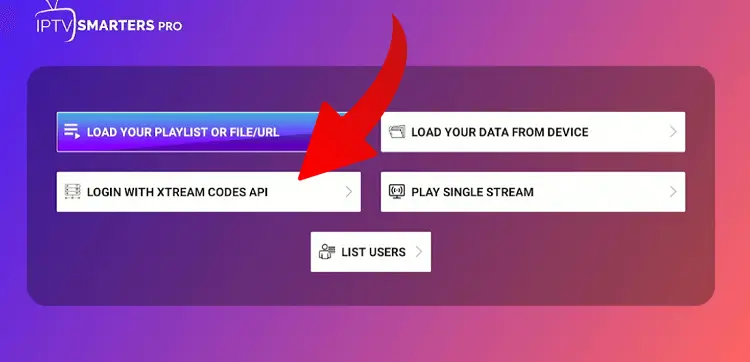
Start adding your subscription.
If your box doesn’t include the Google Play Store, use a downloader tool to fetch and install the official app file instead.
For a full walkthrough, our guide on setting up IPTV on an Android TV box covers each step.
How do you install IPTV Smarters Pro on an iPhone, iPad, or Apple TV ?
On Apple devices, you install IPTV Smarters Pro directly from the App Store, which makes setup quick and straightforward.
The app is available for iPhone and iPad, and on Apple TV where supported in your region. There’s no sideloading needed on these devices. Just search, install, and open.
On iPhone or iPad, open the App Store and search for “IPTV Smarters lite.“
On Apple TV, search the App Store on the device itself.
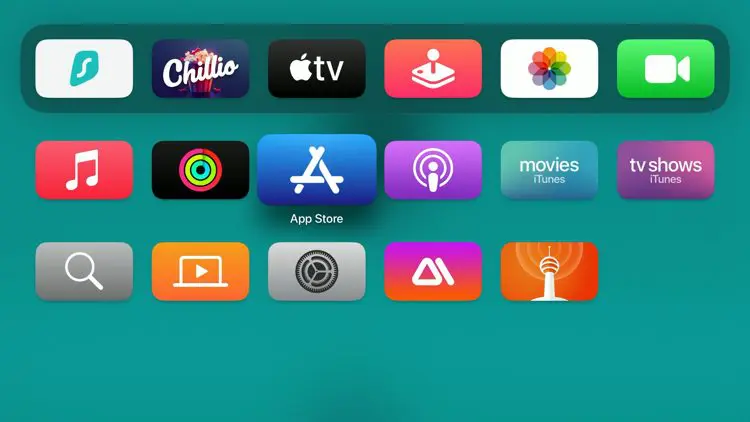
Search for ‘Smarters Player Lite‘, the ratings app to ensure you are installing the correct app.
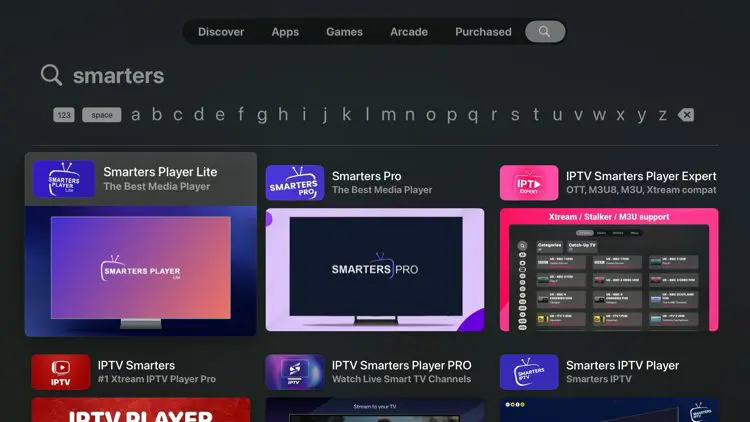
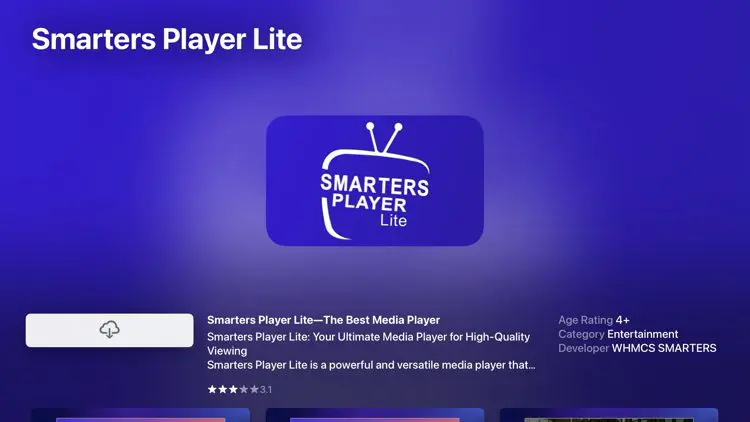
Select Get/Install and wait for it to download.
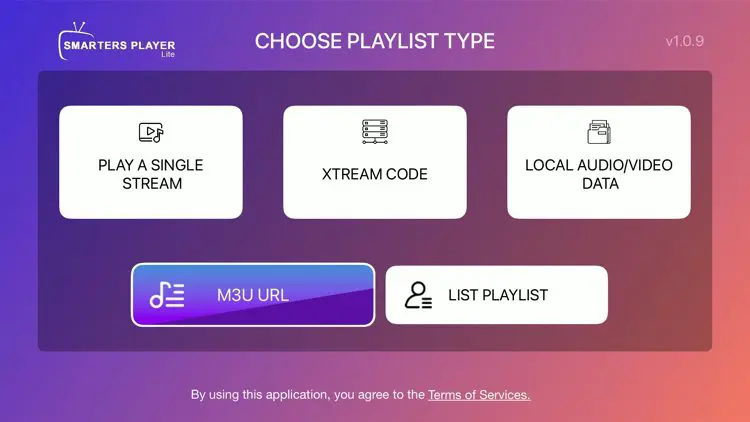
Open the app and choose your login method M3U or Xtream code.
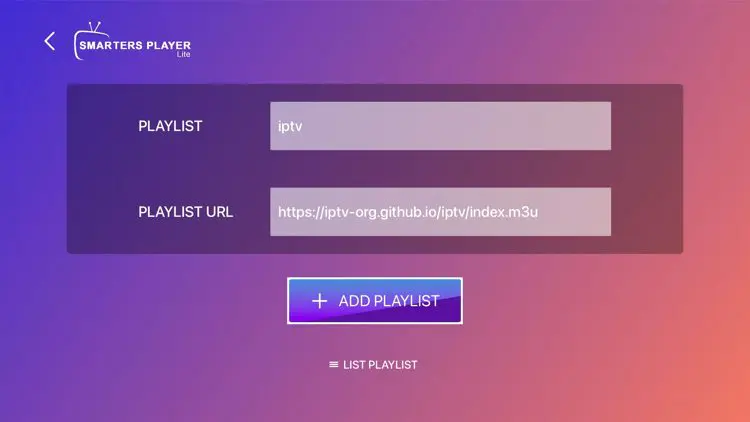
Enter your IPTV Login details.
Select your channel from channels list.
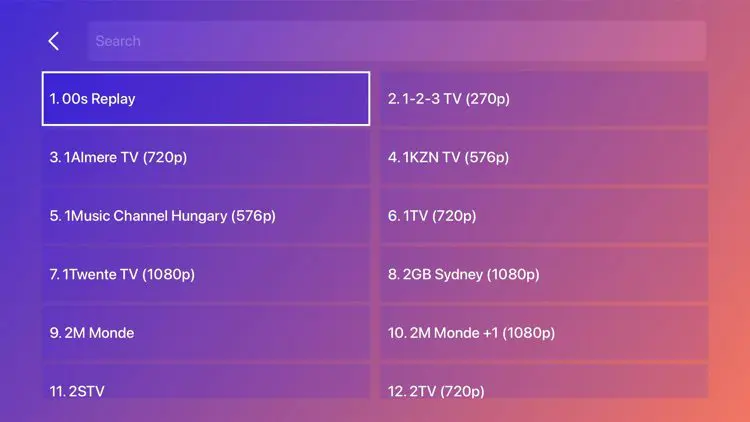
For a full iPhone walkthrough, our guide on how to watch IPTV on iPhone covers it step by step.
How do you install IPTV Smarters Pro on a Windows PC or Mac?
On a Windows PC or Mac, you install IPTV Smarters Pro by downloading the official installer from the IPTV Smarters website, since the desktop version isn’t carried in the usual app stores.
A computer is great for watching on a large monitor or alongside other apps, and the flow is the same as on a phone: install the app, then log in. Always download from the official site so you don’t end up with a tampered file. On Windows, follow these steps:
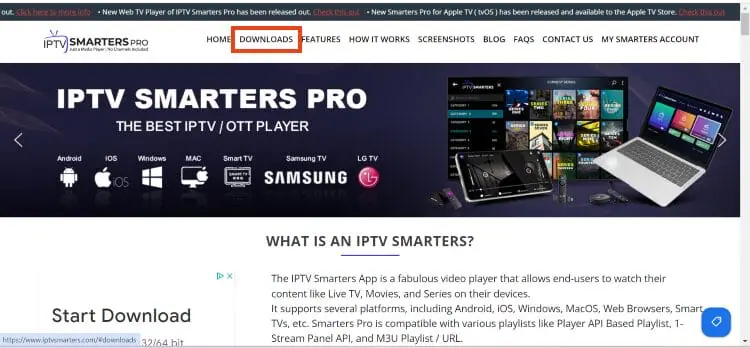
Open the official IPTV Smarters website and click “Downloads” at the top of the page.
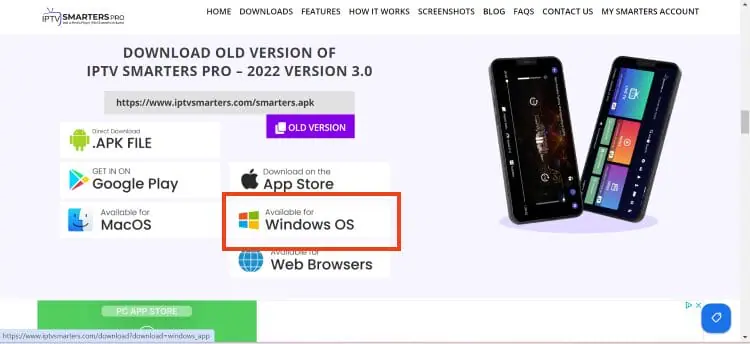
Select the “Download for Windows” option.
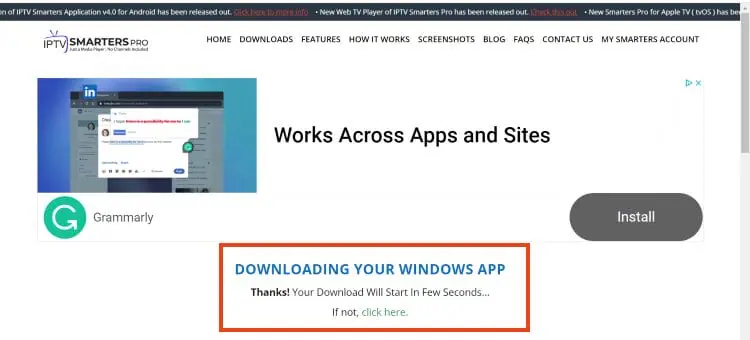
Wait for the file to finish downloading.
If your browser shows a “download blocked” notice at the top, click it.
Choose the option to keep or download the unverified file.
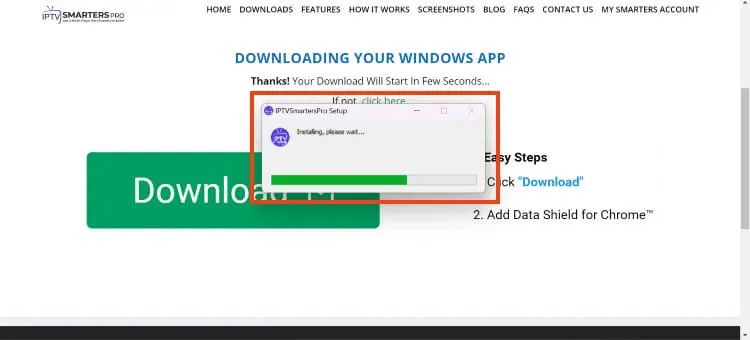
Open the downloaded IPTV Smarters file to start the installer.
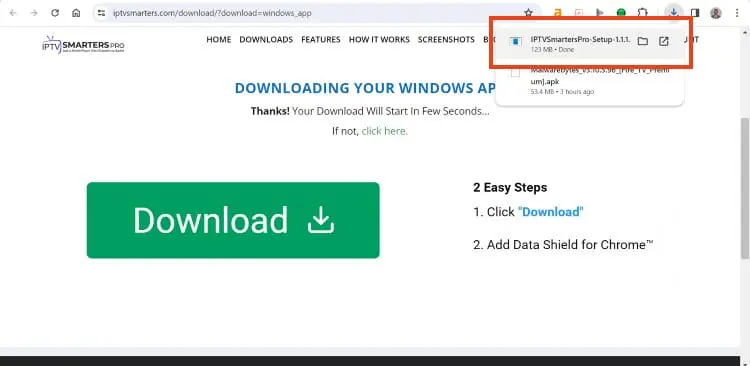
Wait for the installation to finish.
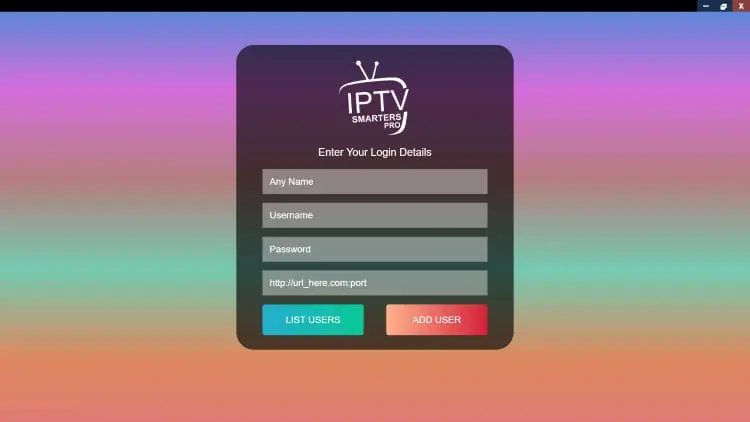
The app launches automatically, sign in with your provider credentials (Xtream Codes or M3U).
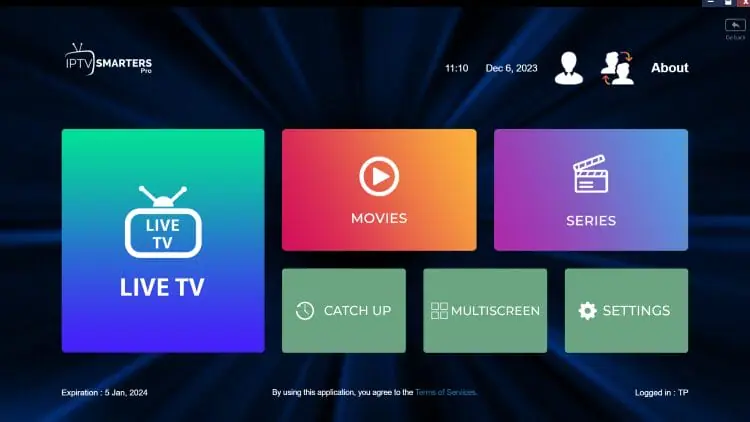
Setup on your PC is now complete.
On a Mac, download the macOS version (a .dmg file) from the same official site, open it, drag the IPTV Smarters Pro icon into your Applications folder, then launch it from Applications — if macOS blocks it the first time, allow it under System Settings > Privacy & Security.
How do you install IPTV Smarters Pro on a Smart TV?
Installing IPTV Smarters Pro is similar across all smart TVs: you look for the app in your TV’s own store, and if it isn’t available there, you use a small streaming device connected by HDMI.
Android-based TVs (Sony, TCL, Philips, and other Android TV or Google TV models) usually have it, while Samsung (Tizen) and LG (webOS) sets generally don’t. The single set of steps below covers every smart TV.
From your TV’s home screen, open its app store — the Google Play Store on Android TV or Google TV, or the built-in store on Samsung and LG sets.
Search for “IPTV Smarters Pro.”
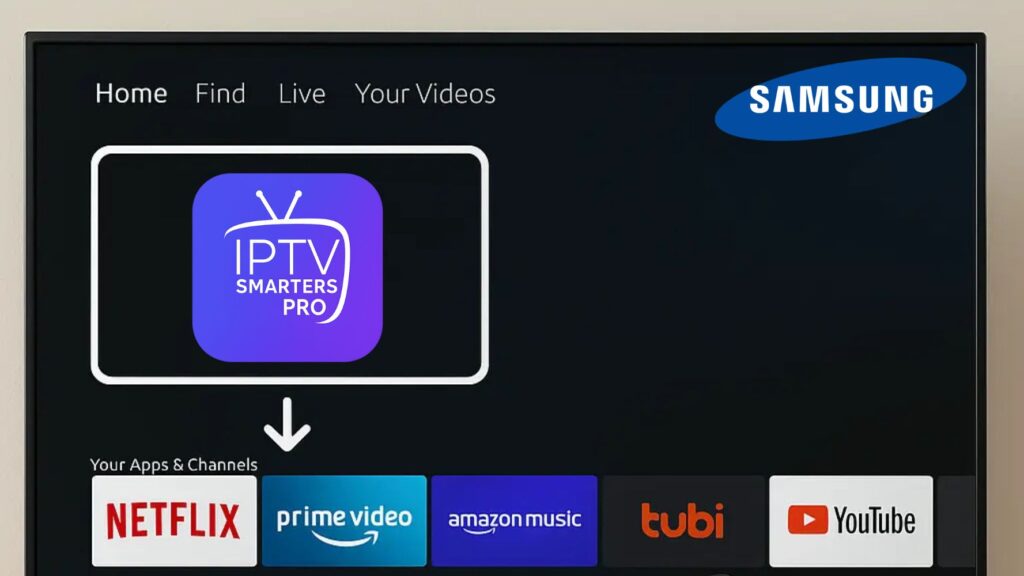
If the app appears (common on Android-based TVs), select Install, then Open it.

Install IPTV Smarters Pro on that device (from its store, or by sideloading as shown above), then open it.
Sign in with your Xtream Codes or M3U details to load your channels.
Either way, you get the full app experience on the big screen, even when the TV doesn’t support the app itself.
If it isn’t available (common on Samsung and LG), connect a streaming stick or Android box to a free HDMI port and switch the TV to that input.
For a detailed Samsung walkthrough, our Samsung TV IPTV Smarters installation guide covers every method step by step.
How do you log in and configure your subscription?
You configure your subscription by tapping “Add New User” and choosing the login method that matches your provider’s details.
The Xtream Codes API is recommended because it loads channels, on-demand content, and the guide together; an M3U URL is the alternative when your provider supplies a single link.
If channels are slow to start later on, our IPTV Smarters buffer-settings guide shows how to fine-tune playback. The table below compares the methods.
| Login method | What you enter | Loads the EPG? | Best for |
| Xtream Codes API | Server URL, username, password | Yes, automatically | Most users (recommended) |
| M3U URL | A single playlist link | Often needs an EPG URL added | Providers that supply a link |
| Playlist file | A downloaded playlist file | Often needs an EPG URL added | Offline or manual setups |
Enter the details exactly as written, tap “Add User,” and wait for your content to load.
How do you set up the EPG (TV guide) ?
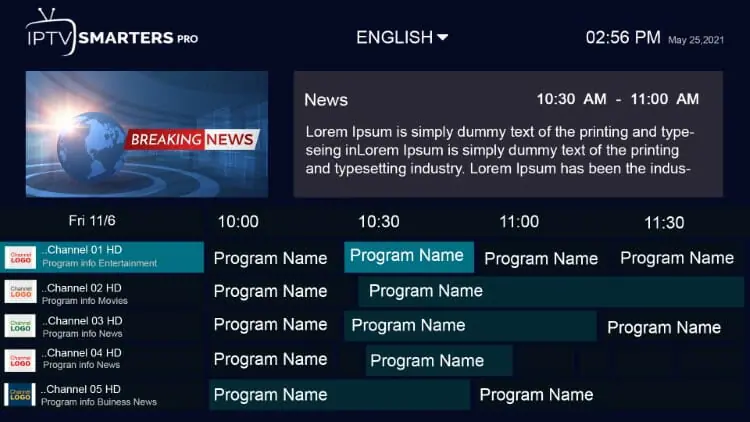
You set up the EPG either automatically through Xtream Codes or manually by adding an EPG URL. When you log in with the Xtream Codes API, the guide usually appears on its own within a minute or two.
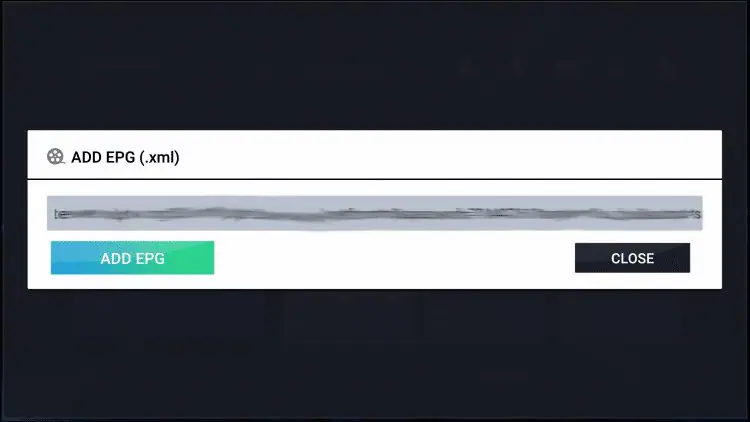
With an M3U setup, open the settings, find the TV guide source option, and paste the EPG (XMLTV) URL from your provider. If the guide loads but shows the wrong times, the fix is almost always the time zone setting.
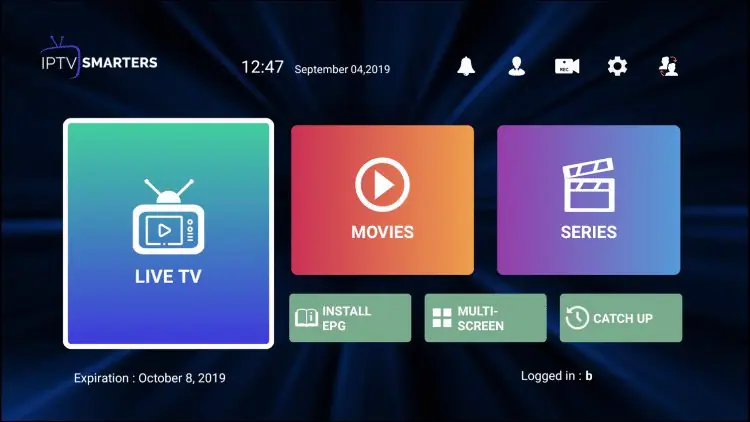
With Xtream Codes, wait a moment for the guide to load automatically.
With M3U, add the EPG/XMLTV URL in the TV guide settings.
If the times look wrong, set your local time zone in the general settings.
Reload the playlist if the guide doesn’t appear after a few minutes.
How do you change subtitles and audio tracks in IPTV Smarters Pro?
You change subtitles and audio tracks during playback by tapping the screen to reveal the on-screen controls. Once the controls appear, you’ll see icons for subtitles and audio that let you switch tracks or turn subtitles on and off.
Keep in mind that these options only work if the channel or title actually carries those tracks, since availability depends on the broadcaster, not the app.
While a video plays, tap the screen to show the playback controls.
Tap the subtitle icon (often a “CC” or speech-bubble symbol) to pick a subtitle track.
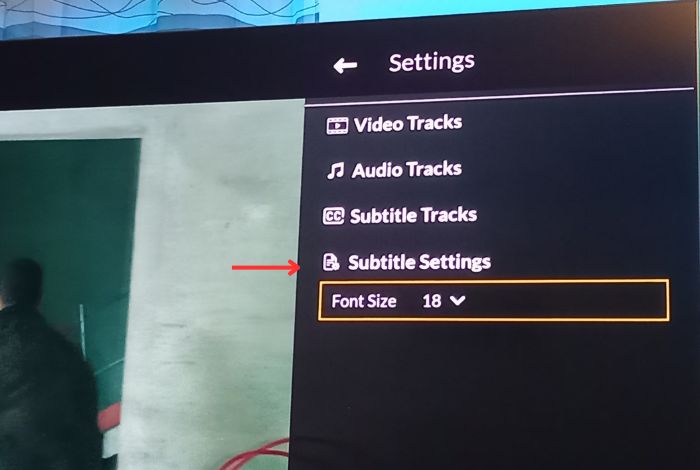
Tap the audio icon to switch between available audio languages.
If nothing appears, that stream simply doesn’t include those tracks.
How do you use favorites, parental controls, recording, and multi-screen?
IPTV Smarters Pro includes several extra features that make daily viewing easier and safer for the whole household. After your channels load, you can organize and protect content and even watch more than one stream at once.
These tools are optional, but they’re a big part of what makes the app flexible. Some features, like recording, depend on your device and storage.
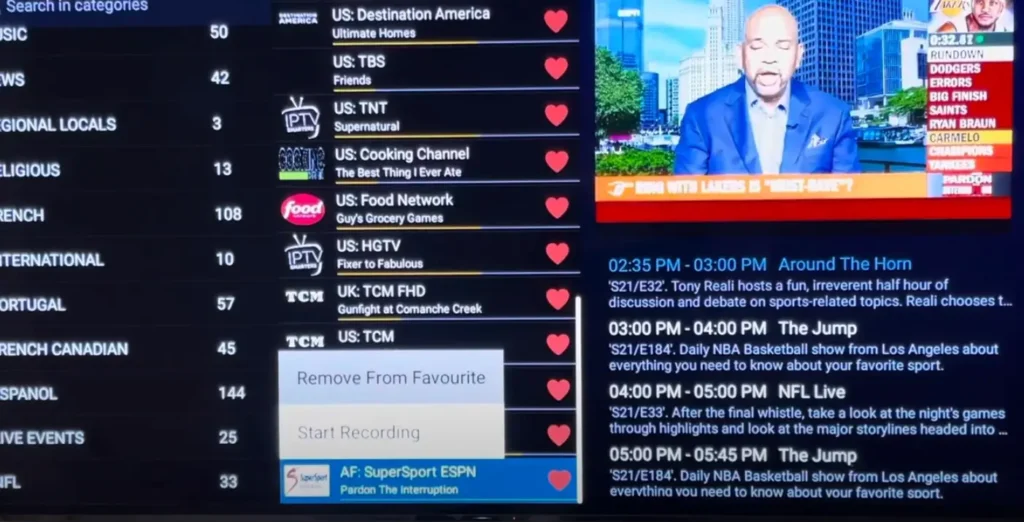
Favorites:
Mark channels with the heart icon for quick access.
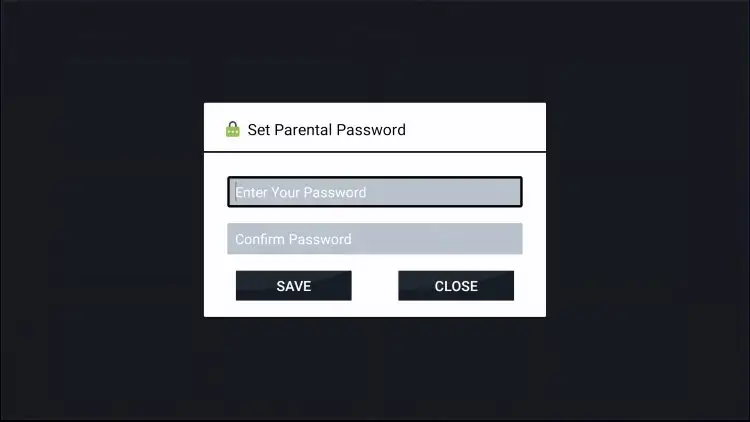
Parental controls:
Set a PIN and lock specific categories or content.
How to record in IPTV Smarters Pro :
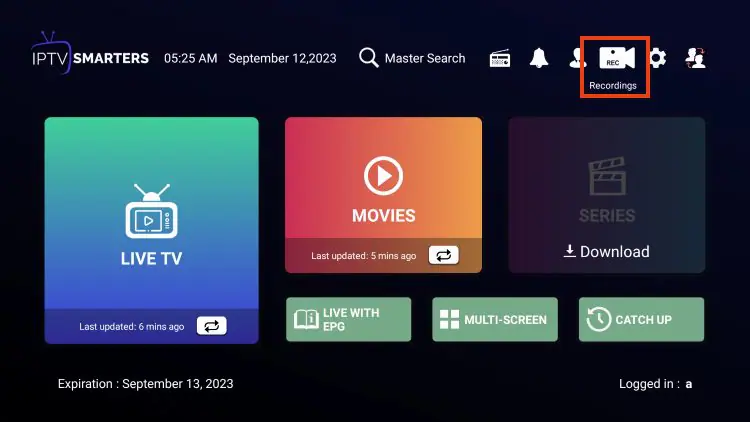
To watch later, go back to Recordings on the home screen, open your file, and choose Play (or Delete).
Open the app and select Recordings from the home screen.
Choose Change Directory, pick Internal Storage, create a New Folder named “Recordings,” and confirm.
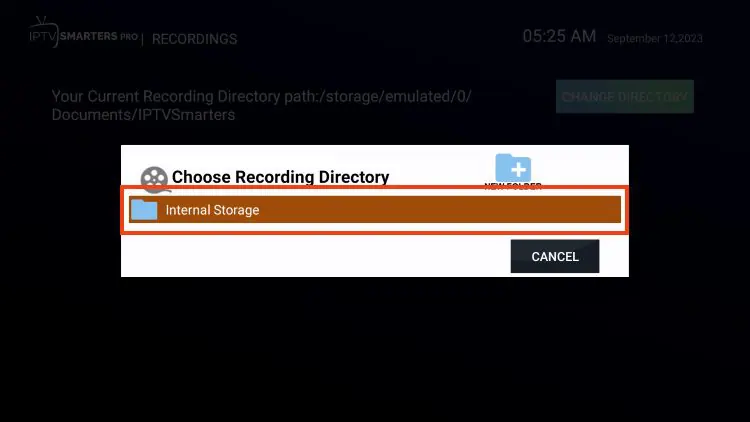
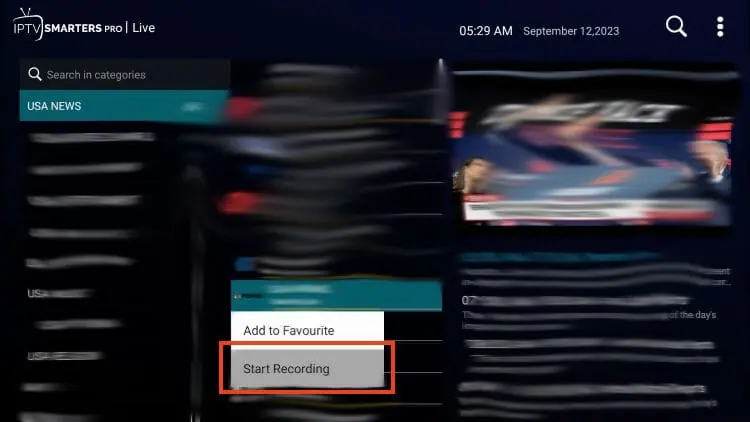
Go to your channel list, long-press the select button on the channel you want, and choose Start Recording.
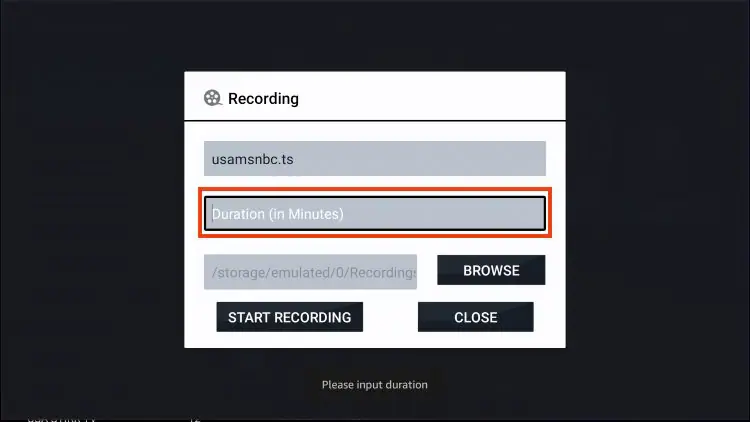
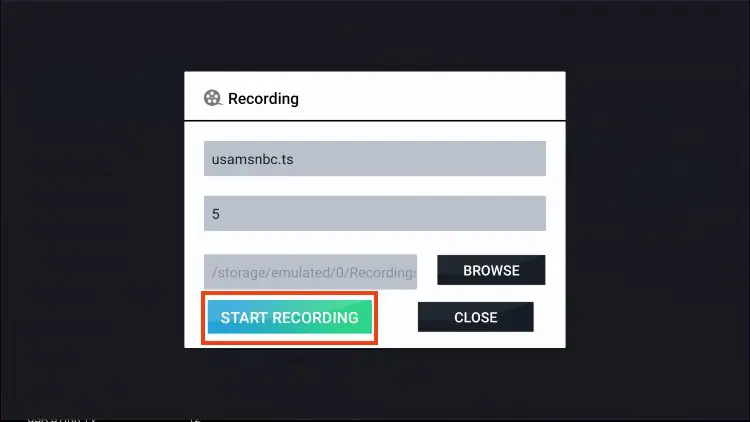
Set the duration in minutes and confirm to begin —
You’ll see a “Recording started” message.
Save live programs to your device’s storage where supported.
Multi-screen and multiple playlists :
watch several streams or manage more than one account in one place.
How do you fix buffering, black screens, and other common issues?
You fix most IPTV Smarters Pro issues by checking your connection, your login details, and the player settings. The majority of problems fall into a few familiar categories, and each has a quick remedy.
Working through them in order usually solves things within minutes, and using only the official app avoids a whole class of problems caused by fake versions.
Login failed: re-enter your server URL, username, and password exactly, watching for typos.
Buffering or freezing: switch to a wired connection or move closer to the router.
Black screen with sound: change the player engine in the player-selection settings.
Wrong guide times: set your correct time zone in the general settings.
Missing channels: reload the playlist from the settings, then restart the app.
Frequently Asked Questions (FAQ)
Is IPTV Smarters Pro free?
Yes, IPTV Smarters Pro is free to download and use on every platform it supports, from phones and tablets to streaming sticks and computers. There’s no charge for the app itself.
What you pay for is the IPTV subscription you connect to it, since the app is only a player and holds no channels of its own.
So the player costs nothing, but you still need an active service from a provider to watch anything. That’s why choosing a reliable, licensed subscription matters just as much as the app — it determines the quality, stability, and legality of everything you watch.
Why isn’t IPTV Smarters Pro in my Firestick or TV app store?
On some devices, IPTV Smarters Pro isn’t listed in the built-in app store, which is normal and not a cause for concern. On a Fire TV, for example, you typically sideload it using a small downloader tool and the official app file rather than installing from the store.
Many Android TV devices do list it, while certain smart-TV platforms have dropped it entirely. When that happens, the easiest workaround is to plug in a streaming stick or Android box and install the app there. Always use the official source for the file to avoid tampered or fake versions.
Does IPTV Smarters Pro provide channels?
No, IPTV Smarters Pro does not provide any channels or content on its own. It’s purely a player — the screen and the controls, not the broadcast itself. The app stays empty until you connect it to an IPTV service using Xtream Codes credentials or an M3U link.
Once you enter valid details from your provider, your live channels, movies, series, and guide all appear inside the app’s interface. This is why the service you choose is so important: the player handles the display, but the content, reliability, and legality all come from your subscription.
How do I change the subtitles or audio language?
Changing subtitles or audio in IPTV Smarters Pro is done during playback. Tap the screen while a program is playing to bring up the on-screen controls, then look for the subtitle icon (often shown as “CC” or a speech bubble) to choose a subtitle track or turn captions off, and the audio icon to switch between available languages.
The important thing to remember is that these options only work when the specific channel or title actually includes those tracks. If you don’t see any choices, it means the broadcaster didn’t include subtitles or alternate audio for that stream.
Why is my EPG missing or showing the wrong times?
A missing or incorrect guide usually comes down to the guide source or your time zone. If you logged in with Xtream Codes, give the EPG a couple of minutes to load on its own; if you used an M3U link, you likely need to add the EPG (XMLTV) URL manually in the TV guide settings.
When the guide appears but the times are off, the cause is almost always the time zone — set your correct local zone in the general settings, since the app can default to a different one. If it still won’t show, reload your playlist and restart the app to refresh the data.
What internet speed do I need for IPTV Smarters Pro?
For smooth playback, plan for about 25 Mbps for HD and at least 50 Mbps for 4K. Just as important as raw speed is stability: a wired Ethernet connection or a strong 5 GHz Wi-Fi signal will prevent the buffering that frustrates people most, especially during busy evening hours.
If several devices share your network at the same time, add up their needs so the app isn’t starved of bandwidth on your main screen. The app and your subscription can only perform as well as the connection feeding them, so a steady link is the single biggest factor in a good experience.
Is IPTV Smarters Pro legal and safe to use in Canada?
IPTV Smarters Pro is a perfectly legal app — it’s just a player, much like a web browser. Whether your overall setup is legal depends entirely on the service you connect to it: a licensed provider that holds the rights to its content keeps you safely on the right side of the law.
Unauthorized services are a different story: under Canadian copyright law, copying or distributing protected content without permission is an infringement, and unauthorized streaming operations have faced real penalties in Canada.
Unlicensed apps and services can also carry security risks, which is why you should download the app only from an official source and pair it with a reputable, licensed subscription.
Conclusion
Configuring IPTV on IPTV Smarters Pro follows the same simple path on every device: install the app — from a store on phones, tablets, and Apple devices, or by sideloading on a Fire TV — then tap “Add New User,” choose Xtream Codes or M3U, and enter your provider’s details.
From there you can load the EPG, switch subtitles and audio tracks during playback, set up favorites and parental controls, record live TV, and even watch multiple streams at once.
Whatever device you use, smooth and reliable viewing comes down to two things the app can’t supply on its own: a stable internet connection and a trustworthy, licensed subscription.
Get those right, download the app from an official source, and IPTV Smarters Pro becomes a polished, full-featured home for your IPTV on the Firestick, your phone, your smart TV, and beyond.