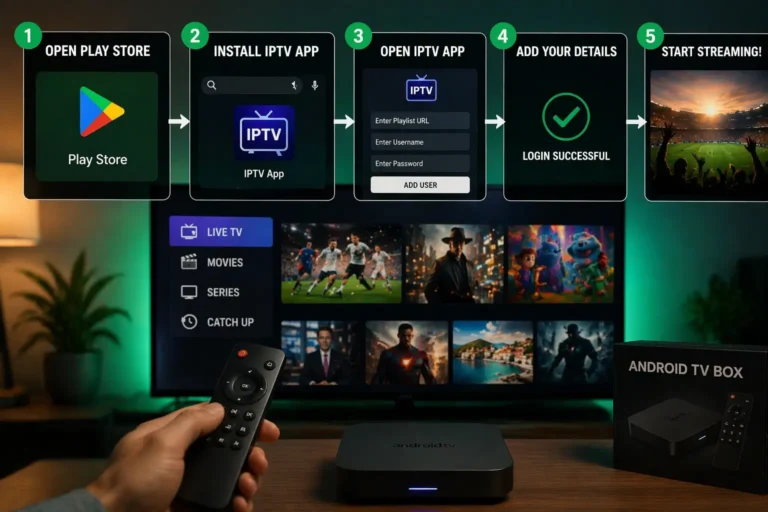
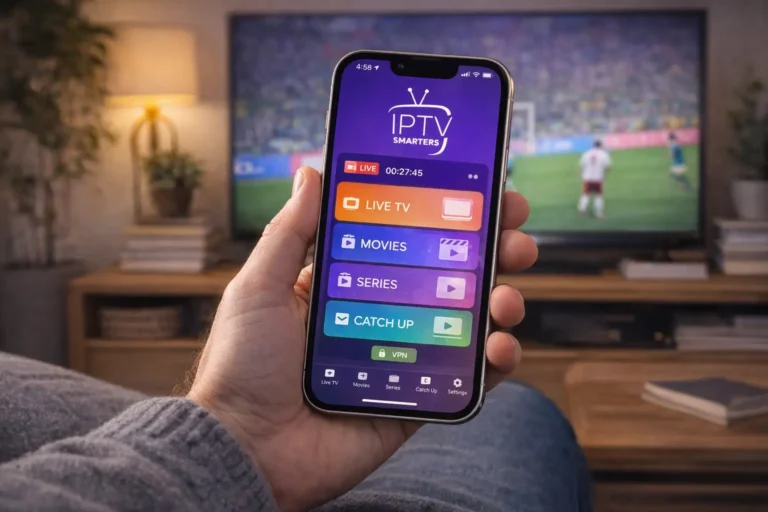
To set up IPTV on an Nvidia Shield, open the Google Play Store, install an IPTV player such as TiviMate, IPTV Smarters Pro, or OTT Navigator, open it, and connect your source with an M3U link or Xtream Codes credentials, your channels then load in a few minutes. Because the Shield runs full Android TV, installation is as simple as on a phone, with none of the store limits found on many smart TVs. The full step-by-step follows below.
The Nvidia Shield is widely considered the best streaming device for IPTV, and for good reason: its powerful processor handles 4K decoding and huge channel lists without slowing down, it has a wired Ethernet port for a rock-solid connection, and it runs the complete Google Play Store, so every major player is one tap away. Pairing a Shield with a polished app like TiviMate is often called the gold-standard IPTV setup.
As with any player, the app holds no channels of its own, it plays a legitimate, authorized source, such as an IPTV subscription, accessed through an M3U link or Xtream Codes login. This guide covers installing a player, adding your source, tuning the settings, and getting the smoothest possible picture.
What you need before you start
Gather these first; most failed setups trace back to a missing detail here.
- An Nvidia Shield (Shield TV or Shield TV Pro), set up and updated.
- Your Xtream Codes credentials (server URL with its port, username, password) or your full M3U link.
- Your EPG (XMLTV) guide URL, if your source provides one separately.
- A stable internet connection, ideally wired Ethernet for 4K.
- A legitimate, authorized content source behind those credentials.
Step 1 — Update your Shield to the latest version
Before installing anything, make sure the Shield is running the latest software. Updates improve performance, fix bugs, and keep apps compatible, which heads off many playback problems before they start.
From the home screen, open Settings.
Go to “Device Preferences,”
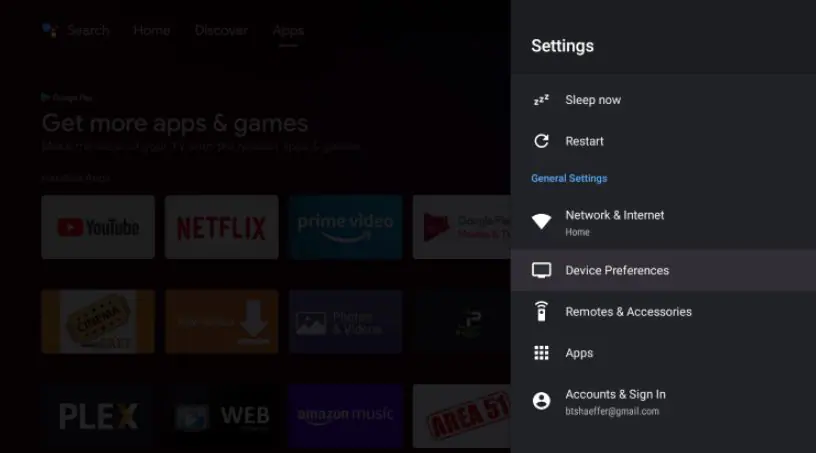
Then “About.”
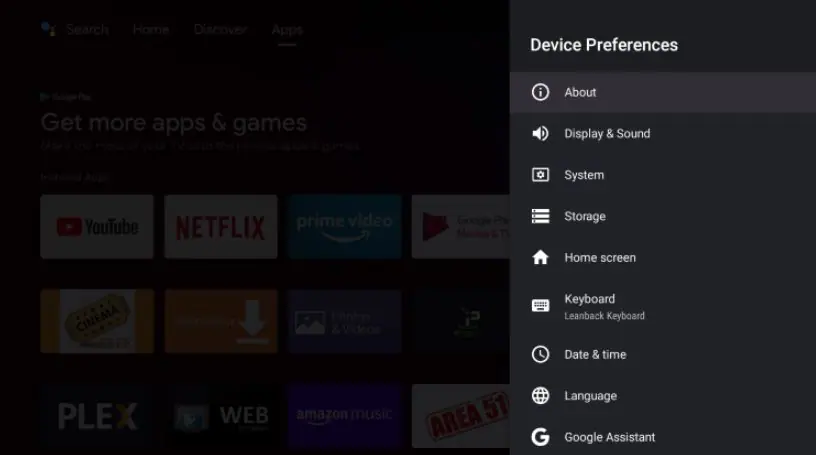
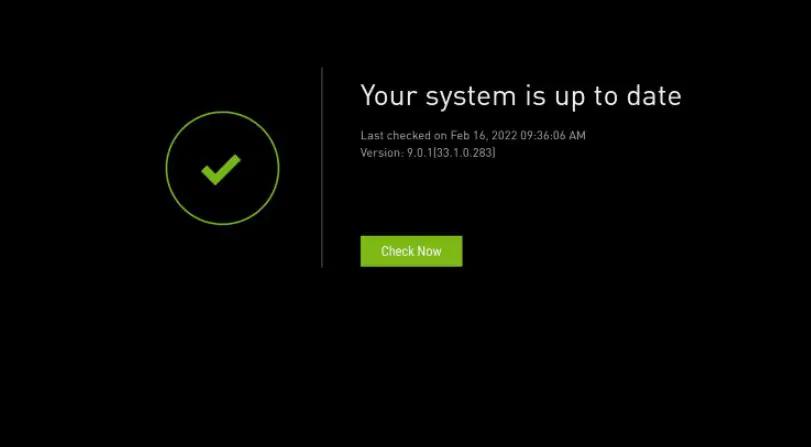
Select “System update” and install any available update.
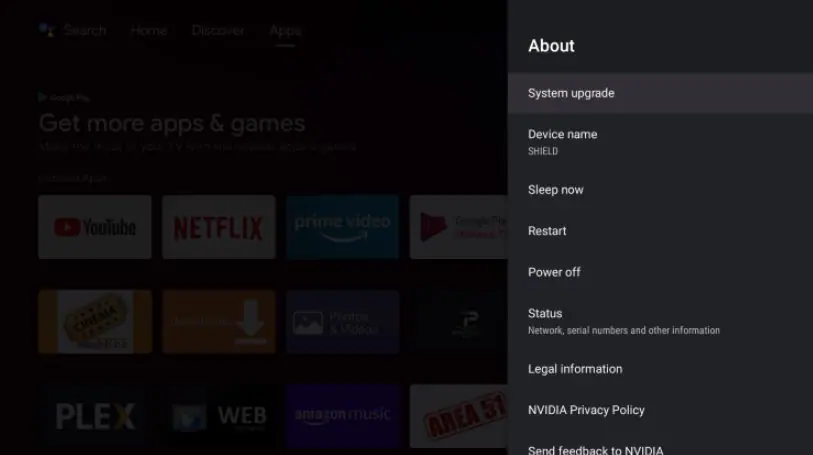
Choose check for upgrade again.
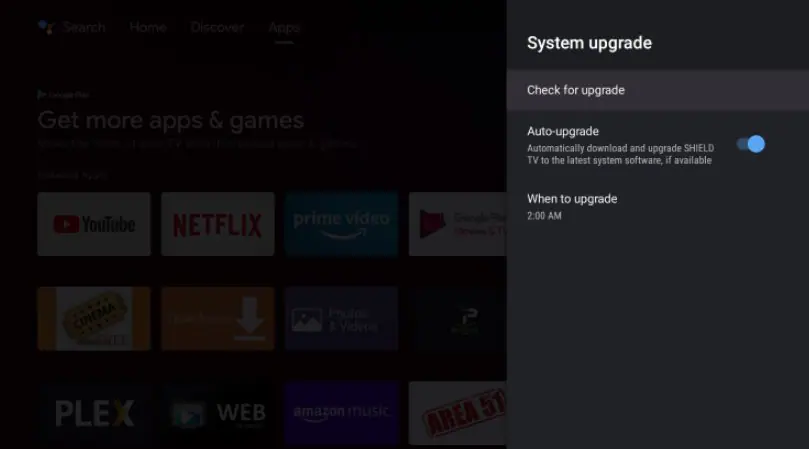
If you see this screen, your device is already up to date
Step 2 — Install an IPTV player from the Play Store
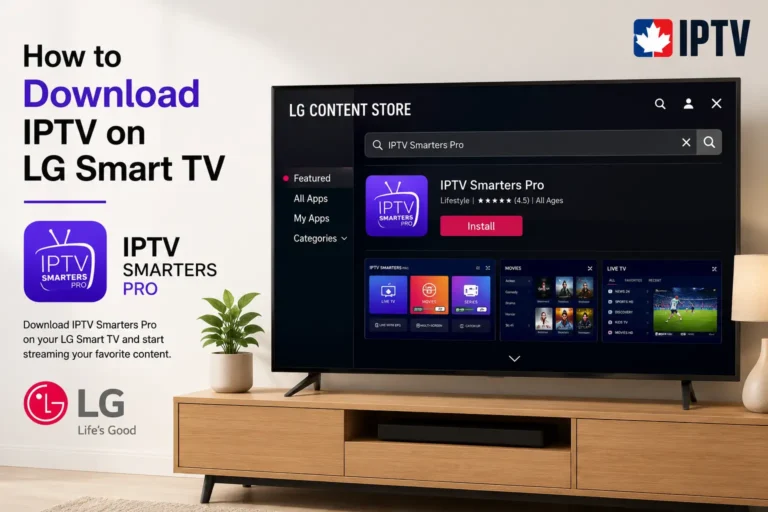
Since the Shield runs Android TV, you install a player straight from the Google Play Store, exactly as on any Android device.
From the home screen, open the Google Play Store.
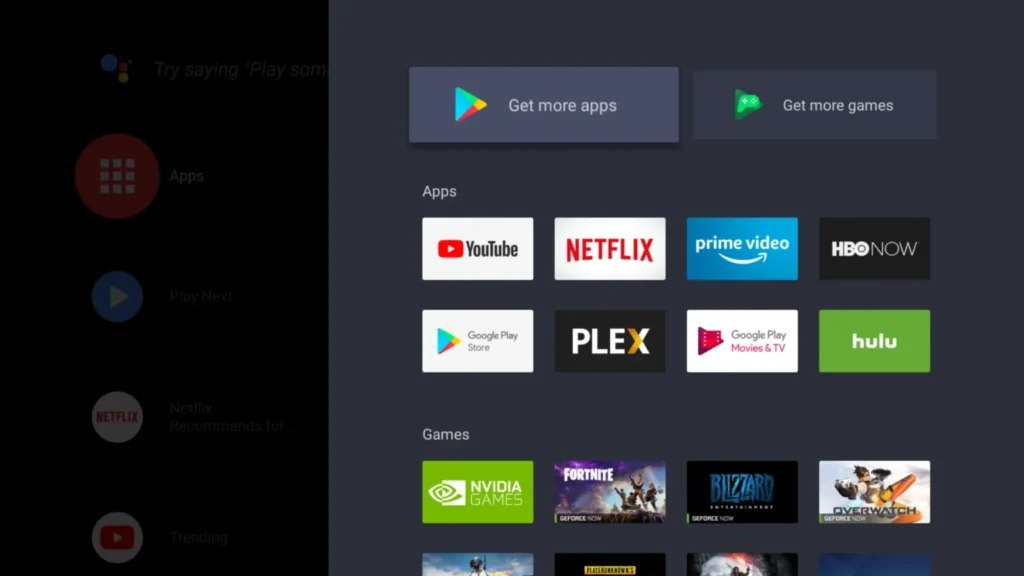
Select the search bar and type an IPTV player’s name, for example “TiviMate,” “IPTV Smarters Pro,” or “OTT Navigator.”
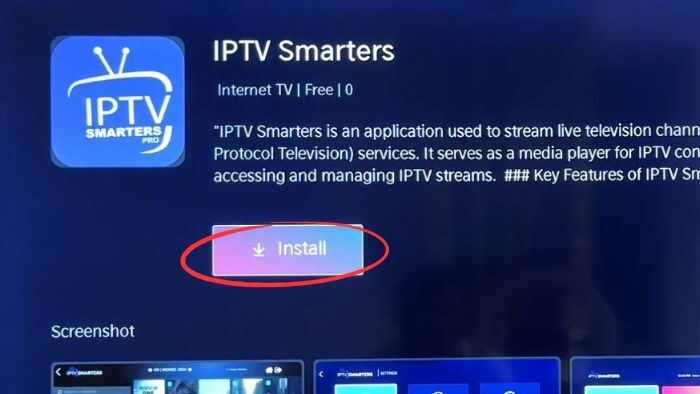
Check the publisher, then select “Install.”
Once installed, select “Open” to launch the app.
Step 3 — Add your source
With the player installed, link it to your content. The wording varies slightly between apps, but the logic is identical.
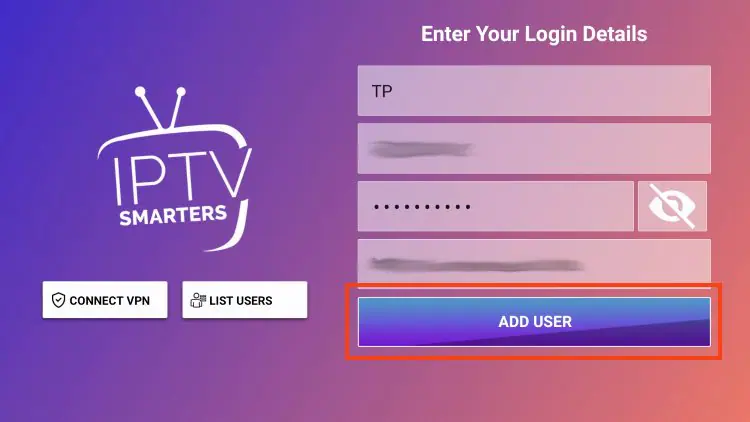
Open the player and choose “Add playlist,” “Add user,” or “Login.”
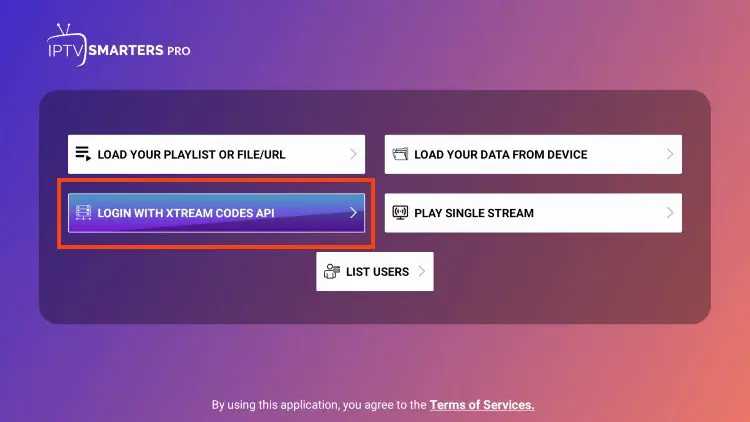
Pick the method: Xtream Codes or M3U.
For Xtream Codes: enter a name, the server URL with its port (e.g. http://server:8080), your username, and your password.
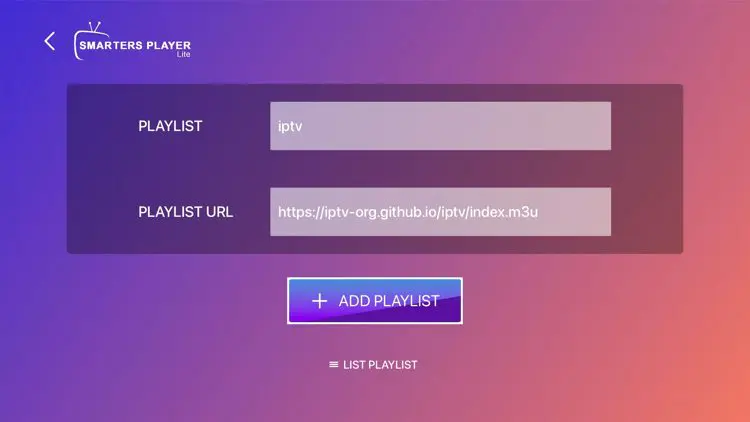
For M3U: enter a name and paste your full M3U link (it starts with http:// or https://).
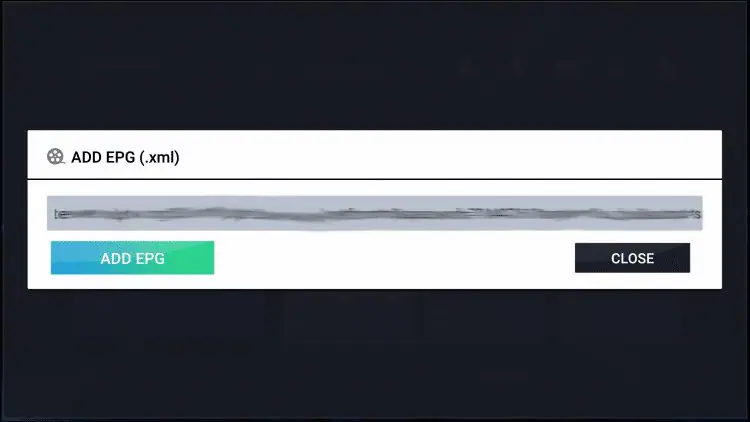
Add your EPG URL if your source provides one separately, then confirm to load your channels.
The two mistakes behind almost every failed login are forgetting the port after the colon and mistyping a capital letter in the username or password. Copy them exactly.
The best IPTV players for Nvidia Shield
Any of these run beautifully on the Shield’s hardware; they differ mainly in polish and features.
| Player | Free version | EPG | Catch-up | Best for |
| TiviMate | Yes (premium option) | Yes | Yes | The premium, refined experience |
| IPTV Smarters Pro | Yes | Yes | Limited | Simple, all-round setup |
| OTT Navigator | Yes (premium option) | Yes | Yes | Deep settings and catch-up |
Set up the guide and organize your channels
A few settings make the Shield feel like a proper TV box. Add your EPG (XMLTV) URL in the app’s settings if the guide is empty, then refresh so the current and upcoming programs appear beside each channel; fix the time zone if the times are off by an hour.
Create a favorites list for the channels you watch most and hide the categories you never use, so you are not scrolling past thousands of entries.
If a channel stutters or will not start, open its options and switch the internal player or decoder until one plays cleanly, the Shield’s hardware handles all of them well.
Get the smoothest picture
This is where the Shield shines. For the most stable playback, use the wired Ethernet port rather than Wi-Fi, especially in 4K and during busy evening hours, it is the single biggest improvement you can make. If you must use Wi-Fi, stay close to the router and prefer the 5 GHz band.
Match the video quality to your connection rather than forcing 4K on a weak line, and if the picture ever hitches, raising the buffer in the app’s playback settings usually smooths it out.
Thanks to the Shield’s processing power, once the connection is solid the playback itself is rarely the bottleneck.
Troubleshooting common issues
- Nothing loads after adding the playlist: recheck the server URL, port, and credentials, respecting capital letters.
- A channel freezes or will not start: switch the internal player or decoder (hardware or software) in its options.
- The picture buffers: use Ethernet, lower the resolution, or increase the buffer.
- The guide is empty or off: add the XMLTV URL and correct the time zone.
- The app feels slow: clear its cache and restart the Shield.
FAQ
Is the Nvidia Shield good for IPTV?
Yes, it is one of the best devices for it. Its power handles 4K and large channel lists smoothly, and its Ethernet port keeps playback stable.
Which IPTV app is best on the Shield?
TiviMate is the favorite for a polished, premium experience, while IPTV Smarters Pro and OTT Navigator are excellent alternatives. All run flawlessly on the hardware.
Do I need a subscription to use these apps?
Yes, in the sense that the app provides no channels. You must connect a legitimate, authorized source with an M3U link or Xtream Codes login.
Can I install apps that aren’t in the Play Store?
Yes, by enabling unknown sources and sideloading the official APK. Only use trusted files to protect your device.
M3U or Xtream Codes — which is better?
Both work. M3U is simplest to paste, while Xtream Codes usually organizes content better and often loads the guide automatically. Use the format your source provided.
Should I use Ethernet or Wi-Fi?
Ethernet is more stable, especially for 4K. Wi-Fi works for HD if your signal is strong and you are near the router.
Why is my channel freezing?
Usually the connection or the decoder. Switch to Ethernet, lower the resolution, or change the internal player in the channel’s options.
Conclusion
Setting up IPTV on an Nvidia Shield is quick and satisfying, because the device does everything right: full Android TV with the complete Play Store, enough power for flawless 4K, and a wired connection for stability.
Install an IPTV player like TiviMate, IPTV Smarters Pro, or OTT Navigator, add your source with an M3U link or Xtream Codes login, organize your favorites, and plug in Ethernet, that is all it takes to turn the Shield into a premium IPTV machine.
As always, the app is only a tool: the quality and legitimacy of your experience depend above all on the source you connect to and the stability of your connection.