To watch IPTV on a PlayStation, you use a media-server app like Plex, because the PS4 and PS5 do not have a dedicated IPTV player in their store. The idea is simple: you run Plex on a computer, feed it your IPTV playlist and guide, then open the Plex app on your console to watch your live channels on the big screen.
On a PS4 you also have a second option, the built-in web browser, but Plex is the reliable method that works on both consoles. With a reliable IPTV Subscription provider that gives you a clear M3U link and a program guide, the whole setup takes only a short while.
This step-by-step guide walks you through it from start to finish, including how to fix the most common issues.
Step 1: Understand how IPTV works on PlayStation
PlayStation consoles have no native IPTV app, so you watch through a media-server app rather than installing an IPTV player directly.
The most dependable approach is Plex, which is available on both PS4 and PS5 and streams your channels from a small server you run on a computer. On a PS4, you can also use the built-in web browser as a lighter alternative, but the PS5 has no general browser.
- PlayStation has no dedicated IPTV app in its store.
- Plex works on both PS4 and PS5 as a media-server app.
- The PS4 web browser is a simpler backup method.
- This guide focuses on the reliable Plex method.
Step 2: Check what you need before you start
Before you begin, make sure you have the few pieces required for a smooth setup. You will need your console, a stable internet connection, an active IPTV subscription, and a computer to run the server software. Having everything ready first means the rest of the process goes quickly.
- A PS4 or PS5 connected to the internet.
- An active IPTV subscription with an M3U link and guide.
- A computer (Windows or Mac) to run Plex Media Server.
- A free Plex account, used on both the computer and console.
Step 3: Get your IPTV details from your provider
Your provider gives you the details that connect Plex to your service. Usually this is an M3U playlist link, often paired with a program guide (EPG) link in XMLTV format. Keep these handy and free of typing errors, since they are the key to loading your channels.
- An M3U playlist URL from your provider.
- A program guide (EPG) URL, if one is provided.
- Your account login details, kept somewhere safe.
- For help finding these, see our IPTV playlist URL guide.
Step 4: Install Plex on your PlayStation
Next, add the Plex app to your console from the official store. This is a quick download, and using the official store keeps the install safe. Once installed, you will sign in with your Plex account so the console can find your server later.
Open the PlayStation Store on your PS4 or PS5.
Search for the Plex app and download it.
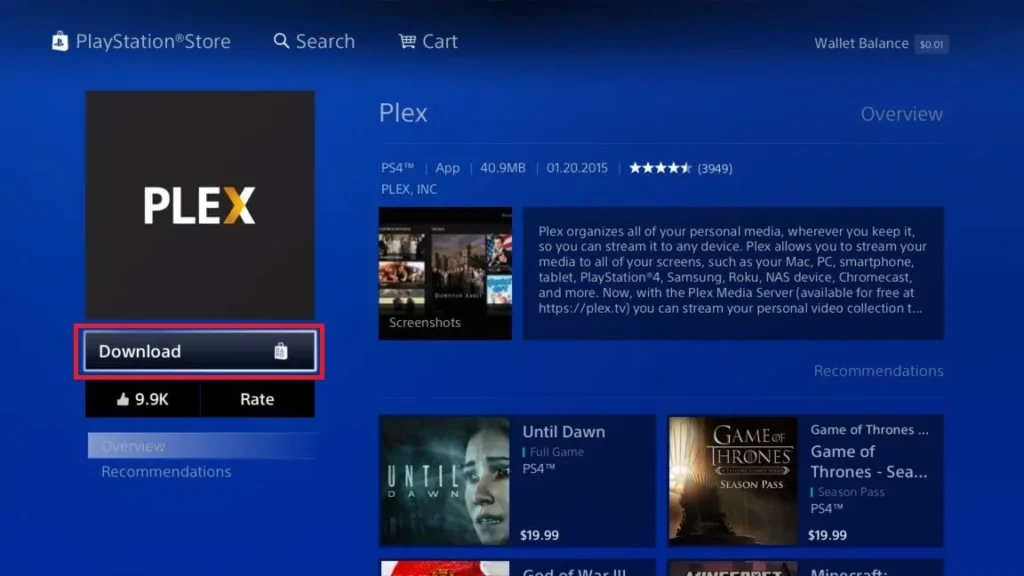
Launch Plex and sign in or create a free account.
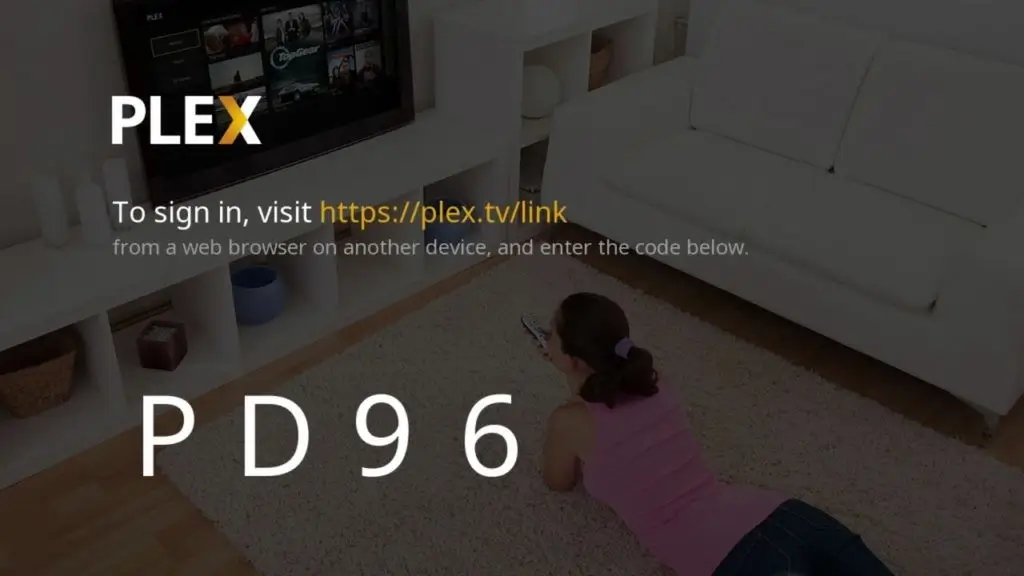
Leave the console signed in for the next steps.
Step 5: Install Plex Media Server on your computer
The server software is what actually delivers your channels to the console. Download Plex Media Server onto a computer that can stay on while you watch, then sign in with the same Plex account you used on your console. This links the two together automatically.
Download Plex Media Server from the official Plex website.
Install it on a Windows or Mac computer.
Sign in using the same Plex account as your console.
Keep the computer on while you stream to the console.
Step 6: Add your IPTV playlist to Plex
Plex’s Live TV feature is built for a physical TV tuner, so it will not accept an M3U link on its own. To get around this, you add a small, free tool that acts as a virtual tuner.
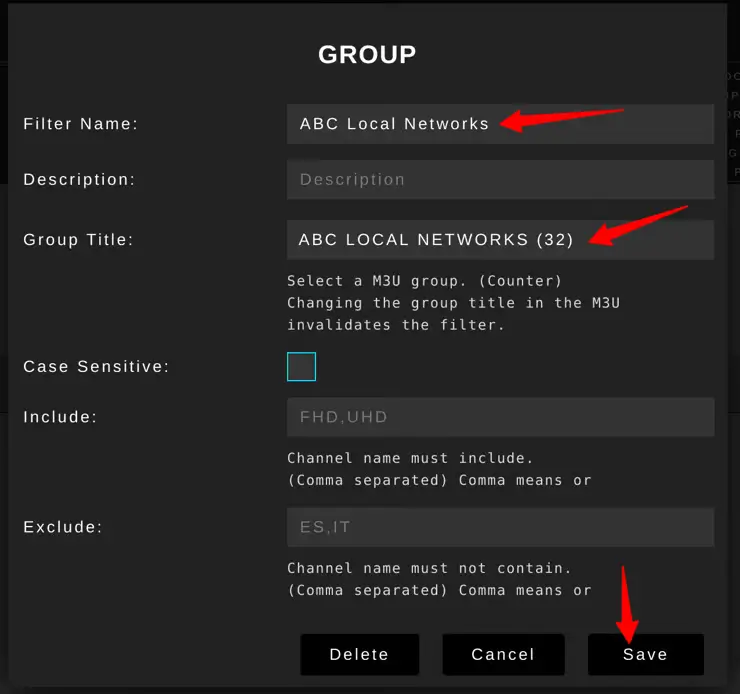
The most common is xTeVe, or its newer fork Threadfin: you run it on the same computer as Plex, load your M3U playlist into it, and it then presents your channels to Plex as if they came from a real tuner.
Install a virtual-tuner tool such as xTeVe or Threadfin on the same computer as Plex.
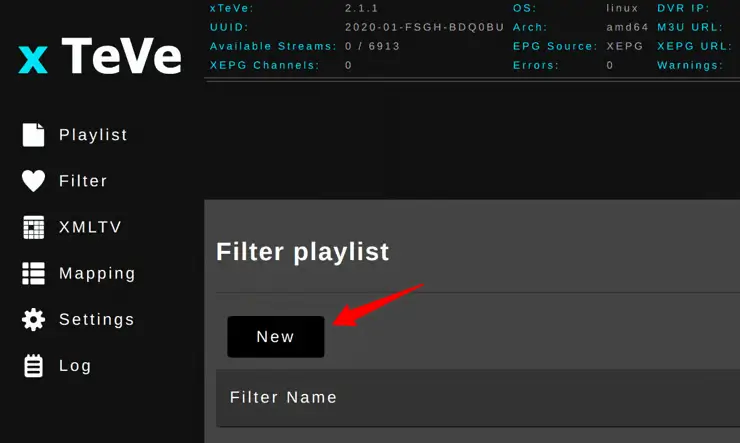
In that tool, paste your M3U playlist link and save it.
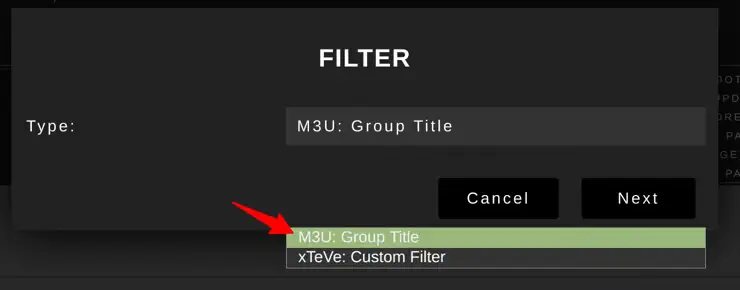
It creates a local tuner address that imitates a TV tuner.
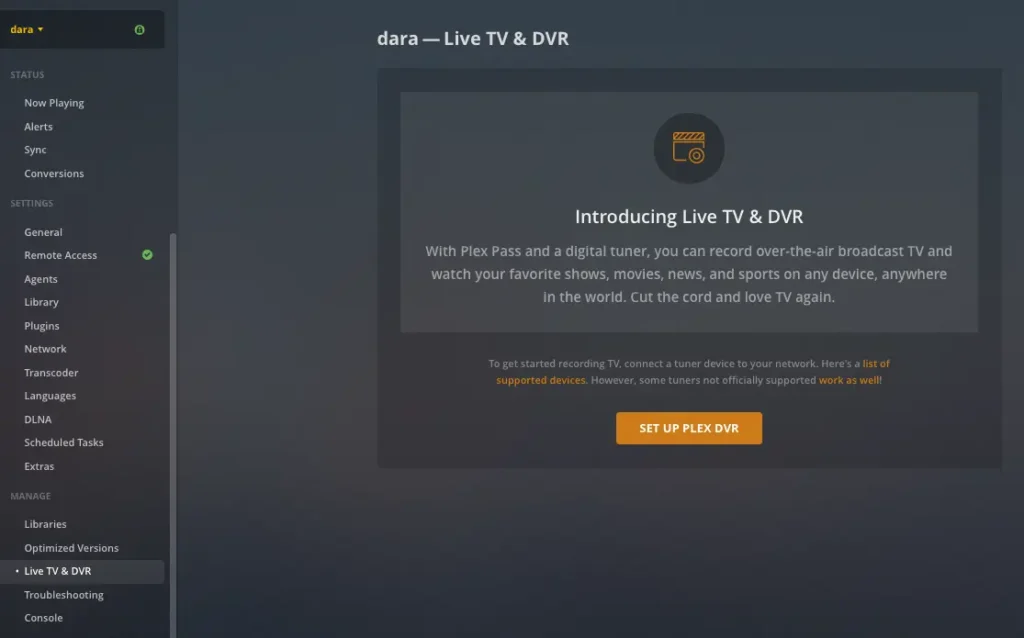
In Plex, open Live TV & DVR, set up the DVR, and select that tuner.
Let Plex scan and list your channels.
Step 7: Add the program guide (EPG)
A program guide turns a plain channel list into a proper TV experience. In the same Live TV section, point Plex to your XMLTV guide link so it can show what is playing and when. Plex then matches the guide data to your channels.
In Live TV & DVR, choose to add a guide (XMLTV).
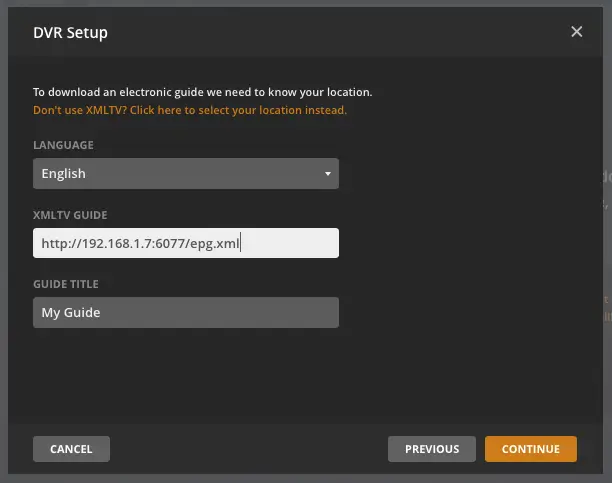
Enter the EPG link your provider gave you.
Match the guide’s channels to your playlist if asked.
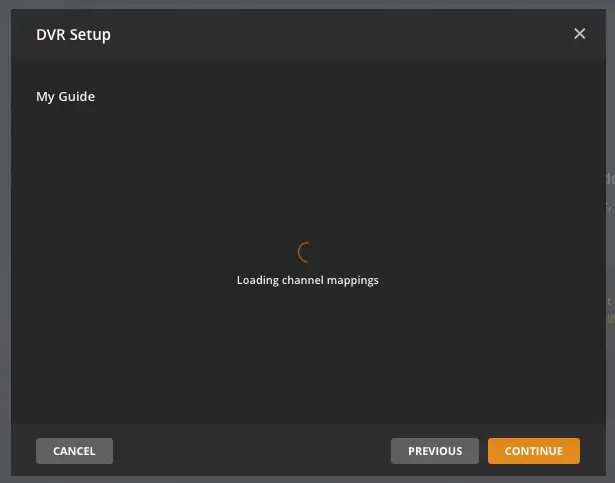
Save the settings and let the guide populate.
Step 8: Open Plex on your PlayStation and find Live TV
With the server set up, return to the Plex app on your console to start watching. The app connects to your computer’s server over your home network and shows your live channels. From here, everything happens on the console.
Launch the Plex app on your PS4 or PS5.
Select your server if prompted.
pen the Live TV & DVR section.
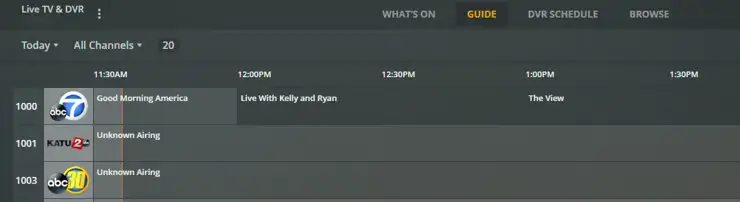
Browse the channel list and guide.
Step 9: Start watching and optimize the picture
Pick a channel and your live IPTV will play right on your PlayStation. For the smoothest picture, a stable connection matters more than anything, especially during busy evenings. McGill University’s IT Services, a trusted Canadian source, recommends a wired connection and a well-placed router to improve streaming quality.
Select a channel to begin playback.

Use a wired Ethernet connection where possible.
Place your router centrally and use the 5 GHz band on Wi-Fi.
Avoid heavy downloads on other devices while watching.
Step 10: Troubleshoot common problems
Most issues have quick fixes, so a short checklist usually gets you back to watching. Buffering points to the connection, missing channels point to the playlist, and an empty guide points to the EPG. Working through these in order solves the majority of problems.
For buffering, check your speed and switch to a wired connection.
If channels are missing, recheck your M3U link and tuner.
If the guide is empty, confirm your EPG link and channel matching.
Keep the Plex app and server updated, then restart if needed.
Frequently asked questions (FAQ)
Is there a dedicated IPTV app for PlayStation?
No, the PS4 and PS5 stores do not offer a dedicated IPTV player. The reliable way to watch is through the Plex app, which streams your channels from a server you run on a computer.
Can I watch IPTV on a PS5 without a computer?
Not easily, since the PS5 has no web browser and no native IPTV app. The Plex method needs a computer to run the server, so a computer is part of the setup.
Does the PS4 web browser work for IPTV?
Yes, the PS4 has a built-in browser that can open a provider’s web player, which is a lighter alternative to Plex. The PS5 does not have this browser, so the option is PS4 only.
Why does my IPTV buffer on PlayStation?
Buffering is usually a connection issue. A wired Ethernet connection, a central router, and avoiding other heavy downloads will normally smooth playback.
Do I need to keep my computer on?
Yes, when using Plex the server runs on your computer, so it must stay on while you watch on the console. Turning it off stops the channels from loading.
What format do I need from my provider?
An M3U playlist link is the key item, ideally with an XMLTV program guide link. Both are added inside Plex’s Live TV settings.
Is watching IPTV on PlayStation legal?
IPTV technology is legal; what matters is that your provider holds the proper rights to the content it distributes. Choosing a legitimate, transparent provider keeps you on the right side.
Conclusion
Watching IPTV on a PlayStation comes down to using Plex as a bridge: run the server on a computer, load your IPTV playlist and guide, then open the Plex app on your PS4 or PS5 to watch live channels. PS4 owners have the extra option of the built-in web browser, while PS5 users rely on the Plex method.
For the best results, use a wired connection, keep your apps updated, and choose a reliable, legitimate provider. With everything in place, your console becomes a full live-TV experience in just a few minutes.