To install IPTV on Hot Player, install the app on your device, open it to reveal its MAC address, then link that MAC to your M3U playlist on the official Hot Player upload page — after a quick refresh, your channels appear. On Windows, Hot Player installs straight from the Microsoft Store with no emulator needed, and the same MAC-based method works across phones, smart TVs, and streaming boxes.
Hot Player is a free media player that holds no channels of its own, so you’ll need an active subscription from a reliable IPTV subscription provider that gives you an M3U link. This guide walks you through the whole process as a clear sequence of steps — install, find your MAC, activate, and load your channels — plus the guide, subtitles, and fixing common issues.
Step 1 — Get your subscription and M3U link ready
Before installing anything, make sure you have an active subscription and your M3U playlist URL, because Hot Player activates using that link and shows nothing on its own. The app works by pairing a MAC address with your M3U URL, so your playlist link is the key detail to have on hand. Gathering it first makes the rest quick and smooth.
- An active subscription from a licensed provider.
- Your M3U playlist URL (the link your provider sends you).
- A compatible device: Windows, Android, iPhone, iPad, Fire TV, or a smart TV.
- A stable internet connection, and enough data if your plan is capped.
Step 2 — Install Hot Player on your device
Install Hot Player from your device’s official store — and on Windows, that means the Microsoft Store, with no emulator required. The app is listed on most platforms, so installation is quick and the steps are nearly identical everywhere. Here it is click by click.
On Windows: open the Microsoft Store, search for “Hot Player IPTV” (or “Hot IPTV”), select the app, and click Install.
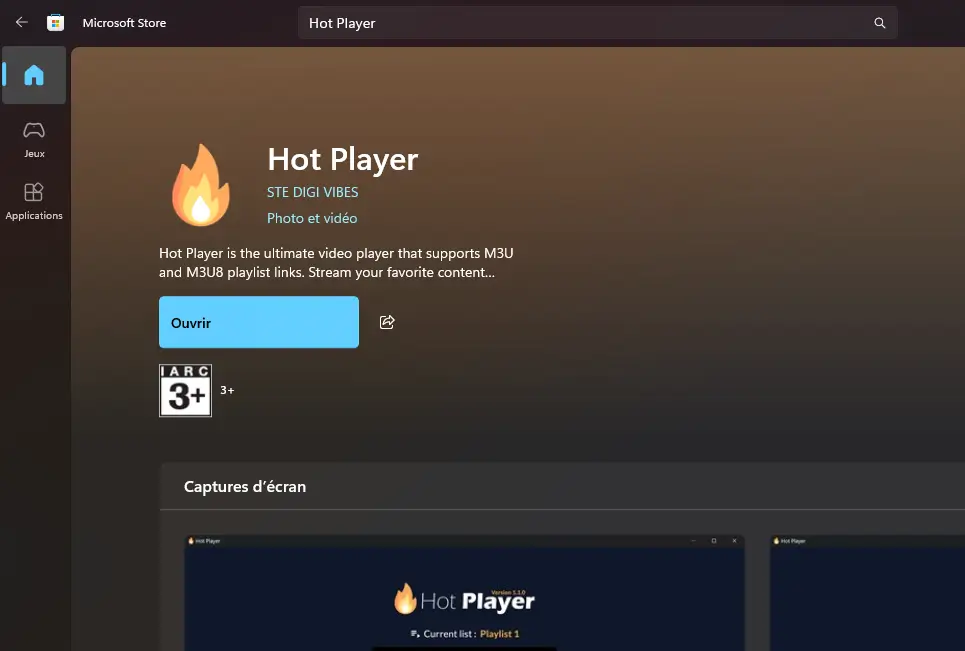
On Android or a smart TV: open the device’s app store, search for “Hot Player,” and install it.
On iPhone or iPad: open the App Store, search for “Hot Player,” and install it.
On a Fire TV that doesn’t list it: enable “unknown sources” in Settings, then sideload the official file with a downloader tool.
Step 3 — Open Hot Player and find your MAC address
Open Hot Player after installing, and it will display a MAC address on the screen — this is the unique identifier that links your subscription to the app.
Write it down exactly, since you’ll need it for activation in the next step. Some versions also show a device key alongside the MAC address.
Launch Hot Player from your apps list or home screen.
Look for the MAC address shown on the main screen.
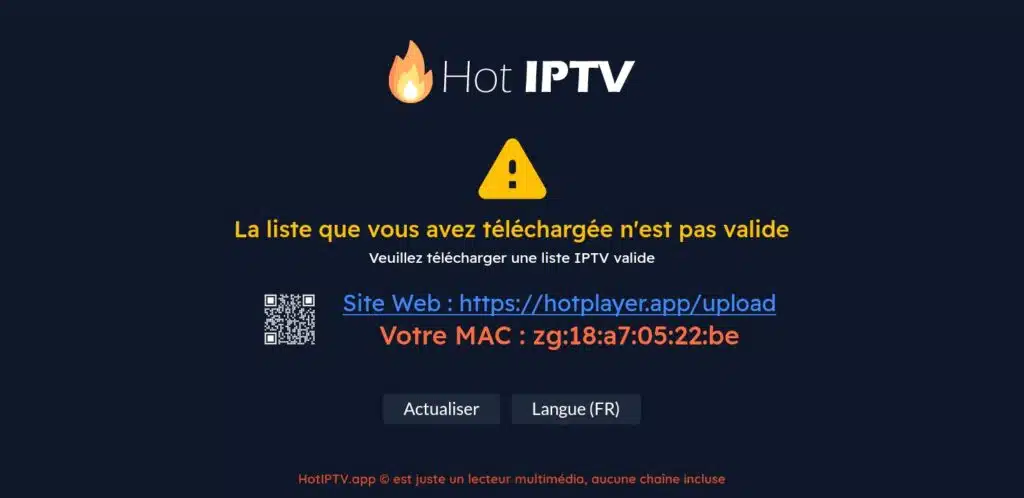
Note it down carefully, along with the device key if one is shown.
Leave the app open, or remember where to find the MAC again in its settings.
Step 4 — Activate your MAC address with your playlist
Activate Hot Player by linking your MAC address to your M3U playlist, which you can either do yourself or have your provider do for you. Both options reach the same result: your channels become available in the app. The table below compares them so you can pick the easier route for you.
| Activation option | How it works | Best for |
| Self-activation | You enter your MAC address and M3U link on the official Hot Player upload page | Anyone comfortable doing it themselves |
| Provider activation | You send your MAC address and M3U link to your provider, who links them for you | A hands-off, done-for-you setup |
To self-activate, follow these steps:
On a phone or computer, open the official Hot Player upload page (hotplayer.app/upload).
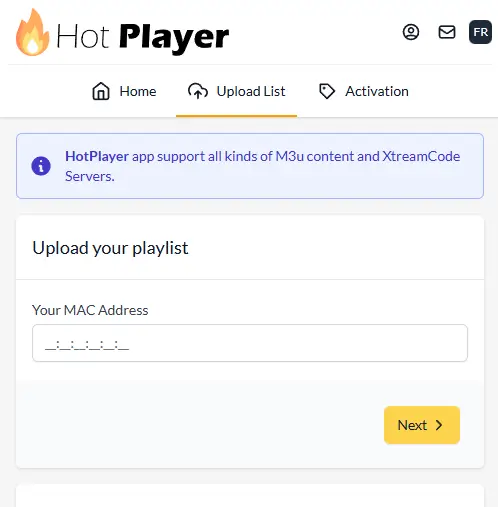
Enter your MAC address exactly as the app showed it.
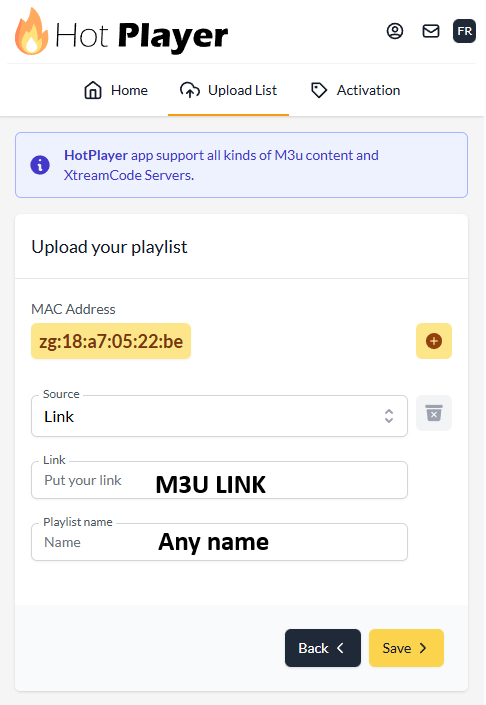
Paste your M3U playlist URL and give it a name.
Submit the details to link your playlist to the app.
Step 5 — Reload Hot Player to load your channels
Return to Hot Player and refresh or restart it so the app pulls in your newly linked playlist. Within a moment, your live channels, movies, series, and guide all appear.
If nothing shows at first, give it a minute and refresh once more, since the app sometimes needs a short while to sync after activation.
Go back to the Hot Player app on your device.
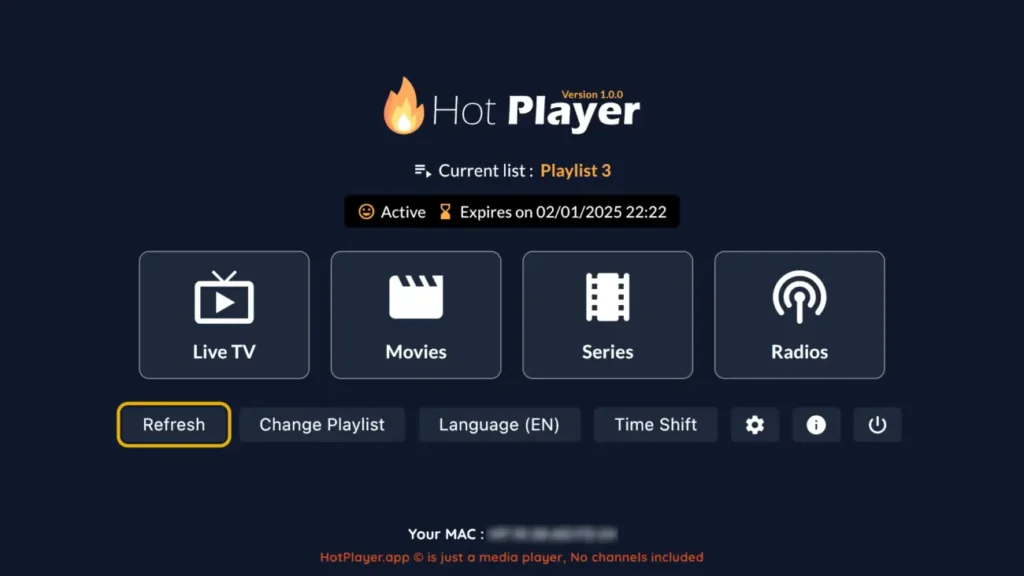
Refresh the playlist, or simply close and reopen the app.
Wait while the channels and guide load.
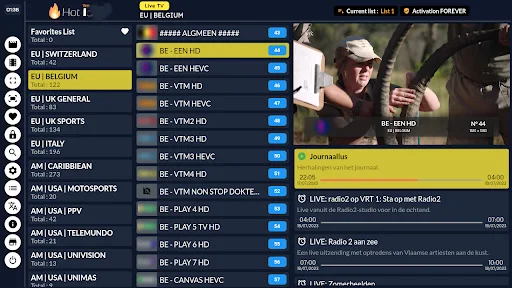
Browse Live, Movies, and Series to confirm everything worked.
Step 6 — Set up the EPG (TV guide)
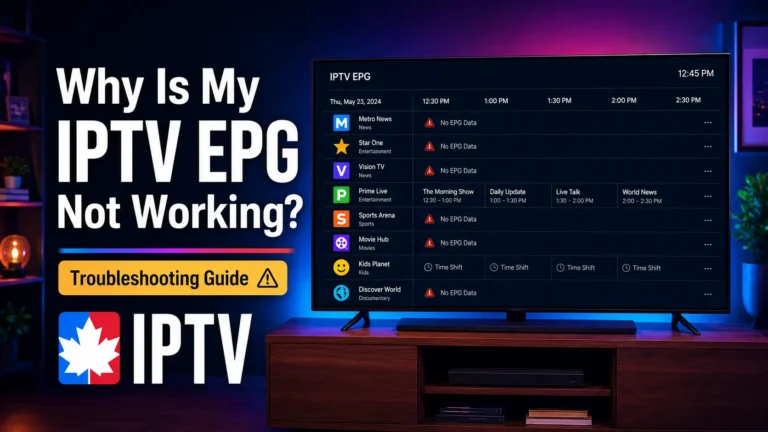
Set up the program guide so you can see what’s on and scroll the schedule like a cable box. With most playlists the guide loads automatically once your channels appear; if it doesn’t, you can add an EPG URL in the settings. If the listings show the wrong times, the fix is the time zone.
Wait a minute after your channels load for the guide to populate.
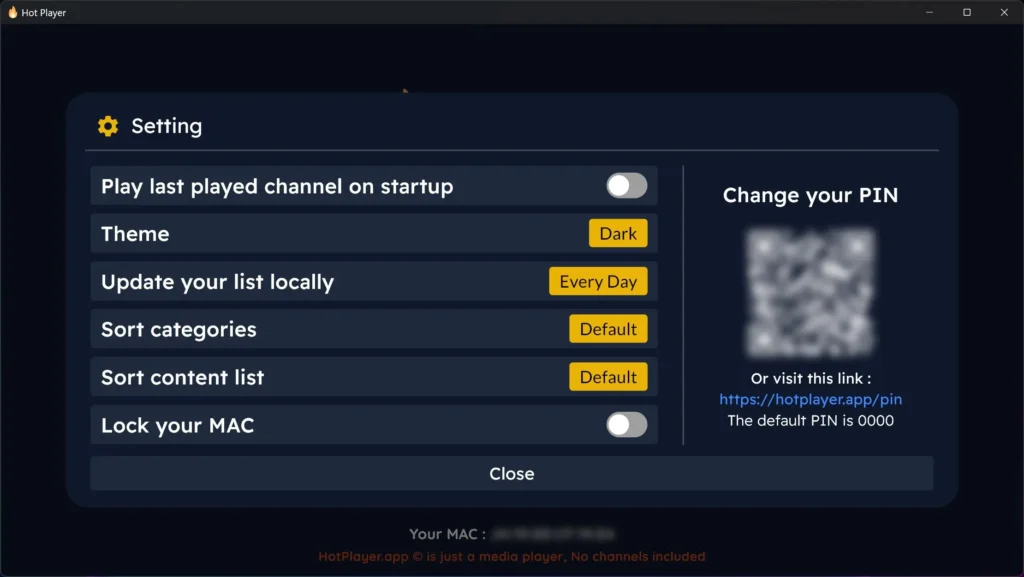
If it’s missing, add the EPG/XMLTV URL from your provider in the settings.
Set your correct local time zone if the listings are off.
Refresh the playlist if the guide still doesn’t appear.
Step 7 — Adjust subtitles and audio
Change subtitles and audio during playback using the on-screen controls. These options appear only when the channel or title actually carries them, so availability depends on the broadcaster rather than the app. It takes just a couple of taps or clicks.
While a program plays, tap or click the screen to show the controls.
Select the subtitle icon to choose captions or turn them off.
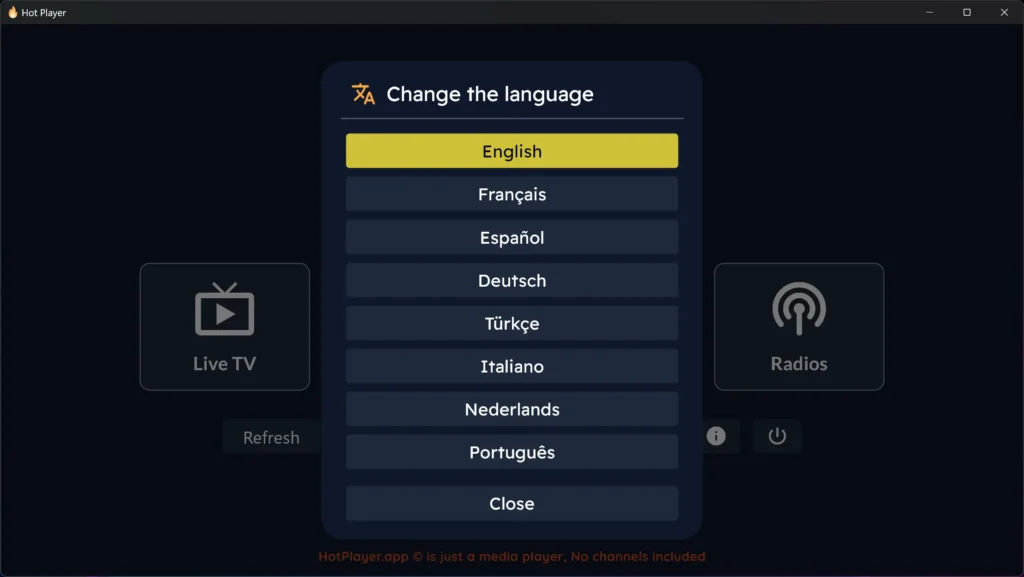
Select the audio icon to switch between available languages.
If no options appear, that stream simply doesn’t include those tracks.
Step 8 — Optimize playback and fix common issues
Finish by making sure playback is smooth and knowing the quick fixes for common problems. Most issues trace back to the connection, a wrong MAC or playlist entry, or an outdated app, and each has a fast remedy. A stable connection — ideally wired for the main TV — makes the biggest difference of all.
Channels won’t load: recheck that your MAC address and M3U link were entered correctly, then refresh.
Buffering or freezing: switch to a wired connection or lower the video resolution.
App glitches: clear the app’s cache, then restart it.
Wrong guide times: set your correct time zone in the settings.
For stability, keep the app updated and always install it from the official store.
Frequently Asked Questions (FAQ)
Is Hot Player free?
Yes, Hot Player is free to download and use on the platforms it supports, from Windows and phones to Fire TV and smart TVs. There’s no charge for the app itself. What you pay for is the IPTV subscription you connect to it, because Hot Player is only a player and holds no channels of its own.
So the player costs nothing, but you still need an active service from a provider to watch anything. That’s why choosing a reliable, licensed subscription matters as much as the app — it determines the quality, stability, and legality of everything you watch.
Does Hot Player provide channels?
No, Hot Player does not provide any channels or content on its own. It’s purely a player — the interface and controls, not the broadcast itself. The app stays empty until you link it to an IPTV service by activating your MAC address with an M3U playlist.
Once that link is in place, your live channels, movies, series, and guide all appear inside the app. This is why the service you choose is so important: the player handles the display, but the content, reliability, and legality all come from your subscription.
What devices does Hot Player work on?
Hot Player works on a wide range of devices, which is one of its main strengths. On Windows it installs directly from the Microsoft Store with no emulator, and it also runs on Android phones and tablets, iPhone and iPad, Fire TV, and Samsung and LG smart TVs.
The installation differs only slightly between them, but the activation method — pairing a MAC address with your M3U link — is the same everywhere. Because of this broad support, you can use one subscription across several screens in your home.
How do I activate Hot Player?
You activate Hot Player by linking the MAC address the app shows you to your M3U playlist. There are two easy ways to do it: enter the MAC and your M3U link yourself on the official Hot Player upload page, or send both to your provider and let them activate it for you.
Either way, once the MAC and playlist are linked, you return to the app and refresh, and your channels load. If you ever change your playlist, you simply update it the same way and refresh again.
Why is my EPG missing or showing the wrong times?
A missing or incorrect guide usually comes down to the guide source or your time zone. Give the EPG a minute or two to load after your channels appear; if it still doesn’t show, add the EPG (XMLTV) URL from your provider in the settings.
When the guide appears but the times are off, the cause is almost always the time zone — set your correct local zone in the settings, since the app can default to a different one. If problems persist, refresh your playlist and restart the app to reload the data.
How do I change subtitles or audio in Hot Player?
Changing subtitles or audio in Hot Player is done during playback. While a program is playing, tap or click the screen to bring up the on-screen controls, then use the subtitle icon to choose a subtitle track or turn captions off, and the audio icon to switch between available languages.
The key thing to remember is that these options only work when the specific channel or title actually carries those tracks. If you don’t see any choices, it simply means the broadcaster didn’t include subtitles or alternate audio for that stream, rather than a fault in the app.
Is using Hot Player legal in Canada?
Hot Player itself is a perfectly legal app — it’s just a player that plays the streaming media you point it to, much like a web browser.
Whether your overall setup is legal depends entirely on the service you connect to it: a licensed provider that holds the rights to its content keeps you safely on the right side of the law, while unauthorized services that stream copyrighted content without permission are the ones that run into trouble.
Unlicensed apps and services can also carry security risks, so download Hot Player only from an official store and pair it with a reputable, licensed subscription.
Conclusion
Installing IPTV on Hot Player is simple when you follow it step by step: get your subscription and M3U link ready, install the app — from the Microsoft Store on Windows, with no emulator — then open it to find your MAC address. Link that MAC to your playlist on the official upload page (or let your provider do it), refresh the app, and your channels load.
From there you can set up the program guide, switch subtitles and audio during playback, and fine-tune playback if a stream is slow. Whatever device you use, a smooth experience comes down to two things the app can’t supply on its own: a stable internet connection and a trustworthy, licensed subscription.
Get those right, install Hot Player from an official store, keep your M3U link handy in case you ever need to re-activate, and you’ll have a clean, full-featured home for your IPTV on every screen you own.