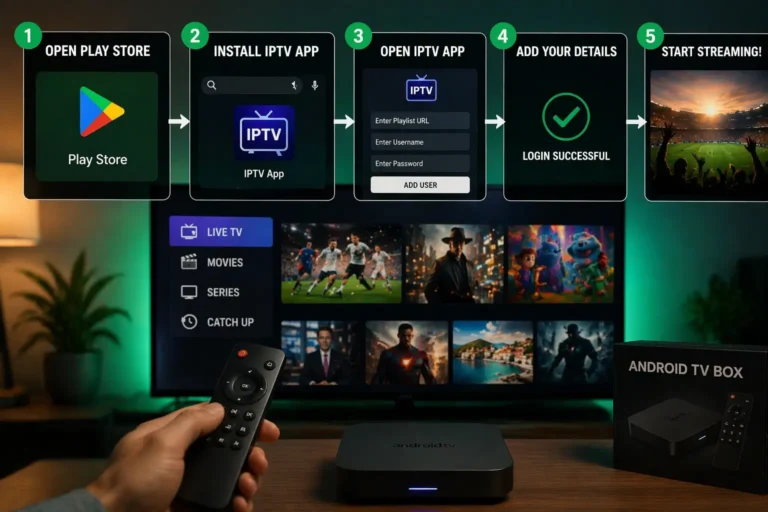
To install IPTV on a Firestick, first allow third-party apps in the developer options, install the Downloader tool from the Appstore, use it to download an IPTV player’s installation file, then open that player and connect your source with an M3U link or Xtream Codes credentials. The whole process takes about ten minutes. Every button to press is detailed below.
The Fire TV Stick is by far the most popular device for IPTV: it is inexpensive, plugs into any TV with an HDMI port, and turns an ordinary television into a connected one. Its only catch is that most IPTV players do not appear in Amazon’s Appstore, so you install them manually, a process called sideloading that is not difficult once you follow the steps in order.
The player itself provides no channels: it displays a legitimate, authorized source that you point it to, as an M3U link or Xtream Codes login. Here is the full path, from the first setting to your first channel.
Before you start
Gather the following; almost every failed install comes down to one of these being missing.
- A Fire TV Stick plugged in, connected to Wi-Fi, and up to date.
- Your IPTV Subscription with your Xtream Codes credentials (server URL with its port, username, password) or your full M3U link.
- Your EPG guide link, if your source provides one separately.
- A stable internet connection (25 Mbps for HD, 50 Mbps or more for 4K).
- A legitimate, authorized content source behind those credentials.
Step 1 — Allow third-party apps
By default, the Firestick refuses apps from outside the Appstore. You lift this restriction once.
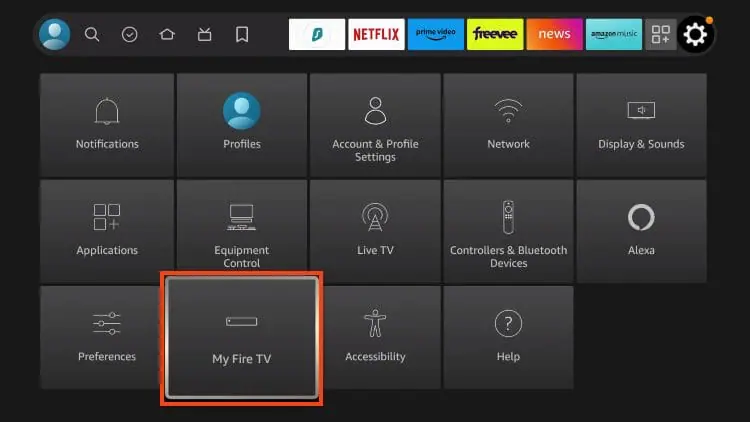
From the home screen, land on the Settings icon (the gear, at the top).
Select “My Fire TV” (or “Fire TV” depending on the version).
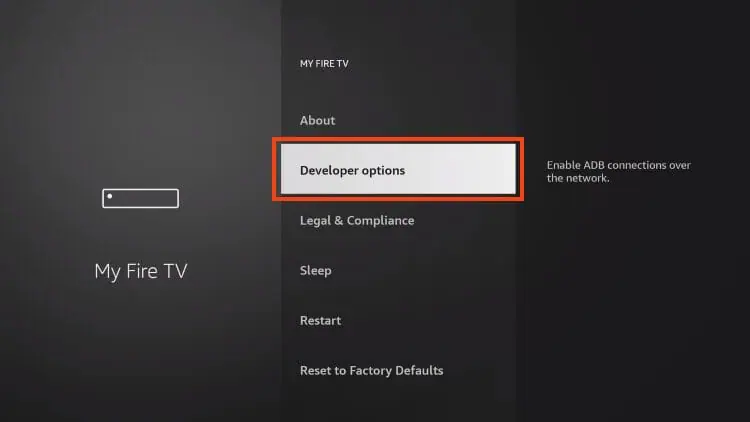
Open “Developer Options.”
If it is missing, open “About,” land on your device name, and press the center button 7 times to unlock it.
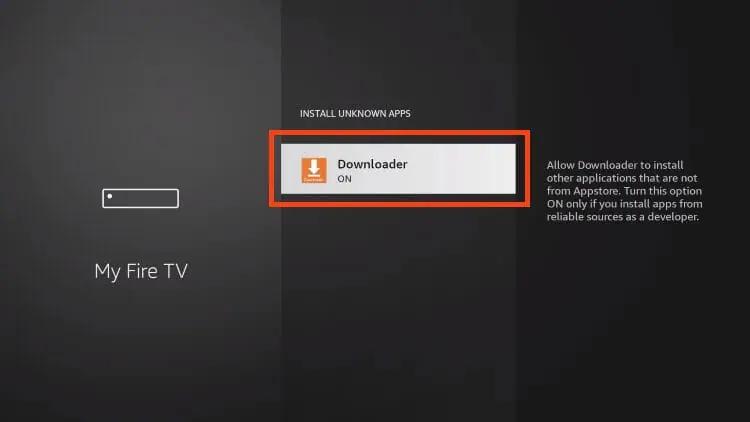
Select “Install Unknown Apps.”
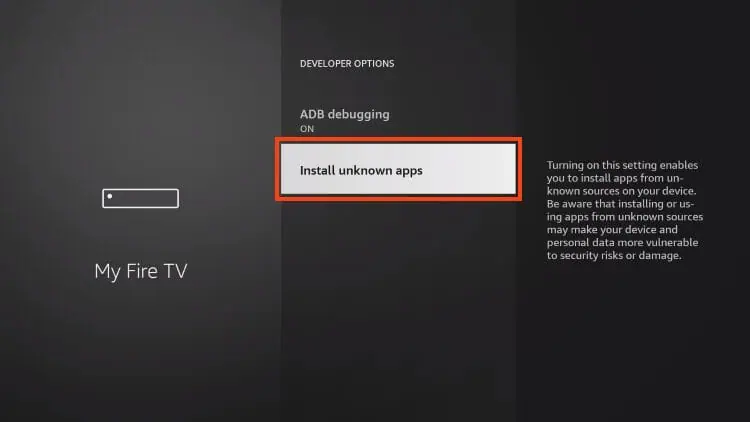
In the list, enable the permission for the app you will use, usually “Downloader.”
On some older versions, a single “Apps from Unknown Sources” toggle appears instead: select it, then confirm with “Turn On.”
Step 2 — Install the Downloader tool
Downloader is the app that will fetch your IPTV player’s installation file. It is free and officially in the Appstore.
Return to the home screen and select the search magnifier, top left.
Type “Downloader,” then select the orange-icon app.
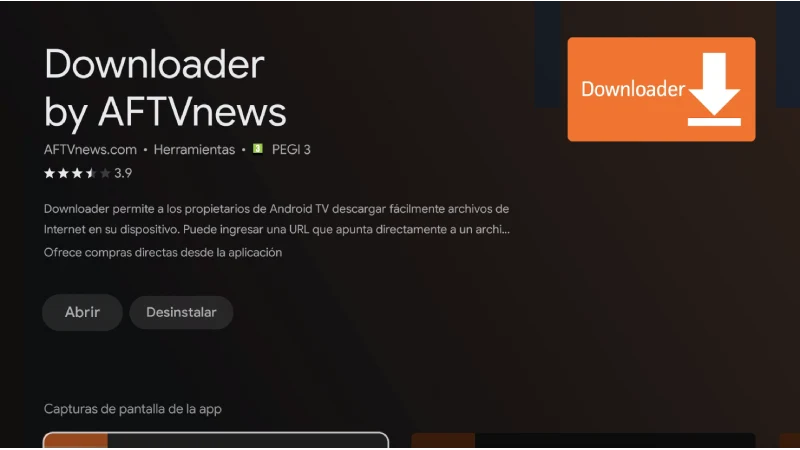
Press “Get” or “Download” and wait.
Open Downloader, then allow file access if the app asks.
Step 3 — Download and install the IPTV player
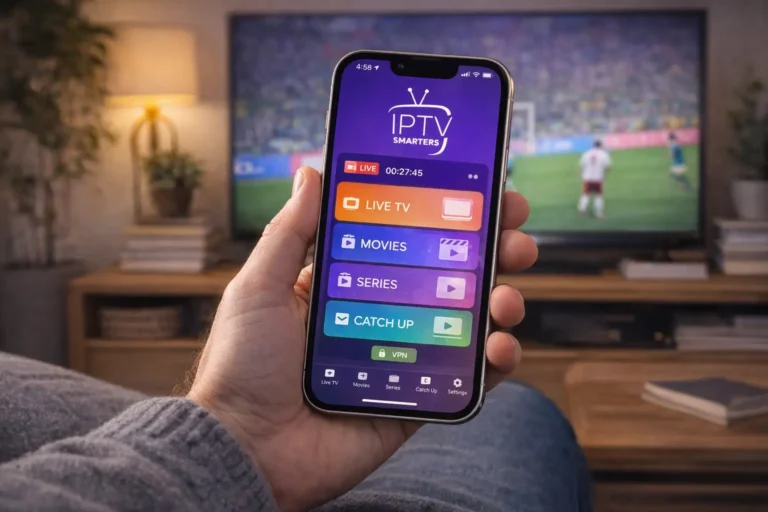
Now you fetch the player of your choice, for example IPTV Smarters Pro, one of the most used on Firestick. The steps are the same for any player.
In Downloader, land on the address field at the top of the “Home” tab.
Enter the player’s official installation-file address (from its official site like : https://www.iptvsmarters.com/download/).
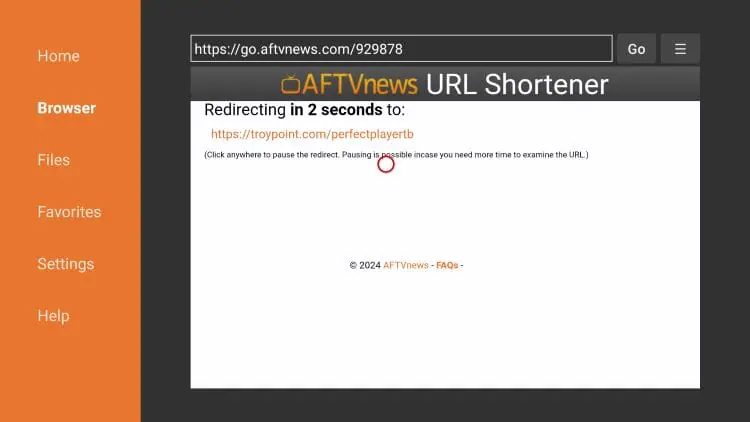
Select “Go” and let the download finish.
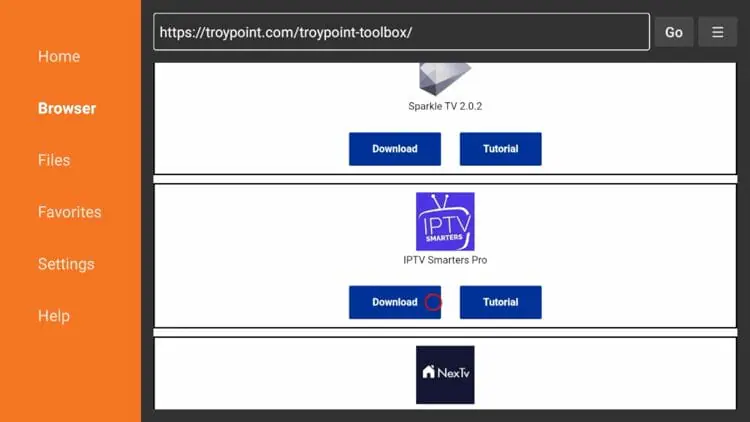
Scroll and click Download.
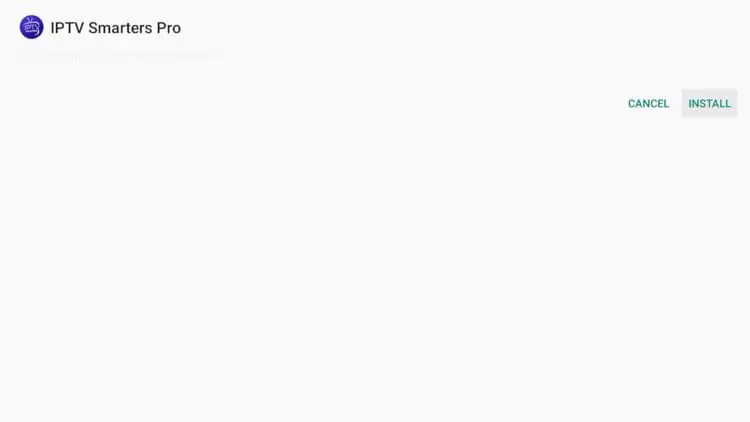
When the install window appears, select “Install.”
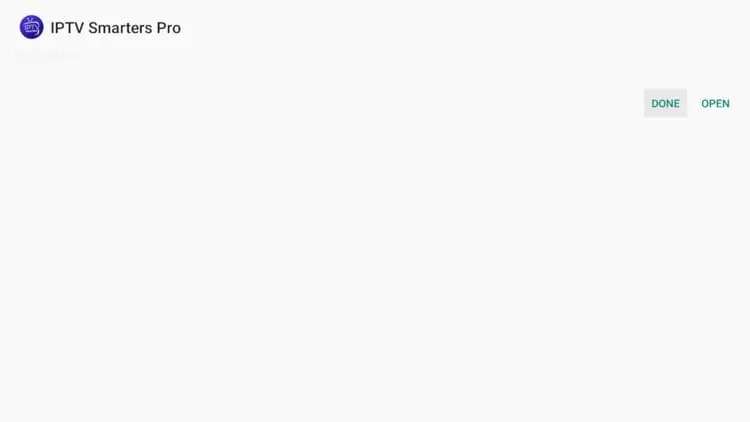
At the end, choose “Open” to launch the app, or “Done.”
Downloader then offers to delete the file: select “Delete,” then “Delete” again to free space.
Step 4 — Connect your source
The player is installed; it just needs your credentials. The steps below use IPTV Smarters Pro; they are very close on other players.
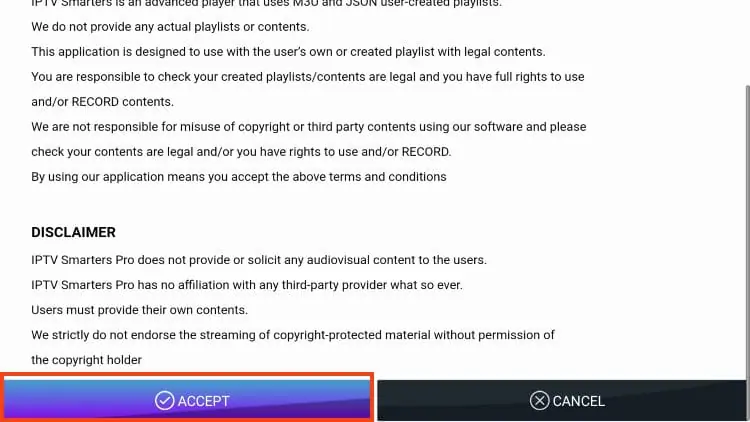
Open the player and accept the license agreement if it appears.
Choose your method: “Login with Xtream Codes API” or “Load Your Playlist or File/URL.”
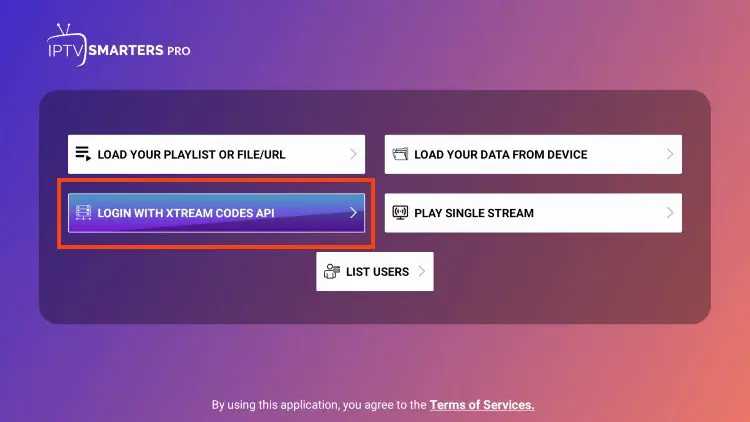
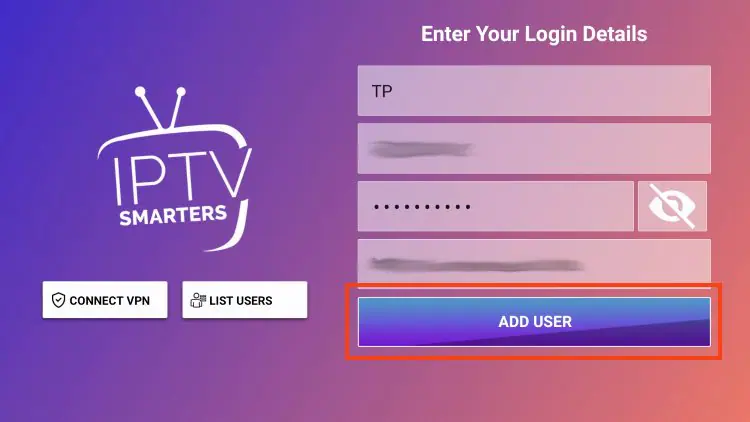
For Xtream Codes: enter any name, the server URL with its port (e.g. http://server:8080), your username, and your password.
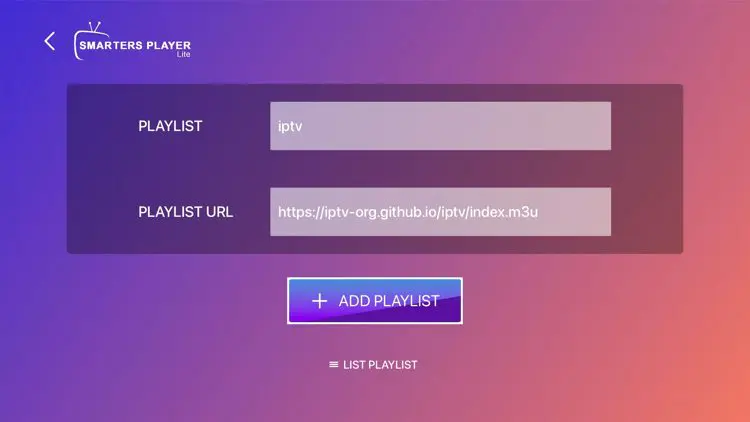
For M3U: enter any name and paste your full M3U link.
Add your EPG URL if your source provides one, then confirm with “Add User.”
Two mistakes block nearly every failed login: forgetting the port after the colon and mistyping a capital letter in the username or password. Copy every character exactly.
To choose a reliable, easy-to-use IPTV player for Firestick, read our article “What Is the Best IPTV App for Firestick?”
Set up the guide and organize your channels
Once your source loads, a few settings make things far more comfortable. The program guide shows the current and upcoming shows, just like a cable box, and favorites save you long scrolls.
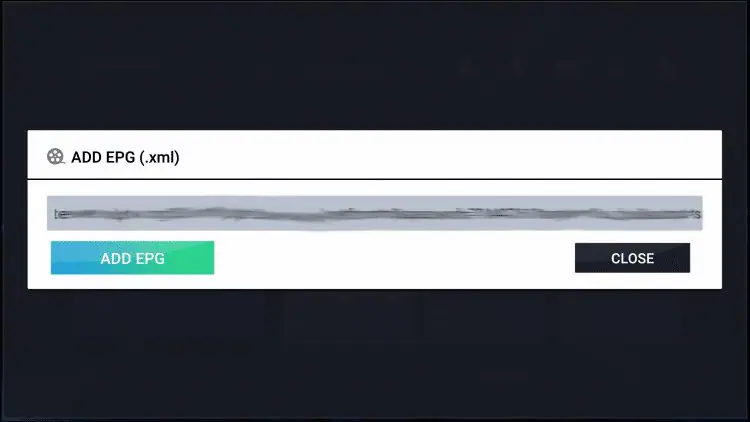
Add the EPG URL in the settings if the guide is empty, then fix the time zone when the times look off. Group your favorite channels and hide the categories you do not use.

If a channel freezes, open its options and switch the internal player, hardware or software decoder, until one plays.
Do you need a VPN on Firestick?
This is a frequent question among Firestick users. A VPN is not required to watch IPTV, and it can even slightly reduce speed because of encryption.
It does help in two cases, though: if your internet provider throttles video traffic at peak hours, a VPN can bypass that throttling; and if you value privacy, it hides the detail of your activity.
On Firestick, a VPN installs like any app, from the Appstore or by sideload. So it is a personal choice, useful in some situations, unnecessary in others, never a mandatory prerequisite.
For more information about IPTV and VPN please check the following article about “Do You Need a VPN for IPTV” ?
Is it safe and legal?
Sideloading apps on Firestick is perfectly safe on one condition: only download files from trusted sources. IPTV players like the one in this example are neutral, content-free apps, much like a web browser; using them is legal.
What determines the legality of your viewing is the source you connect to: one that holds the rights to what it streams keeps you on the right side, while services that rebroadcast copyrighted content without permission are the ones that cause problems.
As a precaution, install your players from their official sites and stick to a transparent, authorized source.
When something goes wrong
Most problems have a quick fix. If the install fails, check that “Install Unknown Apps” is enabled for Downloader. If nothing loads after login, recheck the server URL, port, and credentials, character by character.
If the picture buffers, prefer a wired Ethernet connection through a compatible adapter, or move the Firestick closer to the router, and lower the resolution if needed.
If the device gets slow, close background apps and restart it, since the Firestick’s memory is limited. Finally, a lack of storage can block an install, deleting the installation files you already used fixes that.
FAQ
Why do I have to use Downloader and sideload?
Because most IPTV players are not in Amazon’s Appstore. Downloader fetches their official installation file after you allow unknown apps.
Do I need a subscription to use the player?
The player provides no channels. You must connect a legitimate, authorized source that supplies your Xtream Codes or M3U link.
Is a VPN required?
No. It can help against ISP throttling or for privacy, but IPTV works without it.
M3U or Xtream Codes — which should I choose?
Both work. M3U pastes into one field, while Xtream Codes often organizes channels, movies, and series better. Use the format your source gave you.
A channel won’t start — what do I do?
Open its options and switch the internal video player (hardware or software decoder), clear the cache, and check your credentials.
The install fails partway through — why?
Often a lack of space, or the “Install Unknown Apps” permission is off. Free up space and check that setting.
What internet speed do I need?
At least 25 Mbps for HD, and 50 Mbps or more for 4K, especially at peak hours.
Conclusion
Installing IPTV on a Firestick comes down to four steps: allow third-party apps, install Downloader, fetch a player, then connect your source with an M3U link or Xtream Codes login. The only twist is the sideload, which looks intimidating at first but takes just a few clicks once you know where to press.
The rest, guide, favorites, smooth picture, is a matter of settings and connection. Keep in mind that the player is only a shell: it is the content source, legitimate and authorized, that makes your setup worthwhile, and a solid connection that makes it comfortable. With both in place, your Fire TV Stick easily rivals a traditional set-top box.