To install IPTV on an Android phone or tablet, open the Google Play Store, install an IPTV player app such as OTT Navigator, open it, choose “Add playlist,” and connect your source with an M3U link or Xtream Codes credentials, your channels then load in a couple of minutes. The full step-by-step, button by button, follows below.
Android is the most flexible platform for IPTV, the Play Store hosts a wide range of player apps, installation is instant, and you can watch on the go or cast to a bigger screen.
The one thing to keep in mind is that the app is only a player, it holds no channels of its own and simply displays a legitimate, it holds no channels of its own and simply displays a legitimate, authorized source like an IPTV subscription, in the form of an M3U link or Xtream Codes login.
This guide walks through choosing an app, installing it, adding your source, tuning the settings, and fixing the most common issues.
What you need before you start
Gather these first, most setups that fail do so because of a missing detail here, not the app.
- An Android phone or tablet with a stable internet connection (25 Mbps for HD, 50 Mbps or more for 4K).
- Your Xtream Codes credentials (server URL with its port, username, password) or your full M3U link.
- Your EPG (XMLTV) guide URL, if your source provides one separately.
- A legitimate, authorized content source behind those credentials.
Step 1 — Choose and install an IPTV player app
Start by picking a player from the Play Store. Several are excellent and free at least in their basic version, so the choice comes down to how much you want.
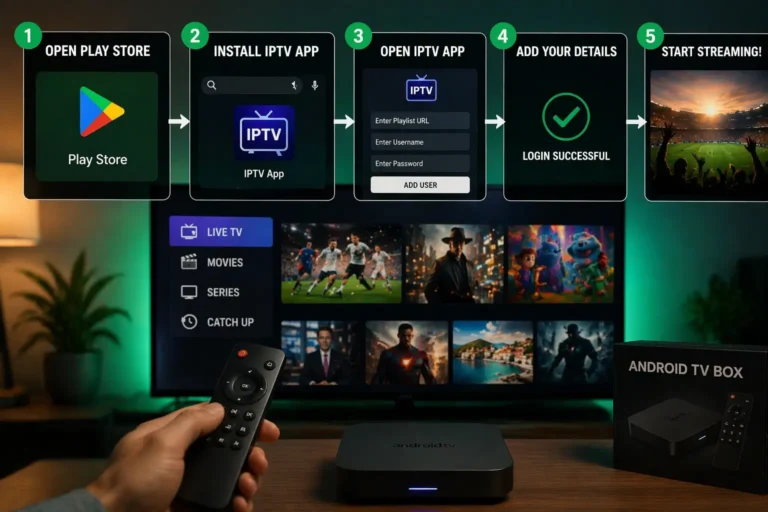
Open the Google Play Store on your phone or tablet.
Tap the search bar and type the name of an IPTV player available on the store, such as “OTT Navigator”
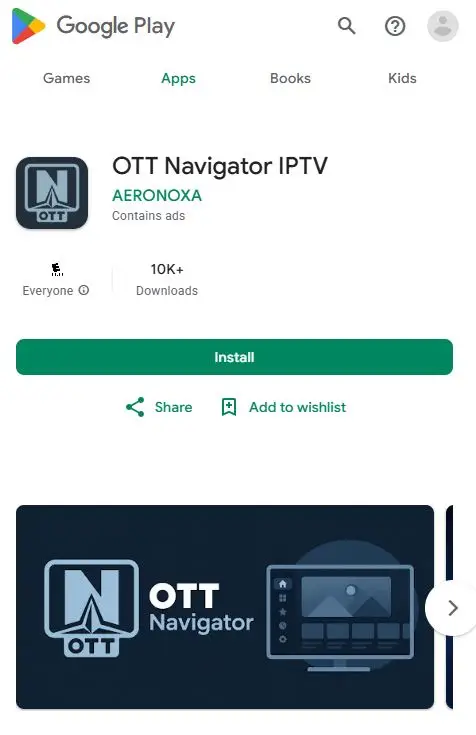
Check the publisher carefully, then tap “Install.”
Wait for the download to finish, then tap “Open.”
Heads-up: some popular players, including IPTV Smarters Pro are no longer reliably on the Google Play Store, and several lookalike copies use their name.
If your player isn’t on the store, install it from its official APK instead (see the next step), and be wary of imitations.
Step 2 — Add your source (M3U or Xtream Codes)
This is the step that links the app to your content. Both formats work; use the one your source gave you, and copy every detail exactly.
On the home screen, tap the “Setting” icon.
Click on “Add provider“
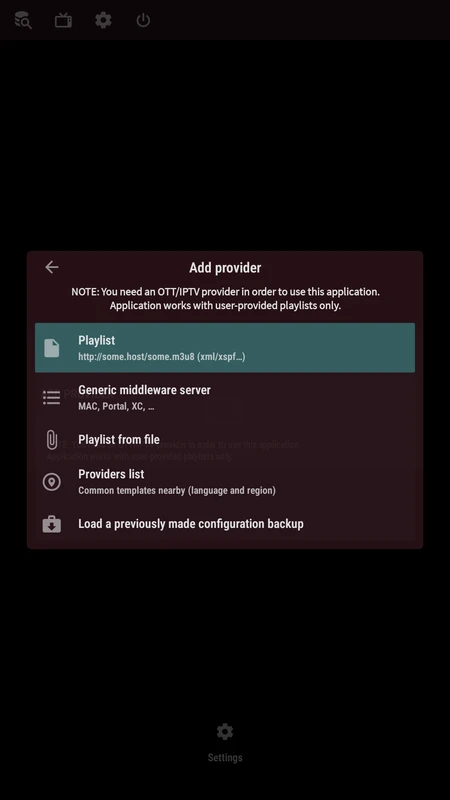
Choose “Playlist“.
Choose the method: “Xtream Codes” or “M3U playlist.”
For Xtream Codes: enter any name, the server URL with its port (e.g. http://server:8080), your username, and your password.
For M3U: enter any name and paste your full M3U link (it starts with http:// or https://).
Add your EPG URL if your source provides one separately.
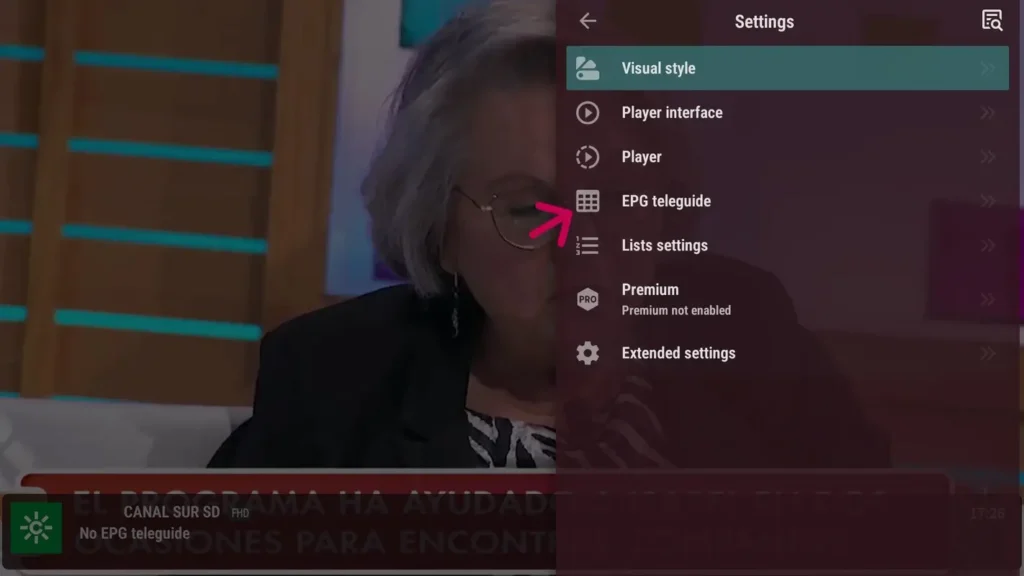
Confirm, and wait while the app imports your channels, movies, series, and guide.
The two mistakes that block almost every failed login are forgetting the port after the colon (often :8080) and getting a capital letter wrong in the username or password. Check those first if nothing loads.
Manage subtitles and audio
Start a channel or program.
Show the on-screen controls with a press (or tap).
Press the subtitles icon to choose a track or turn them off.
Press the audio icon to switch language if several are available.
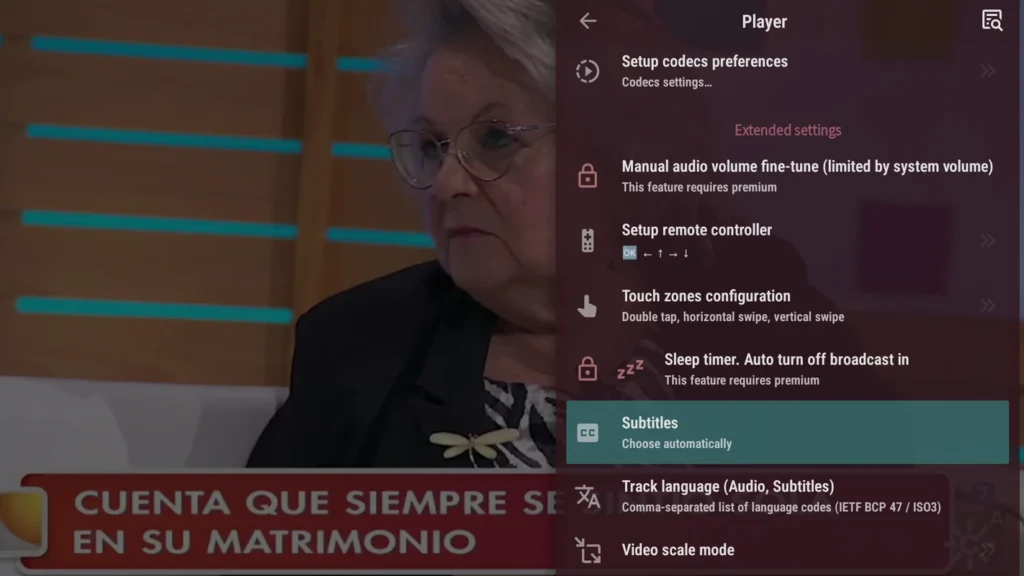
Note: subtitles and audio tracks only appear if the channel or program actually offers them, their presence depends on the broadcaster, not the app.
To change subtitles or switch the audio language in more detail, open any stream and bring up the playback controls, then look for the speech-bubble (subtitles) and the audio/speaker icons.
Tapping the subtitles icon lists every subtitle track embedded in that stream, so you can pick a language, switch between them, or turn subtitles off entirely; some sources also let you load an external subtitle file from your device.
Tapping the audio icon does the same for sound: if the channel or program is broadcast with more than one audio track, for example an original-language track and a dubbed one you select the language you want from the list.
If only one option shows, the stream simply carries a single track, and no setting in OTT Navigator can add one that the source does not provide. When subtitles or audio drift out of sync, OTT Navigator also offers a delay adjustment in the same controls to nudge them back into line.
Popular IPTV apps for Android phones and tablets
Any of these will do the job; they differ mainly in features and polish.
| App | Where to get it | Free version | EPG | Catch-up |
| OTT Navigator | Play Store | Yes (premium option) | Yes | Yes |
| GSE Smart IPTV | Play Store | Yes | Yes | No |
| XCIPTV | Play Store / APK | Yes | Yes | Yes |
| IPTV Smarters Pro | Official APK | Yes | Yes | Limited |
Set up the guide and organize your channels
A few settings make daily use far nicer. Add your EPG (XMLTV) URL in the settings if the guide is empty, then refresh so the current and upcoming programs appear beside each channel. If the times are off by an hour, fix your time zone in the settings, that is almost always the cause.
Create a favorites list for the channels you watch most, and hide the categories you never use so you are not scrolling through thousands of entries. If a channel stutters or will not start, open its options and switch the internal player or decoder until one plays cleanly.
Watch on the big screen from your phone
One advantage of Android is how easily you can move to a TV. If your player supports casting, and your phone and a Chromecast or Google TV are on the same Wi-Fi network, tap the cast icon and pick your device to send the stream to the television.
Alternatively, most Android phones offer screen mirroring (sometimes called Smart View) that mirrors the whole display to a compatible TV. Both let you start on your phone and finish on the big screen, though a dedicated app installed directly on the TV is smoother for regular viewing.
Troubleshooting common issues
- Nothing loads after adding the playlist: recheck the server URL, port, and credentials, respecting capital letters.
- The picture buffers: switch to Wi-Fi 5 GHz or move closer to the router, and let the app adjust quality to your connection.
- A channel freezes or will not start: change the internal player or decoder (hardware or software) in its options.
- The guide is empty or wrong: add the XMLTV URL and correct the time zone.
- The app feels slow: clear its cache in the settings and restart the device.
FAQ
Which app is best for IPTV on Android ?
OTT Navigator and IPTV Smarters Pro are among the most popular, the first is on the Play Store, while Smarters is now installed from its official APK. Any well-rated player works.
Why isn’t IPTV Smarters Pro on the Play Store ?
App stores have removed several IPTV players in recent years, and lookalike copies often take their place. Download IPTV Smarters Pro from its official website as an APK, and avoid imitations that can steal your subscription details.
Do I need a subscription to use these apps ?
Yes, in the sense that the app provides no channels. You must connect a legitimate, authorized source with an M3U link or Xtream Codes login.
Are these IPTV apps free ?
Most are free at least in a basic version, with optional premium tiers. The app is always separate from your content source.
M3U or Xtream Codes — which should I use ?
Both work. M3U is simplest to paste, while Xtream Codes usually organizes channels, movies, and series better and often loads the guide automatically. Use the format your source gave you.
Why is my channel freezing?
Usually, the issue comes from your internet connection or the video decoder. Improve your Wi-Fi signal, use an Ethernet connection when possible, or switch the internal player or decoder in the channel settings. If the stream still freezes or buffers, follow our complete guide: How to Fix IPTV Buffering Issues ?
Can I watch my phone’s IPTV on my TV?
Yes. You can cast to a Chromecast or Google TV, or use screen mirroring. For regular viewing, however, installing an IPTV player directly on the television usually provides a smoother and more stable experience. For step-by-step instructions, read our guide: How to Install IPTV on Smart TV ?
How do I fix a guide that is one hour off?
Set your local time zone in the app’s EPG settings. Wrong times are a display issue tied to your zone.
Conclusion
Installing IPTV on an Android phone or tablet is quick and beginner-friendly: pick a player from the Play Store, accept the first-launch prompts, and add your source with an M3U link or Xtream Codes login.
From there, a little organizing, favorites, the guide, the right decoder, turns it into a proper pocket television, and casting or mirroring lets you move to the big screen whenever you like.
As always, remember that the app is only a tool: the quality and legitimacy of your experience depend above all on the source you connect to and the stability of your connection.