To set up IPTV on a Formuler box, you open the built-in MYTVOnline app, add a portal using your M3U link or Xtream Codes, and let your channels load.
Formuler boxes are made with IPTV in mind, so the process is quick and needs no technical skills: no rooting, no complicated tweaks, just an app and a stable connection.
In a few minutes you get live channels, a program guide, and on-demand content right on your television. With a reliable IPTV Subscription that gives you clear login details and stable servers, the setup is even smoother. This step-by-step guide walks you through the whole process, from plugging in the box to fixing common issues.
Step 1: Connect and power on the box
Start by setting up your Formuler box physically and turning it on. This takes only a couple of minutes and prepares everything for the rest of the setup. Once the box is connected to your TV and powered up, you are ready to get online.
Connect the box to your TV with an HDMI cable.
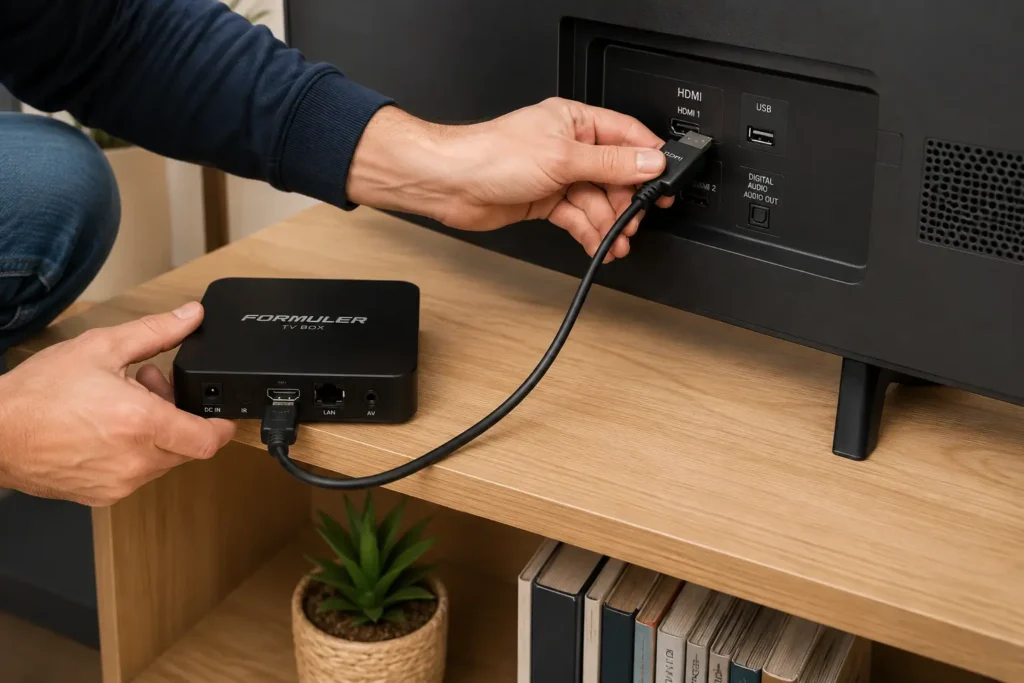
Plug in the power supply and turn the box on.
Select the correct HDMI input on your television.
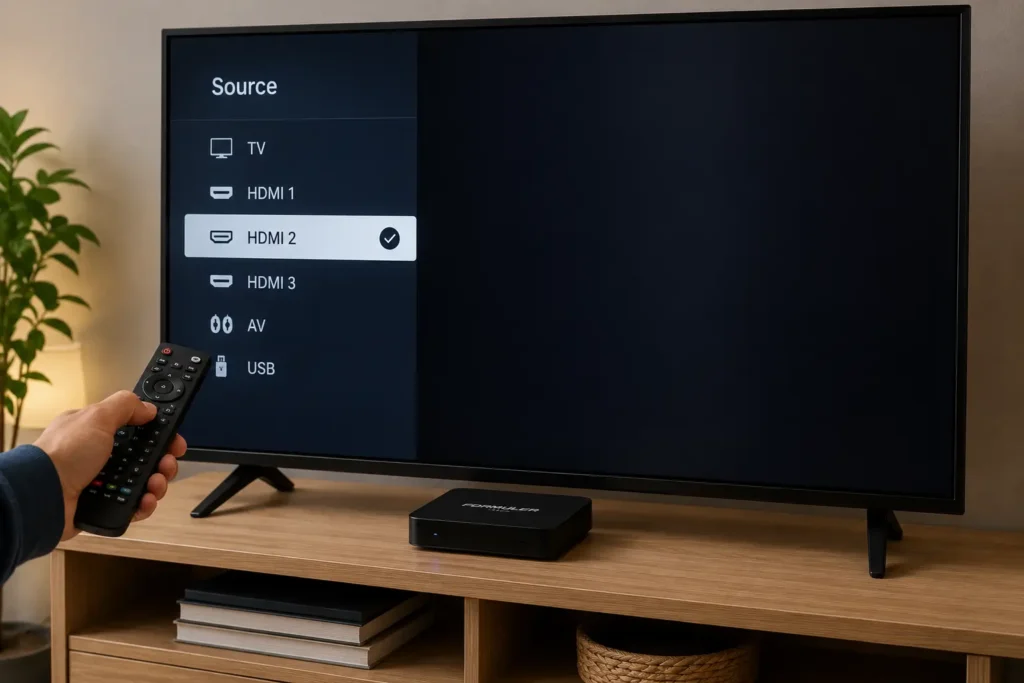
Follow the on-screen startup wizard.
Step 2: Connect the box to the internet
The box needs a stable connection to stream IPTV without interruptions. You can use Wi-Fi, but a wired Ethernet connection is more stable, especially for high definition. It is also worth keeping that home network secure.
Connect the box to your router with an Ethernet cable for stability.
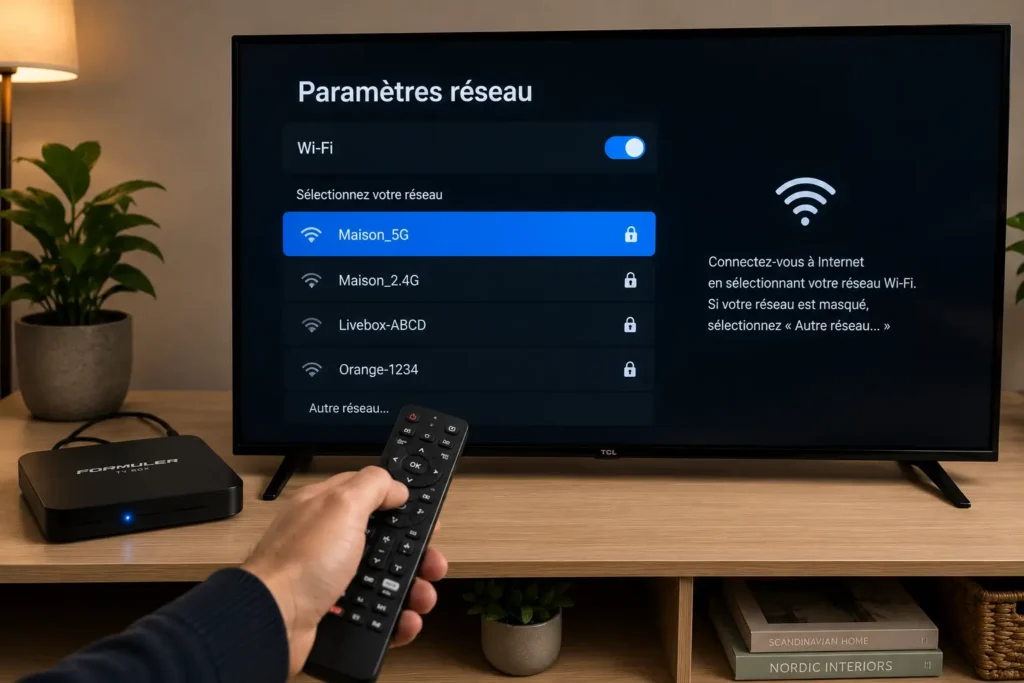
Or open the Wi-Fi settings and select your network.
Enter the password and confirm the connection.
Keep your network protected; the University of Toronto recommends a strong router password and encryption, trusted Canadian guidance for any connected device.
Step 3: Update the system and the MYTVOnline app
An up-to-date box runs better and avoids many playback problems. Updates fix bugs and improve the stability of the IPTV app, so it is best to install them before adding your subscription. This quick check saves time later.
Open the box’s settings menu.
Check for system updates and install any available.
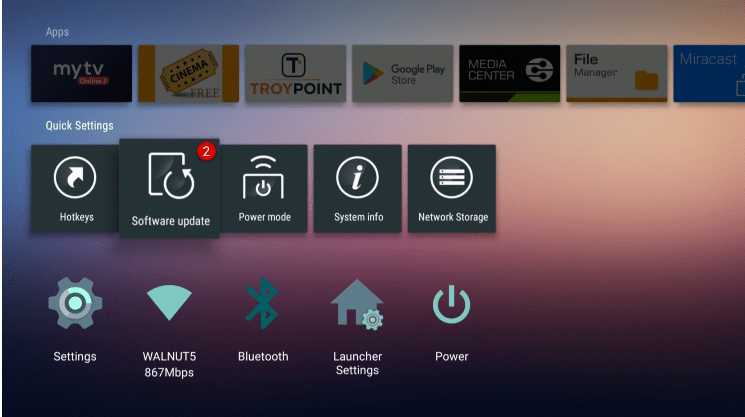
Confirm the MYTVOnline app is on its latest version.
Restart the box after updating.
Step 4: Get your IPTV details from your provider
Your provider gives you the access details needed for setup. Depending on the service, this is an M3U link or Xtream Codes, and sometimes a portal address. These details are the key to your configuration, so keep them handy and error-free.
An M3U link, or Xtream Codes (URL, username, password).
Sometimes a portal address to enter directly.
Write the details down without any typos.
New to playlists? See our M3U IPTV setup guide.
Step 5: Open the MYTVOnline app
MYTVOnline is the IPTV app built into every Formuler box. It is where you add your portal and manage your channels, so all the configuration happens here. Once it opens, look for the option to add a portal or playlist.
Return to the box’s home screen.
Open the MYTVOnline app.
Wait for the interface to load.
Find the portal or playlist management menu.
Step 6: Add a new portal or playlist
This is the step that links your box to your subscription. The app asks you to choose the connection type that matches your access details. A clearly named profile helps you stay organized, especially if you manage more than one subscription.
Choose the option to add a portal or playlist.
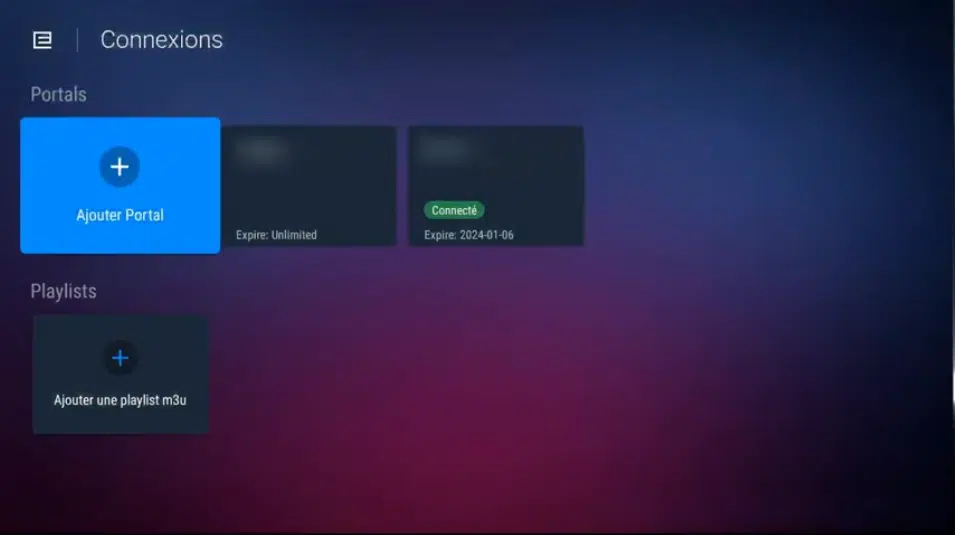
Select the connection type: Xtream Codes, M3U, or portal.
Give the profile a clear name.
Confirm to move on to entering your details.
Step 7: Enter your login details
Accuracy matters most here, since a single mistake will block the connection. Enter your details exactly as your provider gave them to you. Where possible, copy and paste your link to avoid typing errors.
For Xtream Codes, enter the URL, username, and password.
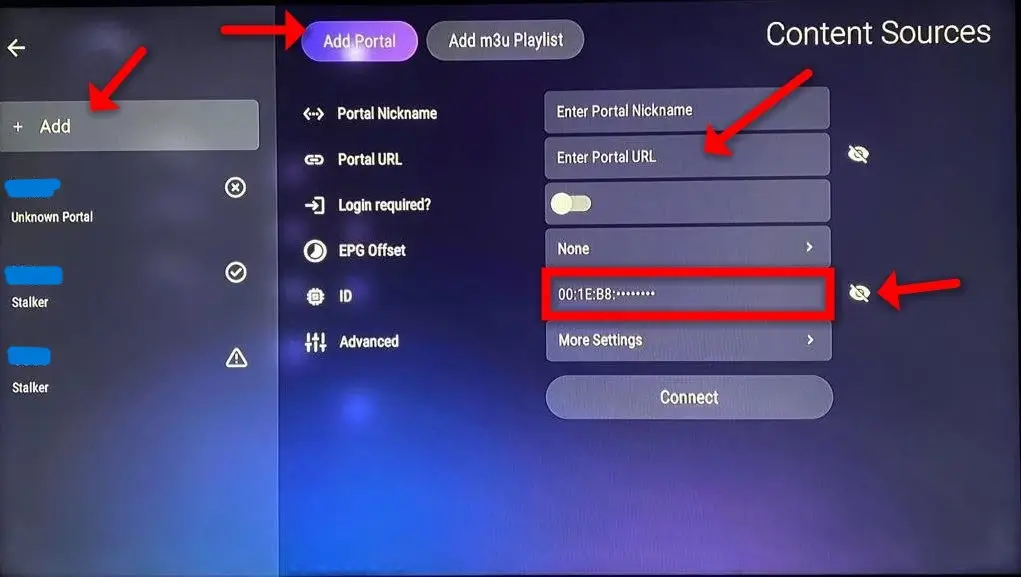
For an M3U link, paste the full address.
Double-check for spaces or typos.
Confirm to connect to the server.
Step 8: Load and organize your channels
Once connected, the box pulls in your channel list. A little organization makes daily browsing much easier, so take a moment to sort things to your taste. A few settings are all it takes.
Wait for the channel list to finish loading.
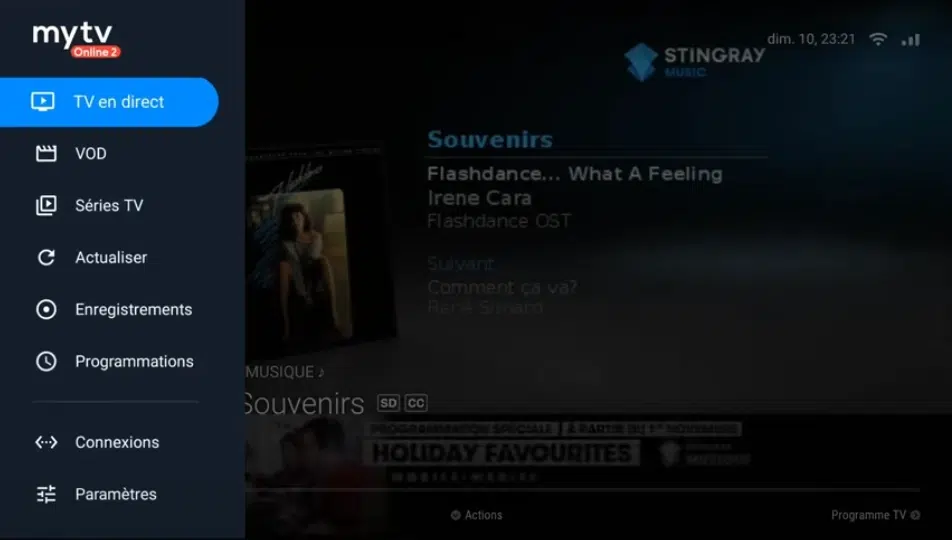
Sort channels into categories like sports, movies, and kids.
Create a favourites list for quick access.
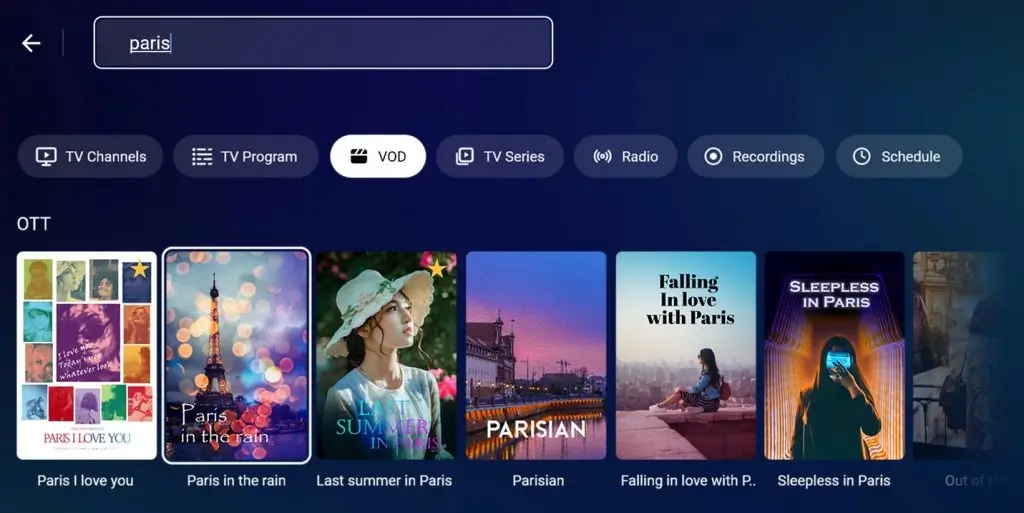
Hide categories you never watch.
Step 9: Set up the program guide and picture quality
The program guide and quality settings complete your setup. The guide (EPG) shows what is on and when, while the quality settings adapt playback to your TV and connection. Both are found within MYTVOnline.
Turn on the program guide (EPG) in the settings.
Confirm it shows the correct show times.
Adjust the resolution to suit your TV and connection.
Increase the buffer if the picture freezes.
Step 10: Test playback and troubleshoot
A final check confirms everything is working before you settle in. Most issues are solved with a few simple steps, and if one persists, your provider can confirm your access. Run through this short list to be sure.
- Open a few channels to test playback.
- If the picture freezes, check your speed and raise the buffer.
- If a channel is missing, refresh the list or portal.
- For a connection error, recheck your login details.
Frequently asked questions (FAQ)
Do I need a special app for IPTV on a Formuler box?
No, the box already includes the MYTVOnline app, which is built for IPTV. You simply add your login details to start watching, with nothing extra to download in most cases.
What details do I need to set up IPTV?
You need an M3U link or Xtream Codes (URL, username, and password), and sometimes a portal address. Your provider supplies these when you subscribe.
Is Wi-Fi or Ethernet better for a Formuler box?
Ethernet is more stable and reduces interruptions, especially in high definition. Wi-Fi still works if the signal is strong and the box is near the router.
Why won’t my channels load?
Usually it is a mistyped detail, an expired subscription, or an unstable connection. Check those first, then refresh the portal or contact your provider.
How do I show the program guide?
Turn on the guide (EPG) in the MYTVOnline settings. Once set, it displays show times and descriptions for your channels.
Can I save more than one profile?
Yes, you can add several portals or playlists and switch between them. This is handy for more than one subscription or for different users.
The picture keeps freezing. What can I do?
Check your internet speed, raise the buffer in the settings, and use a wired connection. Restarting the box often clears temporary slowdowns.
Conclusion
Setting up IPTV on a Formuler box is quick and straightforward: a well-connected box, the MYTVOnline app, and valid login details are all you need to enjoy your channels.
Follow these ten steps for a smooth, well-organized installation that is ready to use on the big screen. For the best experience, favour a stable connection, keep your app updated, and choose a reliable, transparent provider.